Remove Steam Cache to Resolve SteamTools Purchase Glitch
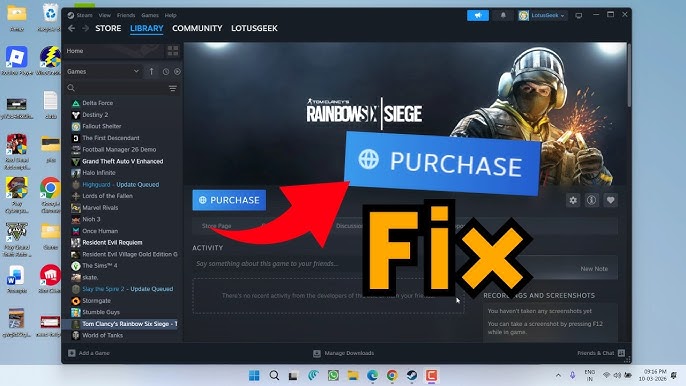
Why SteamTools Shows “Purchase” Instead of “Play”
When SteamTools adds a title to your library, Steam should instantly list it as Play. A common hiccup after a Steam update is the button swapping to Purchase, locking the game behind a paywall. The culprit? A stale or corrupted download cache that misleads Steam’s ownership checks.
Understanding the Cache Problem
Steam’s cache stores temporary download chunks, manifest files and ownership data. If a recent update changes how the client validates licenses, an outdated cache can present the wrong status. Clearing the cache forces Steam to re‑download fresh verification data, aligning the button with your actual ownership.
Step‑by‑Step: Clearing the Steam Download Cache
Follow these quick actions to purge the cache and restore normal button behavior.
- Locate the Cache Folder: By default Steam stores temporary files in
C:Program Files (x86)Steamsteamappsdownloadingon Windows or~/Library/Application Support/Steam/steamapps/downloadingon macOS. If you installed Steam elsewhere, navigate to that custom path. - Ensure Steam Is Fully Updated: Open Steam, click Steam → Check for Updates. A fresh client version eliminates many compatibility hiccups.
- Close Steam Completely: Right‑click the Steam icon in the system tray and choose Exit. Confirm any prompts that ask to close background processes.
- Delete the “downloading” Directory: Select the folder and press Delete or move it to the Trash. This removes all cached download chunks, manifest files, and temporary data.
- Restart Steam: Launch the client again. Steam will rebuild the cache from scratch, re‑validating your library contents.
- Verify Game Files (Optional): For games already in your library, right‑click, select Properties → Local Files → Verify Integrity of Game Files. This ensures any corrupted assets are re‑downloaded.
- Check for Conflicting Third‑Party Tools: Disable or uninstall other library‑manipulation programs that might interfere with SteamTools’ changes.
FAQ
Where is the Steam cache located? The cache resides inside your Steam installation, typically under steamapps/downloading, but the exact path depends on your OS and custom install location.
How often should I clear the cache? Only when you encounter errors like the purchase button glitch. Routine clearing can slow your next download because the cache must be rebuilt.
Does clearing cache log me out of Steam? No. Removing temporary files has no effect on your login session; it only wipes transient data that Steam recreates on launch.
Read the full guide: How to Fix SteamTools Purchase Error: Games Show “Purchase” Instead of “Play”