How to Clear Cache on iPhone: A Complete Step-by-Step Guide
Why Cache Matters
If your iPhone feels sluggish, frequently displays storage warnings, or loads websites unpredictably, clearing the cache is one of the most effective troubleshooting steps you can take.
What exactly is cache? Cache comprises temporary data stored by browsers, applications, and system services to accelerate loading times and improve responsiveness. For example, Safari saves images and scripts from frequently visited websites so they load faster on subsequent visits. While this is beneficial in the short term, accumulated cache can consume significant storage space and introduce performance bottlenecks over time.
This comprehensive guide walks you through six proven methods to clear cache on your iPhone—whether it is browser data, app clutter, or system-level temporary files.
Method 1: Clear Safari Cache and Website Data
Safari is the default browser on iPhone and tends to accumulate the most cached data. Here is how to clear it completely.
Step-by-Step Instructions:
-
Open the Settings app on your iPhone.
-
Scroll down and tap Apps (on iOS 18 and later) or directly tap Safari (on older iOS versions).
-
Scroll down and tap Clear History and Website Data.
-
Confirm your choice by tapping Clear History and Data.
⚠️ What this removes: Browsing history, cookies, and cached web files. This action will sign you out of most websites, so keep your login credentials handy.
Method 2: Advanced Safari Website Data Removal
If you prefer to clear data from specific websites rather than wiping everything, Safari offers granular control through its Advanced settings.
Step-by-Step Instructions:
-
Navigate to Settings > Apps > Safari (or Settings > Safari on older iOS).
-
Scroll to the bottom and tap Advanced.
-
Tap Website Data.
-
You will see a list of all websites storing data on your device. To remove individual sites, swipe left on a site and tap Delete.
-
To clear everything, tap Remove All Website Data at the bottom and confirm.
Pro Tip: This method is ideal if you want to preserve autofill information and passwords for trusted sites while clearing clutter from suspicious or rarely visited domains.
Method 3: Clear Cache from Other Browsers
If you use third-party browsers like Chrome, Firefox, Edge, Opera, or Brave, you will need to clear their caches individually within each app.
Chrome for iOS
-
Open Chrome and tap the three-dot menu (bottom-right).
-
Select History > Delete Browsing Data.
-
Choose Cached Images and Files and set the time range to All Time.
-
Tap Delete Browsing Data to confirm.
Firefox for iOS
-
Open Firefox and tap the menu (three horizontal lines).
-
Go to Settings > Data Management.
-
Toggle Cache on and tap Clear Private Data.
Microsoft Edge for iOS
-
Open Edge and tap the menu (three horizontal dots).
-
Go to Settings > Privacy and Security > Clear Browsing Data.
-
Select Cached Images and Files and tap Clear.
Opera for iOS
-
Open Opera and tap the O menu (bottom-right).
-
Go to Settings > Clear Browser Data.
-
Select Cached Images and Files and tap Clear Data.
Brave for iOS
-
Open Brave and tap the menu (three horizontal dots).
-
Go to Settings > Privacy.
-
Enable cache clearing options and tap Clear Data Now.
Method 4: Clear Cache for Individual Apps
Unlike browsers, most third-party apps (such as social media, streaming, and gaming apps) do not offer a direct “Clear Cache” button within their settings. Instead, you must use iOS’s built-in storage management tools.
Option A: Offload the App
-
What it does: Removes the app binary but preserves documents, data, and login information.
-
How to do it:
-
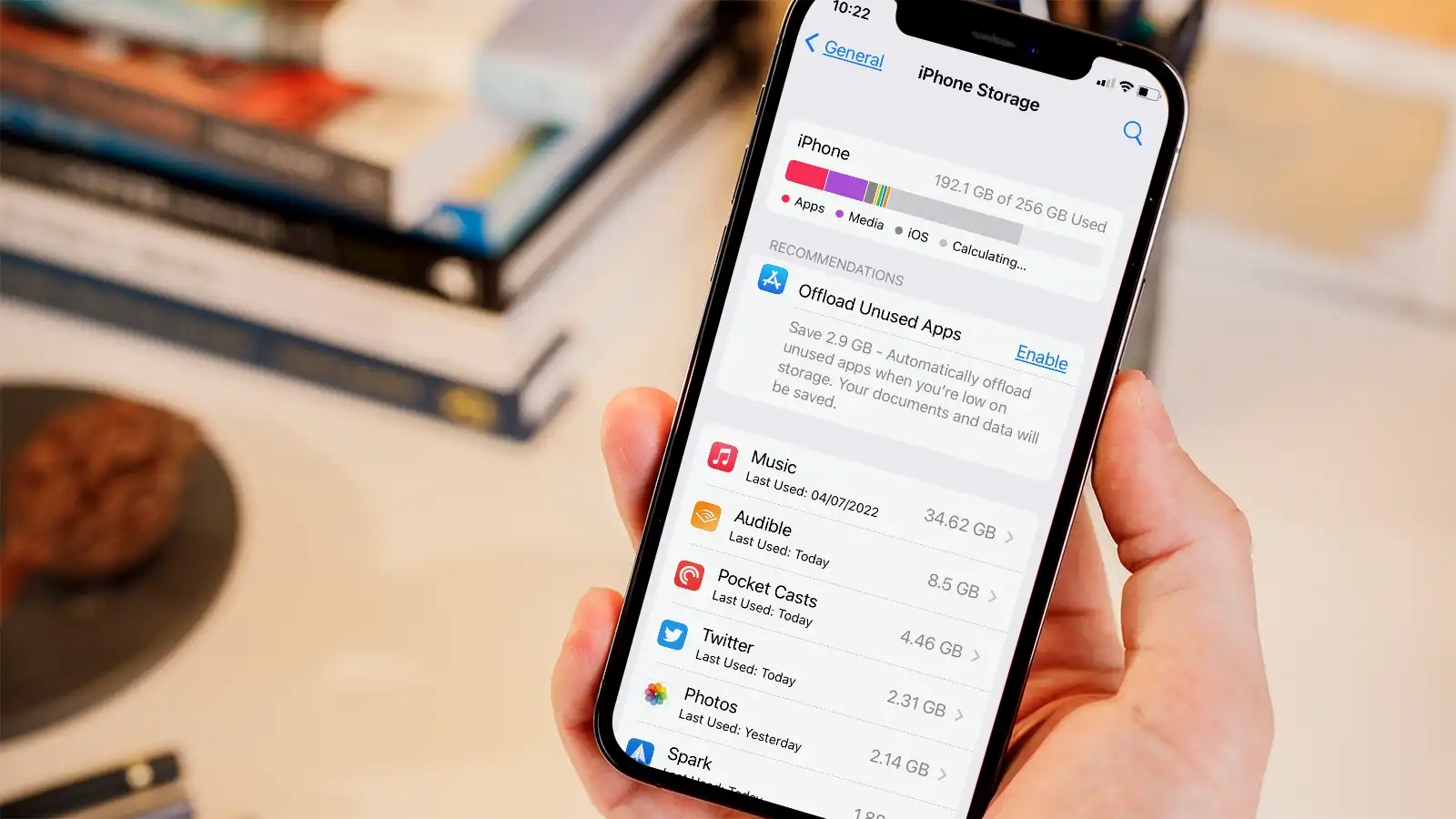
Go to Settings > General > iPhone Storage.
-
Select the app you wish to offload.
-
Tap Offload App and confirm.
-
Option B: Delete and Reinstall the App
-
What it does: Removes the app and all its associated cache and data completely. Reinstalling downloads a fresh, clean version of the app.
-
How to do it:
-
Go to Settings > General > iPhone Storage.
-
Select the app and tap Delete App.
-
Reinstall it from the App Store.
-
| Action | Removes App Binary? | Removes Cache/Documents? | Retains Logins? |
|---|---|---|---|
| Offload App | ✅ Yes | ❌ No | ✅ Yes |
| Delete App | ✅ Yes | ✅ Yes | ❌ No |
Method 5: Reset the Keyboard Cache
Your iPhone’s keyboard learns your typing patterns, slang, and custom words over time. While generally helpful, this accumulated dictionary data can occasionally cause lag or unwanted autocorrect behavior. Resetting it can restore keyboard responsiveness.
Step-by-Step Instructions:
-
Open Settings > General > Transfer or Reset iPhone.
-
Tap Reset (at the bottom).
-
Select Reset Keyboard Dictionary.
-
Enter your device passcode if prompted and confirm.
📝 Note: This action removes all custom words and learned suggestions but does not affect your iCloud Keychain or saved passwords.
Method 6: Restart Your iPhone (System Cache)
Restarting your iPhone flushes small, temporary system-level files that accumulate during normal operation. While it does not clear browser or app caches entirely, it is an excellent quick fix for minor glitches.
For Face ID Models (iPhone X and later):
-
Press and hold the Side button and either Volume button simultaneously until the slider appears.
-
Drag the slider to power off.
-
Wait 30 seconds, then press and hold the Side button until the Apple logo appears.
For Home Button Models (iPhone SE, 8, and earlier):
-
Press and hold the Power button until the slider appears.
-
Drag the slider to power off.
-
Wait 30 seconds, then press and hold the Power button until the Apple logo appears.
Quick Reference Summary Table
| Method | Target Cache | Difficulty | Time |
|---|---|---|---|
| Clear Safari Data | Browser history, cookies, cached images | Easy | 1 min |
| Advanced Website Removal | Individual site data | Easy | 2 min |
| Clear Third-Party Browsers | Chrome, Firefox, Edge, etc. | Moderate | 2–3 min |
| Offload/Delete Apps | App-specific cache and documents | Moderate | 3–5 min |
| Reset Keyboard Cache | Learned words and predictive text | Easy | 1 min |
| Restart iPhone | System temporary files | Very Easy | 1–2 min |
Pro Tips for Maintaining iPhone Storage
-
Monitor Storage Regularly: Periodically check Settings > General > iPhone Storage to see which apps are consuming the most space.
-
Offload Unused Apps: Enable Offload Unused Apps in Settings > App Store to automatically remove apps you rarely use while keeping their data intact.
-
Avoid Third-Party “Cache Cleaner” Apps: The App Store is flooded with unverified cache-cleaning utilities. Most are unnecessary or even harmful—Apple’s native storage tools are more reliable.
-
Keep Logins Handy: Clearing cache often signs you out of websites and apps. Ensure you have your passwords stored securely (e.g., in iCloud Keychain or a password manager).
-
Restart Weekly: A simple restart once a week can prevent the accumulation of system-level temporary files and keep your iPhone running smoothly.
Frequently Asked Questions
What is cache, and why should I clear it?
Cache is temporary data that apps and browsers store to speed up loading times. Clearing it frees up storage, resolves glitches, and can improve overall device performance.
Will clearing the cache log me out of websites?
Yes. Clearing Safari’s cache and website data will sign you out of most websites and remove some saved preferences. Be prepared to re-enter your login credentials.
How do I clear cache for apps that don’t have a clear option?
You have two options:
-
Offload the app to remove the binary but keep documents and data.
-
Delete and reinstall the app to remove all associated cache completely.
Does restarting my iPhone clear all cache?
Restarting flushes small system-level temporary files but does not remove browser or app caches. For those, you need to use the manual deletion methods outlined above.
Will clearing cache delete my photos or important files?
No. Clearing browser cache, app data, or keyboard dictionaries does not affect your photos, videos, or iCloud-stored documents.
Final Thoughts
Clearing the cache on your iPhone is a simple yet powerful maintenance task that can resolve app errors, recover valuable storage space, and restore responsive performance. By combining the six methods outlined above—from managing Safari data and third-party browsers to offloading apps and restarting your device—you can keep your iPhone running like new.
Remember: Regular maintenance is key. Set a reminder to check your storage and clear caches every few months to prevent performance degradation before it starts.