Fix Steam Purchase Button Instead of Play Error
Recover Your Games When Steam Shows Purchase Instead of Play
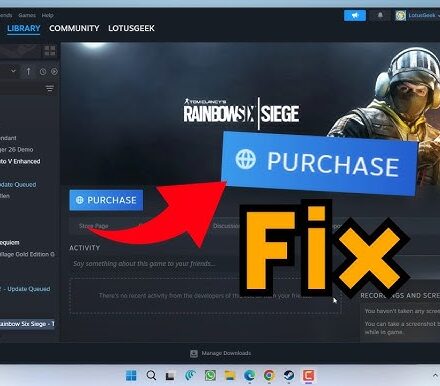
If you launch SteamTools and notice that a previously added game now displays a “Purchase” button rather than “Play,” you’re likely dealing with a validation mismatch caused by a recent Steam update or corrupted cache files. This issue can make your library appear empty and prevent you from launching the title at all. The good news is that a few quick adjustments usually restore the correct ownership label and get your game running again.
Quick Fix Steps
- Delete appinfo.vdf and packageinfo.vdf files – Navigate to %appdata%Steamconfig and remove these two VDF files. Steam will regenerate them on startup, clearing any stale ownership data that may be causing the button mislabel.
- Clear Steam download cache – Open Steam Settings > Downloads > Clear Download Cache. Confirm the deletion; this removes temporary files that sometimes interfere with license validation.
- End Steam processes and restart – Press Ctrl+Shift+Esc, locate any Steam.exe or SteamClient processes, right‑click and choose End Task, then launch Steam again. A fresh start often resolves the button confusion.
- Re‑add the game via SteamTools – After the previous steps, run SteamTools on the affected title again. This refreshes the ownership record and typically switches the button back to “Play.”
- Check for corrupted depots – If the problem persists, open your Steam library, right‑click the game, select Properties > Local Files > Verify Integrity of Game Files. Steam will re‑download any damaged depot files, fixing the label.
Frequently Asked Questions
Below are the most common questions about fixing the Steam purchase button error.
FAQ
Will ending Steam processes help?
Yes, restarting Steam clears temporary validation issues. Ending all Steam processes forces a clean slate, which often resolves the button mislabel.
Can I use Steam’s built-in tools instead?
Steam’s tools may not work if ownership data is corrupted. The built‑in library verification can sometimes help, but third‑party tools like SteamTools are more reliable for re‑adding titles.
Is this error permanent?
No, most cases are resolved by cache deletion or file removal. By clearing the problematic VDF files and caches, you typically restore normal gameplay within minutes.
Read the full guide: How to Fix SteamTools Purchase Error: Games Show “Purchase” Instead of “Play”