SteamTools Games Not Playing After Depot Change – Fix Guide

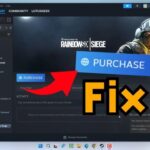
Why SteamTools Games Show “Purchase” After Depot Updates
When Steam rolls out a depot update, it can invalidate cached ownership data that SteamTools relies on to mark a title as owned. As a result, the Steam client displays a generic “Purchase” button instead of “Play,” leaving you unable to launch the game. This issue often appears suddenly after a background update, and while it feels disruptive, the underlying cause is usually a mismatch between the stored game metadata and the new depot information.
Understanding the root cause helps you apply the right fix quickly. The depot change may require Steam to re‑verify the game’s license, and the cached files that SteamTools uses (like appinfo.vdf and packageinfo.vdf) can become stale. By clearing or updating these files, you restore the correct ownership signal and let the “Play” button reappear.
Quick Fix Steps
- Delete stale VDF files – Navigate to
%APPDATA%SteamsteamappscommonSteamToolsand removeappinfo.vdfandpackageinfo.vdf. These files hold outdated metadata that the new depot no longer matches. - Clear Steam download cache – Open Steam’s settings, go to “Downloads” and click “Clear download cache.” This removes any partial or corrupted cached data that might interfere with ownership checks.
- End Steam processes and restart – Press Ctrl‑Shift‑E to open Task Manager, locate “Steam.exe” and all “SteamWebHelper” entries, end them, then launch Steam again. A fresh start ensures the client reads the updated depot information.
- Re‑add the affected games – Using SteamTools, add the problematic titles again. This forces a fresh ownership verification against the current depot.
- Verify library status – In your Steam library, right‑click each re‑added game and select “Properties” → “Local Files” → “Verify Integrity of Game Files.” This step confirms that the files match the depot’s new version.
Frequently Asked Questions
- What causes depot‑related purchase errors?
Depot updates often require Steam to re‑authenticate game ownership, and outdated cached files prevent this verification. When the client cannot confirm ownership, it falls back to displaying the generic “Purchase” button. - How long does fixing depot errors take?
Most users resolve the issue within 5‑10 minutes, including deleting VDF files, clearing the cache, and restarting Steam. Complex cases may need an extra re‑add step but still stay under fifteen minutes. - Do I need to reinstall SteamTools?
No, simply removing the cached VDF files and clearing Steam’s cache usually restores functionality. Re‑adding the games is often sufficient to refresh ownership data.
FAQ
What causes depot-related purchase errors?
Depot updates often require Steam to re-authenticate game ownership, and outdated cached files prevent this verification. When the client cannot confirm ownership, it falls back to displaying the generic “Purchase” button.
How long does fixing depot errors take?
Most users resolve the issue within 5-10 minutes, including deleting VDF files, clearing the cache, and restarting Steam. Complex cases may need an extra re-add step but still stay under fifteen minutes.
Do I need to reinstall SteamTools?
No, simply removing the cached VDF files and clearing Steam’s cache usually restores functionality. Re-adding the games is often sufficient to refresh ownership data.
Read the full guide: How to Fix SteamTools Purchase Error: Games Show “Purchase” Instead of “Play”