

Master iMessage Group Chats on iPhone and iPad: A Simple Guide
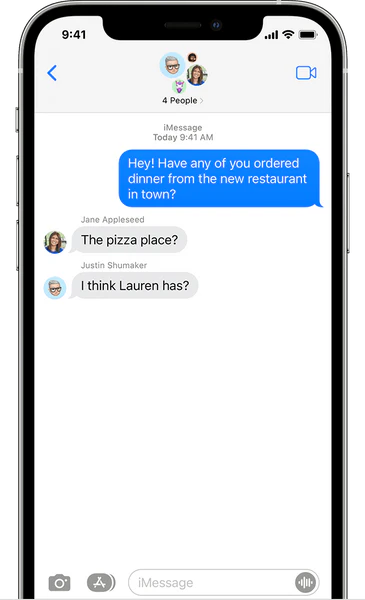
iMessage group chats are a seamless way to communicate with multiple people, but their full functionality depends on one key factor: all participants must be using iMessage. When everyone is on board, you unlock features like group naming, rich media sharing, and granular controls. Here’s how to use them effectively.
Creating and Setting Up a Group
To start a new iMessage group:
-
Open the Messages app.
-
Tap the compose button.
-
Add two or more contacts and send your first message.
To name the group: Tap the group icon at the top of the conversation and select Change Name and Photo. Note: This option is only available if every member is using iMessage.
Managing Participants and Notifications
-
Add/Remove People: Tap the group icon to Add Contact or press and hold a participant’s name to Remove From Conversation.
-
Leave a Group: You can only leave an iMessage group that has at least three other people. Tap the group icon and select Leave This Conversation.
-
Mute Notifications: To silence a busy group, tap the group icon and toggle on Hide Alerts.
Key Features and Troubleshooting
-
Shared Content: Tap the group icon to find all shared photos, links, and files in one organized view.
-
Reactions & Replies: Long-press any message to add a tapback reaction or send an inline reply.
-
Why Chats Turn Green: If your blue iMessage group suddenly turns green (SMS), it means one participant has lost iMessage functionality. This can happen if someone switches to Android, turns off iMessage, or has no internet connection. When this occurs, you lose iMessage-specific features like naming the group and managing participants.
Conclusion
For the best iMessage group chat experience, ensure all members are using Apple devices with iMessage enabled. This guarantees access to all the powerful features that make group communication efficient and organized.


