How to Fix “You Left the Conversation” Issue on iPhone

Group chats are a staple of iPhone communication, but they can hit a frustrating snag when Android friends join the mix. If you’ve ever been hit with the confusing “You left the conversation” message in a mixed group chat, you’re not alone. This glitch disrupts your ability to communicate seamlessly, particularly if you use iMessage across your iPhone, iPad, and Mac.
This guide provides clear, step-by-step solutions to get you back in the group chat for good.
Why Does the “You Left the Conversation” Error Happen?
The error typically stems from a syncing conflict. In chats with both iPhone (iMessage) and Android (SMS/MMS) users, your Apple devices can get confused about the chat’s status. This often happens during transitions between Wi-Fi and cellular data, or when syncing messages between your iPhone and Mac. It’s a common annoyance, but rarely a permanent one.
Step-by-Step Solutions to Get Back in the Chat
Follow these troubleshooting methods in order, starting with the simplest.
1. Restart iMessage (The Quick Refresh)
This is the most effective first step. It resets the connection to Apple’s servers and clears temporary glitches.
-
On your iPhone: Go to Settings > Messages.
-
Toggle the iMessage switch off.
-
Restart your iPhone (turn it off and on).
-
Go back to Settings > Messages and toggle iMessage back on.
-
Wait a minute for it to reactivate, then check the group chat.
2. Verify Your Apple ID & Contact Info
Incorrect Apple ID settings are a common culprit. Your phone number and email must be correctly registered for iMessage.
-
Go to Settings > Messages > Send & Receive.
-
Ensure you’re signed in with the correct Apple ID.
-
Under “You can be reached by iMessage at,” verify your phone number is checked and any email addresses are active.
-
Crucial: Ensure the same Apple ID is used on all your Apple devices (iPad, Mac).
3. Update Your iPhone and Carrier Settings
An outdated iOS version or carrier profile can cause compatibility issues in mixed chats.
-
Update iOS: Go to Settings > General > Software Update. Install any available update.
-
Update Carrier Settings: Go to Settings > General > About. If a carrier update is available, a prompt will appear. These updates are essential for network connectivity.
4. Delete and Recreate the Group Thread
If the glitch is isolated to a specific chat, the thread itself might be corrupted.
-
In your Messages app, swipe left on the problematic group chat and tap Delete.
-
Start a new group message with all the same participants (iPhone and Android).
-
Send a test message. This forces the system to establish a fresh, clean connection for the group.
5. Sync iMessage Across Your Apple Devices
If messages work on your iPhone but not your Mac, your device sync is out of alignment.
-
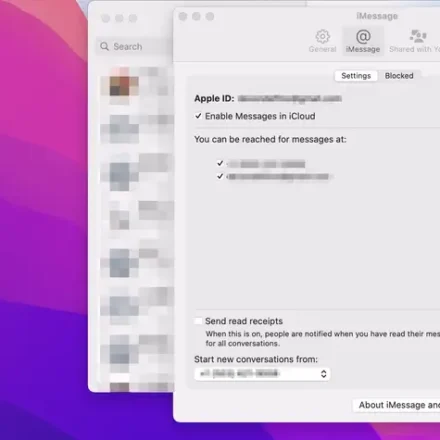
On your Mac: Open the Messages app.
-
Go to Messages > Preferences > iMessage.
-
Confirm you’re signed in with the same Apple ID as your iPhone.
-
In the “You can be reached for messages at:” section, ensure your phone number and email are checked.
-
Restart your Mac and test the group chat again.
6. Check Group Messaging Settings (SMS/MMS)
For mixed chats, your iPhone must use standard SMS/MMS to communicate with Android users. If this is disabled, it can cause errors.
-
Go to Settings > Messages.
-
Scroll down and ensure “Send as SMS” and “MMS Messaging” are both toggled ON.
-
This guarantees your phone can fall back to the universal standard when iMessage isn’t available.
7. As a Last Resort: Contact Your Carrier or Use an Alternative App
If none of the above works:
-
Contact Carrier Support: Rarely, the issue can be carrier-related for SMS/MMS delivery. A quick call to your mobile provider can rule this out.
-
Switch to a Universal App: Consider moving persistent group chats with Android friends to a platform-agnostic app like WhatsApp, Signal, or Telegram. This completely avoids the iMessage/SMS conflict.
Frequently Asked Questions (FAQ)
Q: Why do I keep getting this message repeatedly in the same chat?
A: This usually indicates a persistent sync conflict between your Apple ID, your devices, and the mixed chat format. Following steps 2 (Apple ID) and 5 (Cross-Device Sync) thoroughly often solves this.
Q: Does this happen in groups with only iPhone users?
A: No. This issue is specific to mixed groups containing both iPhone (iMessage) and Android (SMS/MMS) users.
Q: Can my mobile carrier cause this problem?
A: Yes. Outdated carrier settings or network provisioning issues can disrupt SMS/MMS delivery, which is essential for the Android members of the chat. This is why Step 3 includes a carrier update.
Q: Is this a permanent bug that Apple needs to fix?
A: Apple has not officially announced a single, permanent fix. However, iOS updates frequently include improvements to iMessage stability and SMS/MMS handling, which gradually reduce the occurrence of this error.
Final Thoughts
The “You left the conversation” error is a frustrating but solvable hiccup in the Apple ecosystem. By systematically refreshing iMessage, verifying your Apple ID settings, updating your software, and ensuring proper cross-device sync, you can almost always restore full functionality to your mixed group chats.
Start with the simple iMessage restart, and work your way down the list until your group chat is back to normal.