How to Use iMessage Group Chats on iPhone and iPad
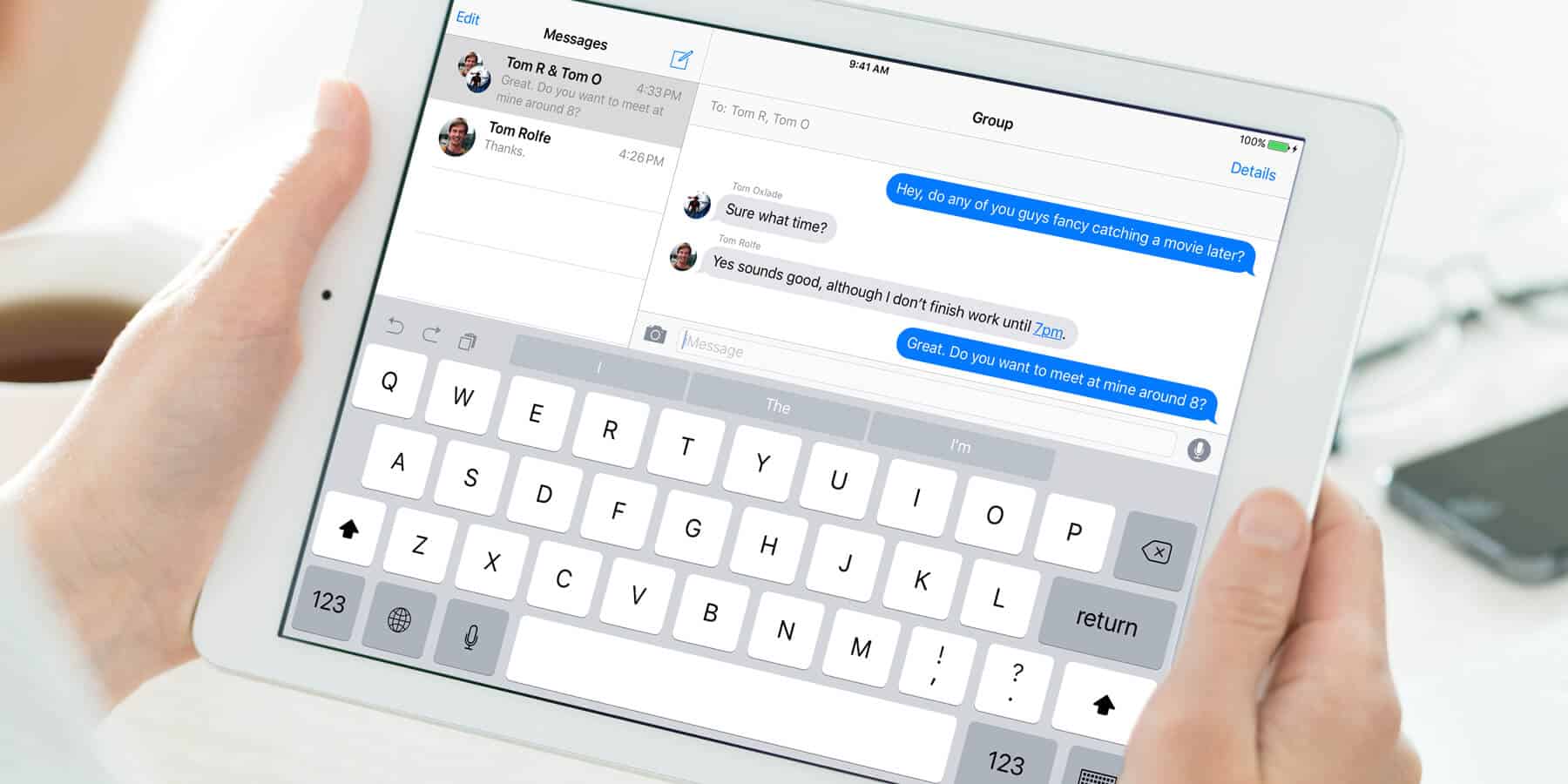
iMessage group chats streamline communication with friends, family, or colleagues, offering powerful features that standard SMS groups lack. However, these features are only available when every participant is using an Apple device with iMessage enabled. Here’s a clear guide to creating and managing your groups effectively.
1. Create an iMessage Group
To start a new group:
-
Open the Messages app.
-
Tap the compose icon (pencil and paper).
-
Add two or more contacts to the “To:” field.
-
Type your first message and send it.
Important: The chat will only function as a true iMessage group (with blue bubbles) if all participants have iMessage active. If anyone is on SMS/MMS (green bubbles), advanced features will be disabled.
2. Name Your Group Chat
You can give your group a custom name and photo for easy identification.
-
Open the group conversation.
-
Tap the group icon at the top of the screen.
-
Select Change Name and Photo.
-
Enter a name and choose an image or emoji.
-
Tap Done.
Note: The “Change Name and Photo” option will not appear if even one member is not using iMessage.
3. Manage Participants
To Add Someone:
-
Tap the group icon > Add Contact > select a person.
To Remove Someone:
-
Tap the group icon > press and hold the person’s name > Remove From Conversation.
To Leave a Group:
-
Tap the group icon > Leave This Conversation.
-
You can only leave if it’s an iMessage group and at least three other people remain.
4. Control Notifications and Use Features
-
Mute a Chat: Tap the group icon and toggle on Hide Alerts to silence notifications while staying in the conversation.
-
View Shared Content: Tap the group icon to see all photos, links, and files shared in the chat, organized in one place.
-
React and Reply: Long-press any message to add a tapback reaction or send a direct reply to a specific message.
5. Why a Blue Chat Turns Green
If your iMessage group suddenly switches to green SMS bubbles, the entire chat has lost iMessage functionality. This happens if:
-
A participant turns off iMessage.
-
Someone switches to an Android device.
-
A member loses their internet connection (Wi-Fi or cellular data).
When this occurs, you lose the ability to name the group, manage participants, or use reactions.
Final Thoughts
For the optimal iMessage group chat experience, ensure all members are within the Apple ecosystem. By understanding these features and their limitations, you can keep your group conversations organized, functional, and easy to manage.