

iPad Split Screen Missing? Here’s How to Get It Back.
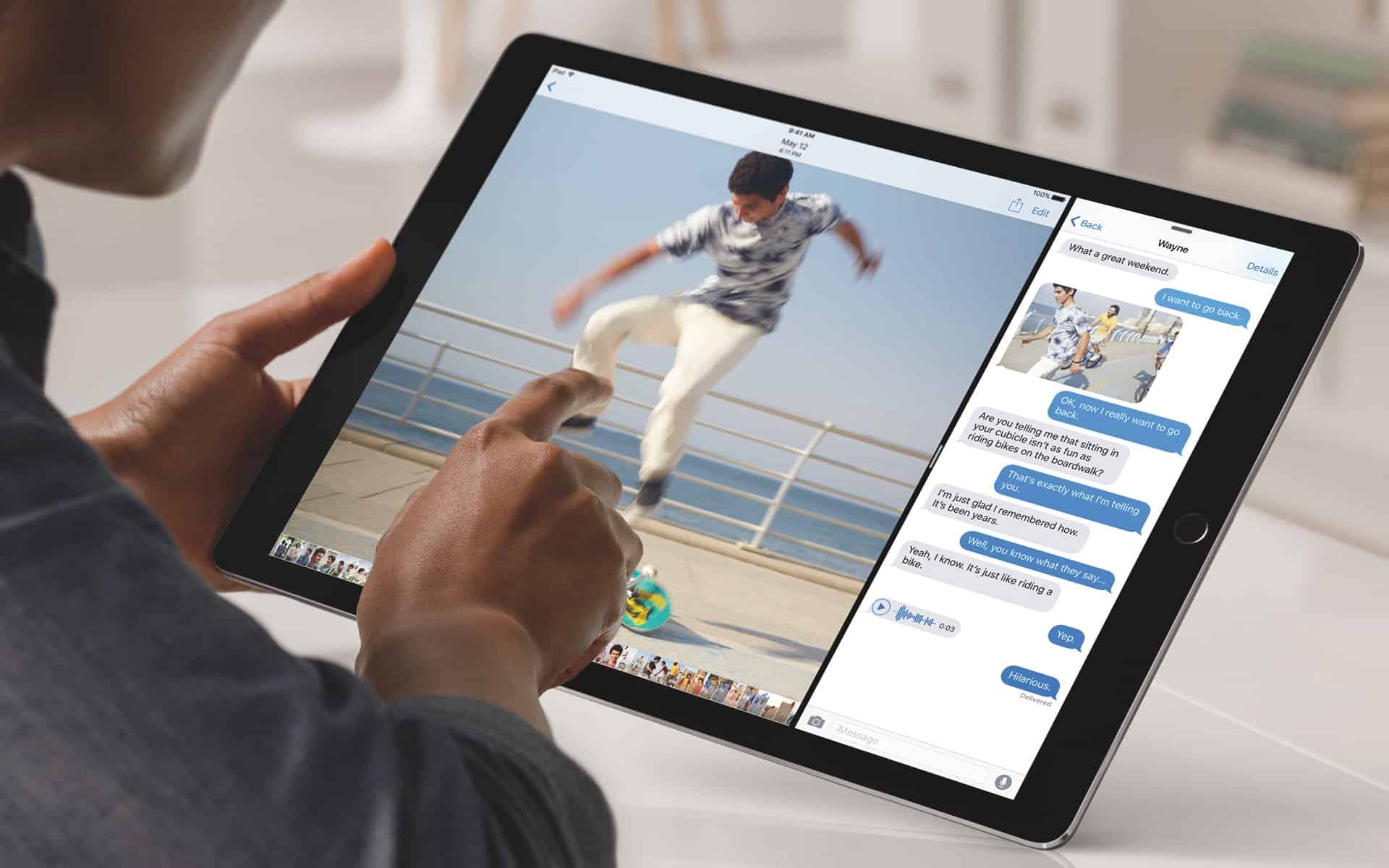
The Split Screen feature is a powerhouse of iPad productivity, letting you run two apps side-by-side. When it suddenly disappears or stops working, it can disrupt your entire workflow.
Before you worry, know this: the feature is rarely “broken.” It’s usually disabled by a simple setting, a locked screen orientation, or an app compatibility issue. Follow this step-by-step guide to restore it.
The Essential Pre-Checks
First, let’s rule out the most common and easily fixable issues.
1. Check Your iPad Model
Split Screen requires a compatible iPad. It works on:
-
iPad mini 4 or later
-
iPad Air 2 or later
-
5th-gen iPad or later
-
All iPad Pro models
To check your model: Go to Settings > General > About > Model Number.
2. Unlock Screen Rotation
Split Screen only works in landscape mode. If your screen is locked in portrait, the feature won’t activate.
-
Swipe down from the top-right to open the Control Center.
-
If the Portrait Orientation Lock icon is highlighted (red), tap it to turn it off.
-
Rotate your iPad to landscape and try again.
3. Test with Supported Apps
Not all apps support Split Screen. Test with first-party Apple apps like Safari and Notes, which are guaranteed to work.
-
Open Safari.
-
Swipe up slightly from the bottom to show the Dock.
-
Drag the Notes app icon to the left or right edge of the screen. It should snap into place.
If this works, the original app you were trying was the problem.
The Step-by-Step Fixes
If the pre-checks didn’t work, proceed through these solutions in order.
Fix 1: Enable Multitasking in Settings
This setting can be accidentally turned off.
-
Go to Settings > Home Screen & Multitasking.
-
Under the “Multitasking” section, ensure “Allow Multiple Apps” is toggled ON.
-
If it was already on, toggle it off and back on again to reset it.
Fix 2: Update Your iPad and Apps
A software bug can disable multitasking features.
-
Update iPadOS: Go to Settings > General > Software Update.
-
Update Apps: Open the App Store, tap your profile icon, and update all apps.
Fix 3: Restart Your iPad
A simple reboot can clear temporary glitches.
-
Hold the Side/Top button and either Volume button until the “slide to power off” slider appears. Restart your device.
Fix 4: Relearn the Gesture (It’s Tricky!)
The gesture is specific and often performed incorrectly.
-
Open your first app.
-
Swipe up slightly from the bottom edge to reveal the Dock.
-
Press and hold an app icon in the Dock, then drag it all the way to the left or right edge of the screen. Don’t just tap it—drag it until a gray, translucent window appears, then release.
Fix 5: Reset All Settings (Last Resort)
This will not erase your data, but it will reset all your preferences (Wi-Fi passwords, wallpaper, etc.).
-
Go to Settings > General > Transfer or Reset iPad.
-
Tap “Reset” and then “Reset All Settings.”
Summary: Your Quick-Action Checklist
| Problem | Likely Solution |
|---|---|
| The option to split the screen doesn’t appear. | 1. Unlock screen rotation. 2. Check if “Allow Multiple Apps” is ON in Settings. |
| It works with some apps but not others. | The app doesn’t support Split Screen. Use a different app. |
| The gesture doesn’t do anything. | 1. Restart your iPad. 2. Ensure you’re dragging the icon from the Dock to the very edge. |
| Nothing works after an update. | Check for another iPadOS update or reset all settings. |
By working through this list, you will almost certainly identify the culprit and restore your iPad’s powerful multitasking capabilities. The solution is almost always found in the first few steps.


