

How to Delete Emails in Apple Mail (Mac, iPhone & iPad)
A cluttered inbox can slow you down and eat up valuable storage. Whether you’re using a Mac, iPhone, or iPad, knowing how to efficiently delete emails in Apple Mail is essential for maintaining a clean and organized digital workspace.
This guide covers everything from deleting a single message to performing a massive inbox cleanup.
The Quick Start Guide
| Action | Mac | iPhone/iPad |
|---|---|---|
| Delete One Email | Select it and press the Delete key. |
Swipe left on the message and tap the Trash icon. |
| Delete Multiple Emails | Cmd-click to select multiple, then press Delete. |
Tap Select > choose emails > tap the Trash icon. |
| Permanently Erase Emails | Right-click the Trash mailbox and select “Erase Deleted Items.” | Open the Trash folder, tap Select All, then delete. |
Step-by-Step Instructions
1. Deleting Single and Multiple Emails
On Mac:
-
One Email: Click on the email and press the
Deletekey on your keyboard. -
Multiple Emails: Hold down the Command (⌘) key and click each email you want to select, then press
Delete. To select a continuous block, click the first email, hold Shift, and click the last one.
On iPhone/iPad:
-
One Email: Swipe left on the message in your list and tap the Trash icon. You can customize this swipe gesture in Settings > Mail > Swipe Options.
-
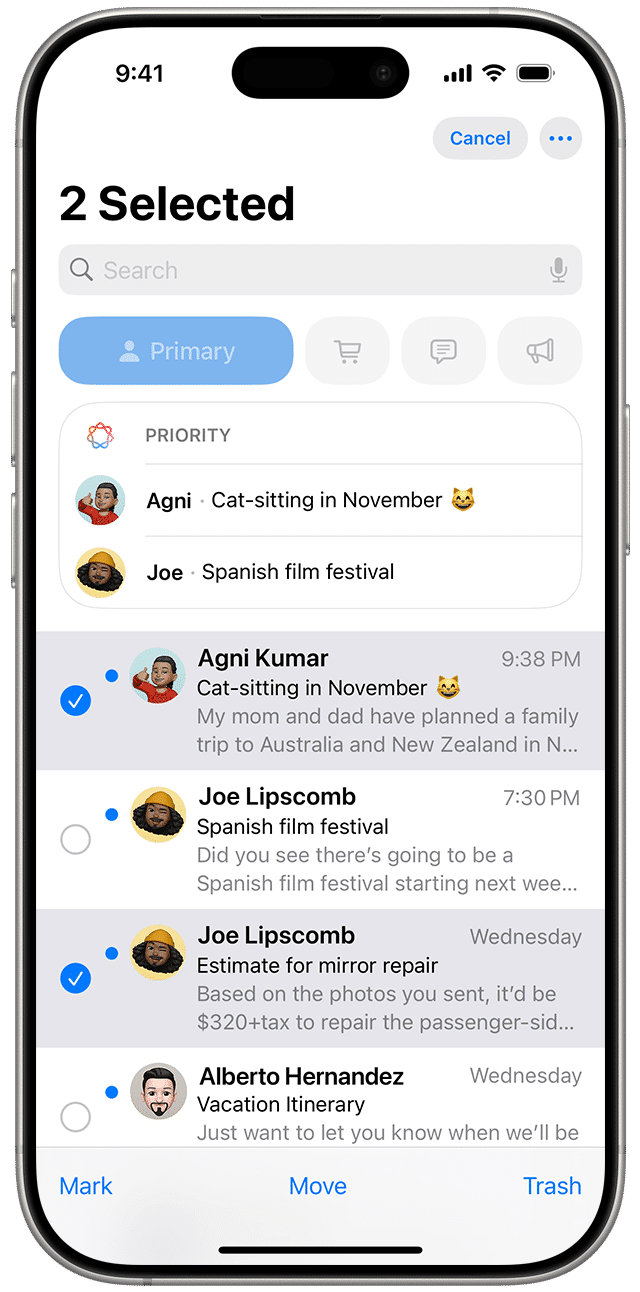
Multiple Emails:
-
Tap “Select” in the top-right corner of your mailbox.
-
Tap the circle next to every email you want to remove.
-
Tap the Trash icon at the bottom of the screen.
-
2. The Crucial Step: Empty the Trash
Deleting an email only moves it to the Trash folder. To permanently erase emails and free up storage, you must empty the Trash.
On Mac:
-
In the Mail sidebar, right-click (or Control-click) on the Trash mailbox.
-
Select “Erase Deleted Items…” and choose the account you want to clean.
On iPhone/iPad:
-
Go to your Mailboxes view and open the Trash folder.
-
Tap “Select” > “Select All”.
-
Tap the Trash icon to permanently delete them.
Pro Tip: You can set Mail to automatically empty the Trash. On Mac, go to Mail > Settings > Accounts > [Your Account] > Mailbox Behaviors and set a timeframe for erasing deleted messages.
3. Don’t Forget the Junk Folder
The Junk folder can accumulate a surprising amount of storage. Remember to clear it out periodically using the same methods described for the Trash folder.
FAQ
Q: Can I recover an email I accidentally deleted?
A: Yes, but act quickly. As long as you haven’t emptied the Trash folder, you can move the email from Trash back to your Inbox or another folder.
Q: Why is my storage still full after deleting emails?
A: You probably didn’t empty the Trash. Deleting emails just moves them to the Trash folder, where they continue to take up space. You must empty the Trash to permanently erase them.
Q: Is there a way to delete all emails from a specific sender at once?
A: On Mac, yes. Use the search bar to find emails from that sender. Then, from the menu bar, go to Edit > Select All and press the Delete key.
By making these cleanup steps a regular habit, you can ensure your Apple Mail app remains fast, organized, and doesn’t consume unnecessary storage space on your devices.


