

Apple Music Not Working on iPhone? Here’s How to Fix It.
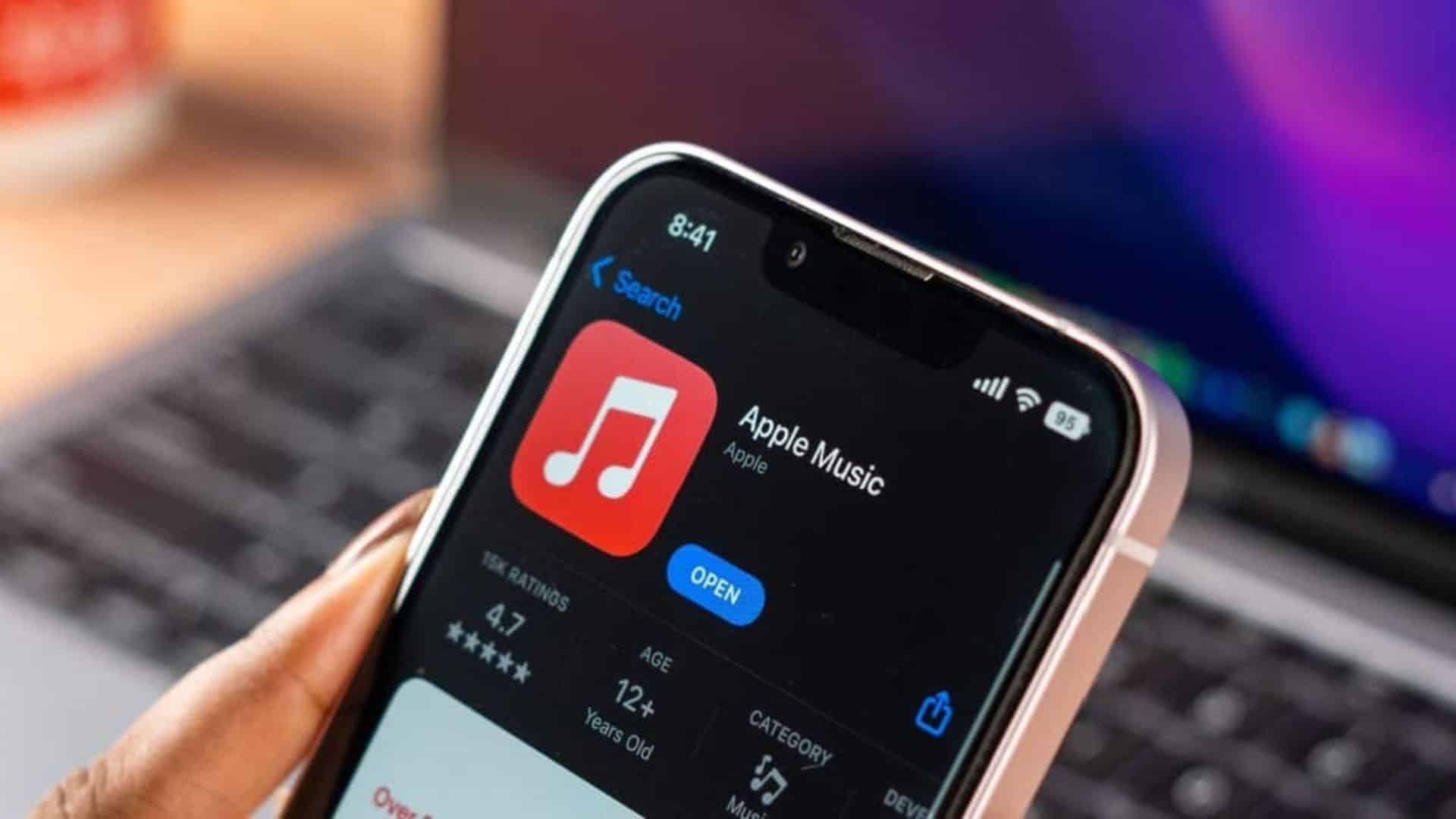
When Apple Music stops working on your iPhone, it can ruin your vibe. Whether songs won’t play, the app won’t load, or music keeps pausing, the problem is usually a simple glitch you can fix yourself.
Follow this step-by-step guide, starting with the easiest solutions, to get your music back on track.
The Quick Fixes (Try These First)
Start here—these solutions resolve most issues in under a minute.
-
Check Your Internet Connection: Apple Music is a streaming service. If your internet is down, so is your music.
-
Open a web browser. If a site doesn’t load, toggle Airplane Mode on and off or reconnect to Wi-Fi.
-
-
Force Quit the Music App: This clears temporary glitches.
-
On iPhones without a Home button: Swipe up from the bottom and pause to open the App Switcher. Swipe the Music app card up and off the screen.
-
On iPhones with a Home button: Double-press the Home button and swipe the Music app away.
-
-
Restart Your iPhone: A simple reboot can solve a surprising number of problems. Turn your iPhone off and on again.
Systematic Troubleshooting: Step-by-Step Guide
If the quick fixes don’t work, proceed through these steps methodically.
Step 1: Check Apple’s System Status
The problem might not be your phone, but Apple’s servers.
-
Go to Apple’s System Status page. Look for Apple Music. If there’s a yellow or red icon, there’s an outage, and you’ll need to wait for Apple to fix it.
Step 2: Verify Your Apple Music Subscription
Your subscription might have expired, or a payment method might have failed.
-
Go to Settings > [Your Name] > Subscriptions. Ensure your Apple Music subscription is listed as “Active.”
Step 3: Sign Out and Back Into Your Apple ID
This refreshes your account credentials and can resolve syncing and playback issues.
-
Go to Settings > [Your Name].
-
Scroll down and tap Sign Out. (You may be asked to keep a copy of your data; this is safe).
-
Restart your iPhone.
-
Go back to Settings and sign back into your Apple ID.
Step 4: Check for Software Updates
An outdated version of iOS can cause conflicts with the Music app.
-
Go to Settings > General > Software Update and install any available updates.
Step 5: Offload and Reinstall the Music App (Nuclear Option)
This reinstalls the app without deleting your personal data or settings.
-
Go to Settings > General > iPhone Storage.
-
Tap on Music.
-
Select “Offload App” and confirm.
-
Once offloaded, the option will change to “Reinstall App.” Tap it to install a fresh copy.
Troubleshooting Specific Problems
-
Music Keeps Pausing: Check your internet connection and disable Low Power Mode (Settings > Battery), as it can limit background activity.
-
“Sync Library is Off” Error: Go to Settings > Music and toggle Sync Library on. You need an active Apple Music or iTunes Match subscription for this.
-
Songs Won’t Download: Ensure you have enough storage space on your iPhone (Settings > General > iPhone Storage).
Summary: Your Quick-Action Checklist
| Problem | Likely Solution |
|---|---|
| App is frozen or won’t load. | Force quit the app and restart your iPhone. |
| Songs won’t play / “Cannot Play” error. | Check internet, then sign out and back into your Apple ID. |
| Music stops playing randomly. | Disable Low Power Mode and check for a weak Wi-Fi/cellular signal. |
| Library missing or not syncing. | Check the Apple System Status page and ensure “Sync Library” is enabled. |
By following this structured approach, you can almost always resolve Apple Music issues and get back to listening quickly. The problem is rarely permanent and is most often a simple software or account glitch.


