
info@real4web.com
logo
  • Home
  • News
  • Lyrics
  • Tech Troubleshooting
  • Variety
  • Ai Prompt
  • web tools
  • Legal Guides
  • Contact Us
  • العربية
logo
  • Home
  • News
  • Lyrics
  • Tech Troubleshooting
  • Variety
  • Ai Prompt
  • web tools
  • Legal Guides
  • Contact Us
  • العربية
  • Home
  • News
  • Lyrics
  • Tech Troubleshooting
  • Variety
  • Ai Prompt
  • web tools
  • Legal Guides
  • Contact Us
  • العربية
real-logo
  • Home
  • News
  • Lyrics
  • Tech Troubleshooting
  • Variety
  • Ai Prompt
  • web tools
  • Legal Guides
  • Contact Us
  • العربية
Home Misc How to Properly Disable iMessage When Switching from iPhone

How to Properly Disable iMessage When Switching from iPhone

How to Properly Disable iMessage When Switching from iPhone

If you’re moving from an iPhone to an Android phone or a device that doesn’t use iMessage, one crucial step is to deregister your phone number. If you skip this, messages from other iPhone users may continue to be sent as blue iMessages instead of green SMS texts, causing you to miss them. Here’s how to ensure a smooth transition.

1. Turn Off iMessage on Your iPhone (Before You Switch)
This is the most straightforward method if you still have your iPhone.

  • Go to Settings > Messages.

  • Toggle off iMessage.

2. Deregister Online via Apple’s Website (If You No Longer Have Your iPhone)
If you’ve already switched phones without turning iMessage off, use Apple’s official online tool.

  • Visit deregister.imessage.com on any web browser.

  • Enter your phone number and confirm with the verification code sent via SMS to your new phone.

3. Sign Out of iMessage on All Other Apple Devices
iMessage can also be active on your iPad, Mac, or Apple Watch. You need to disable it on these devices as well.

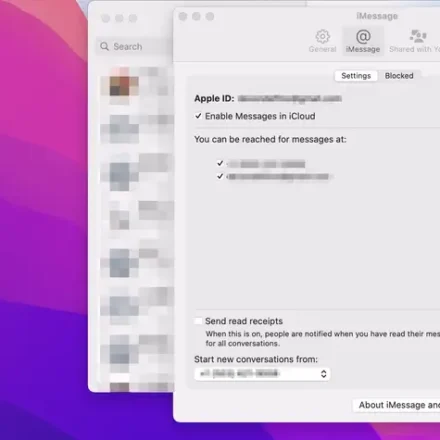
  • On Mac: Open the Messages app, go to Messages > Settings > iMessage, and click Sign Out.

  • On iPad: Use the same steps as on the iPhone via Settings > Messages.

Final Step: Test It
Ask a friend with an iPhone to send you a text. If it arrives as a green SMS bubble, you have successfully deregistered.

By following these steps, you ensure that you will receive all text messages on your new device without interruption.
You Might Also Like

  • How to Properly Turn Off iMessage When Switching from iPhone
    How to Properly Turn Off iMessage When Switching from iPhone
  • apple-messages-imessage
    How to Enable iMessage on iPhone 13 (Complete Guide)
  • Your iPhone Got These 5 Useful Features For Free In 2025
    How to Fix "You Left the Conversation" Issue on iPhone
Apple deregistration tool deregister iMessage Disable iMessage green SMS texts miss text messages miss text messages switch from iPhone switch from iPhone
Apple's Hidden Holiday Easter Egg is Back in the Store App PrevApple's Hidden Holiday Easter Egg is Back in the Store AppNovember 18, 2025
How to Fix Steam Mobile App's Camera Access on iPhoneNovember 18, 2025 How to Fix Steam Mobile App's Camera Access on iPhone Next
  • About Us
  • Our Clients
  • Our Portfolio
  • Brand Design Service
  • Web Design Service
  • E-marketing Service