How to Program and Pair a Roku Voice Remote: Complete Guide
Roku Remotes Work Differently
Before you can use a universal remote with pretty much any device, you have to program it. Often that involves cycling through a series of program codes or button presses until you find one that works.
Fortunately, with Roku devices, you don’t have to do anything so complex. Standard Roku remotes work out of the box as long as you have batteries, so you should be good to go with no pairing necessary.
However, things are a little different with the Roku voice remote—the upgraded model that allows you to issue voice commands. Your voice remote may need to be programmed and paired with your Roku devices, but the good news is that learning how to program a Roku remote is pretty easy.
How to Identify If You Have a Voice Remote
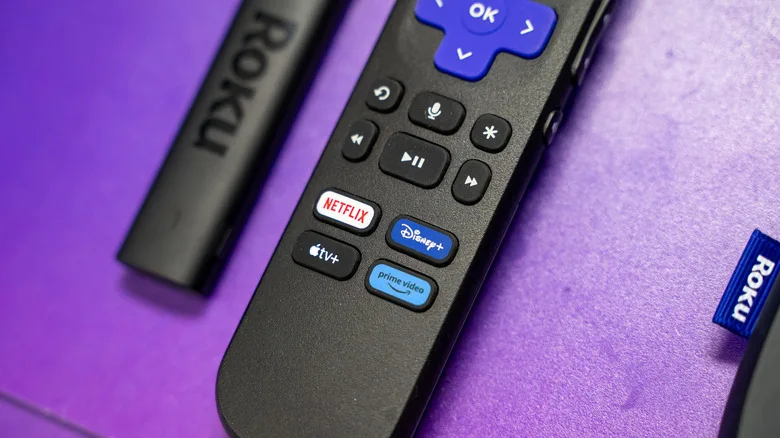
Determining whether you have a voice remote is as simple as looking at the buttons on the remote.
| Remote Type | Key Identifier |
|---|---|
| Standard Remote | No microphone or magnifying glass button |
| Voice Remote | Small button below the directional pad with a microphone or magnifying glass icon |
Pro Tip: If your Roku remote has a small button below the directional pad with a microphone or magnifying glass icon, then it’s a voice remote.
How to Pair Your Roku Voice Remote
Programing your new voice remote should be quick and easy. To get started, you’ll need to put both your Roku device and remote in pairing mode.
Step-by-Step Instructions
-
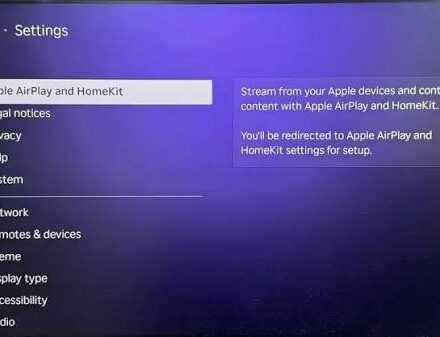
On your Roku, using another working remote or the free Roku remote app on a phone, go to:
-
Settings > Remotes & Devices > Add Devices > Remote > Continue
-
-
If the remote is brand new, it’s likely already in pairing mode.
-
Follow the onscreen instructions to sync the devices.
-
If the remote is not already in pairing mode:
-
Flip it over and look for a small button located on the back or under the battery cover.
-
Press and hold the button for five seconds until the status light starts blinking.
-
-
If it’s an older voice remote with no pairing button:
-
Hold the Back and Home buttons together for five seconds.
-
Result: Once paired, your voice remote is ready to use.
Troubleshooting Pairing Failures
If you run into problems, there are ways to troubleshoot.
Common Fixes
| Issue | Solution |
|---|---|
| Remote not in pairing mode | Follow the appropriate instructions to enter pairing mode |
| Device not in pairing mode | Ensure your Roku TV or standalone player is in pairing mode |
| General sync issues | Power off and back on—restart your streaming device or TV, then start over |
| Interference | Move other electronics away from your Roku device (game consoles, routers, mesh nodes, other media players, audio systems) |
| Persistent problems | Use the Roku mobile app on your phone as a last resort |
Pro Tip: Roku support says as a last resort you can simply use the Roku mobile app on your phone.
Roku Voice Remote Models Compared
There are actually a couple of voice remote versions available.
| Remote Model | Price | Batteries | Key Features |
|---|---|---|---|
| Standard Remote | Included | Replaceable | Basic controls, no voice |
| Voice Remote | Included/Varies | Replaceable | Voice commands, simple design |
| Enhanced Voice Remote | Varies | Replaceable | Voice commands, similar to basic |
| Voice Remote Pro | $30 | Built-in rechargeable | Backlit buttons, hands-free voice controls, lost-remote finder |
Note: With each iteration, there are new shortcut buttons added, and they’re permanent for as long as you have the remote—they’re not customizable. So what you see is what you get.
What Does the Voice Remote Do?
All voice remotes—including regular voice, enhanced, and the voice remote pro—have to be paired with your Roku, especially if you already have another remote connected.
Why Pairing Is Required
| Reason | Explanation |
|---|---|
| Wireless Connection | Voice remotes use Wi-Fi Direct instead of infrared |
| Multiple Remotes | Pairing prevents conflicts with other connected remotes |
| Voice Functionality | Pairing enables voice command processing |
The Main Feature: Voice Commands
Really, the biggest feature is the use of voice commands to navigate Roku’s noisy UI without tapping a bunch of buttons.
| Voice Command Example | What It Does |
|---|---|
| “Play [movie title]” | Searches and launches content |
| “Open Netflix” | Launches the Netflix app |
| “Show me comedies” | Displays comedy content |
| “Turn on subtitles” | Enables subtitles |
| “Find my remote” | Triggers the lost-remote finder (Voice Remote Pro only) |
Comparison Table: Roku Remote Models
| Feature | Standard Remote | Voice Remote | Enhanced Voice Remote | Voice Remote Pro |
|---|---|---|---|---|
| Voice Commands | ❌ No | ✅ Yes | ✅ Yes | ✅ Yes |
| Batteries | Replaceable | Replaceable | Replaceable | Built-in Rechargeable |
| Backlit Buttons | ❌ No | ❌ No | ❌ No | ✅ Yes |
| Hands-Free Voice | ❌ No | ❌ No | ❌ No | ✅ Yes |
| Lost Remote Finder | ❌ No | ❌ No | ❌ No | ✅ Yes |
| Price | Included | Included | Varies | $30 |
| Pairing Required | ❌ No | ✅ Yes | ✅ Yes | ✅ Yes |
Frequently Asked Questions
Q: Do I need to program a standard Roku remote?
A: No. Standard Roku remotes work out of the box as long as you have batteries. No pairing is necessary.
Q: How do I know if I have a Roku voice remote?
A: Look for a small button below the directional pad with a microphone or magnifying glass icon.
Q: How do I pair my Roku voice remote?
A: Go to Settings > Remotes & Devices > Add Devices > Remote > Continue on your Roku, then follow the onscreen instructions. If needed, press and hold the pairing button on the back of the remote for five seconds.
Q: What if my Roku voice remote won’t pair?
A: Restart your Roku device, ensure both devices are in pairing mode, move other electronics away to reduce interference, and try again. As a last resort, use the Roku mobile app.
Q: What is the difference between the Voice Remote and Voice Remote Pro?
A: The Voice Remote Pro ($30) has a built-in rechargeable battery, backlit buttons, hands-free voice controls, and a lost-remote finder.
Q: Can I customize the shortcut buttons on my Roku remote?
A: No. The shortcut buttons are permanent for as long as you have the remote—they’re not customizable.
Quick Reference Summary
| Step | Action |
|---|---|
| 1 | Determine if you have a voice remote (look for microphone icon button). |
| 2 | On your Roku, go to Settings > Remotes & Devices > Add Devices > Remote > Continue. |
| 3 | If the remote isn’t in pairing mode, press and hold the pairing button for 5 seconds. |
| 4 | For older remotes with no pairing button, hold Back + Home for 5 seconds. |
| 5 | Follow onscreen instructions to complete pairing. |
| 6 | If pairing fails, restart your device, reduce interference, or use the Roku mobile app. |
Final Thoughts
Programming a Roku voice remote is a straightforward process that takes just a few minutes. Unlike universal remotes that require cycling through countless codes, Roku’s pairing system is simple and intuitive.
The bottom line: If you have a standard Roku remote, you don’t need to do anything—just insert batteries and start using it. If you have a voice remote, follow the pairing steps outlined above, and you’ll be issuing voice commands in no time. And if you run into trouble, the troubleshooting tips and Roku mobile app have you covered.