

How to Fix the “You Do Not Have Permission to Use This Command” Error in Hytale
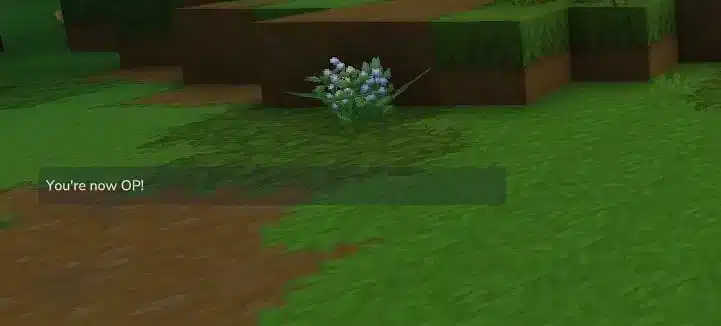
Encountering a “You do not have permission to use this command” error in Hytale means your player account lacks the necessary admin or operator privileges to execute that specific command. This commonly happens in Creative Mode worlds or on private servers.
Primary Cause & Solution
This error occurs because commands are restricted to operators (Ops) by default. To grant yourself permissions in a world you control:
Fix 1: Grant Yourself Operator Status (In Your Own World)
-
Launch Hytale and enter a Creative Mode world (this typically won’t work on adventure servers).
-
Press the
/key to open the chat command console. -
Type the following command exactly and press Enter:
/op self
-
You should receive a confirmation message. You can now use admin commands.
If You’re Playing on a Multiplayer Server
If you encounter this error on a community or friend’s server, you cannot use /op self. Permissions are controlled by the server owner or admin.
Fix 2: Get Permissions from the Server Admin
-
Contact the server administrator and request to be granted operator status or a specific permission rank.
-
The admin must use the
/op [YourUsername]command from the server console or in-game with their own admin privileges. -
Alternatively, they may use a permissions plugin to assign you to a group (e.g., “Admin,” “Moderator”) that has access to the commands you need.
Additional Tips & Notes
-
Correct Syntax: Ensure you are typing the command correctly. Hytale commands often follow the pattern
/command [argument]. -
Mods & Plugins: Some servers use custom mods or permission systems (like LuckPerms). Ask the admin for the specific permission node you need.
-
Adventure Mode: In official Adventure Mode servers or worlds, most commands are intentionally disabled for players to maintain gameplay balance.
Frequently Asked Questions (FAQ)
-
Why does
/op selfnot work?
You are likely in Adventure Mode, on a multiplayer server where you are not the host, or the command has been disabled by server settings. -
I’m the server host. How do I op someone else?
In the server console or in-game chat, type:/op PlayerName(replace “PlayerName” with the actual username). -
What are some basic admin commands?
Common ones include/gamemode creative [player],/give [item],/tp [player], and/time set.
Summary
To resolve the permission error:
-
In your own Creative world, use
/op self. -
On a multiplayer server, you must ask an admin to grant you operator status using
/op YourUsername. -
Ensure you are using the correct command syntax and that the command is allowed in your current game mode.


