How to Fix the Liquid Glass Effect Not Working on Your iPhone
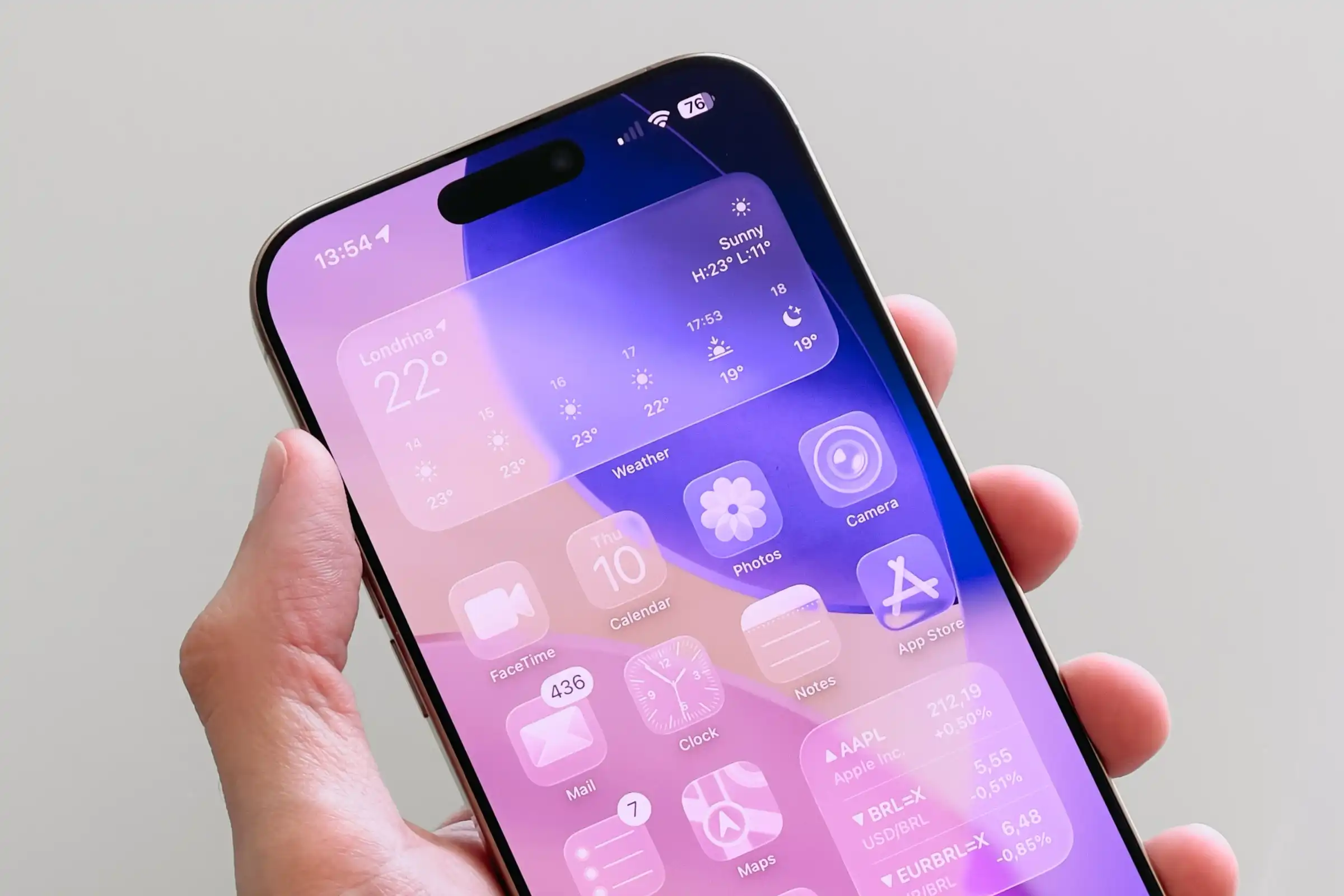
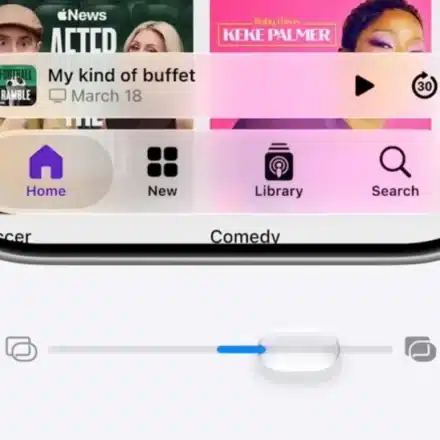
The Liquid Glass effect in iOS gives your Dock, folders, and Control Center a sleek, translucent appearance. When it fails, these elements appear as a solid gray or color block instead of being transparent. This is almost always caused by a conflict with accessibility settings. Here’s how to restore the effect.
1. Check Your Accessibility Settings (The Most Common Fix)
Several display and motion settings designed to improve readability can disable the translucent effect.
-
Go to Settings > Accessibility.
-
Tap Display & Text Size and ensure the following are turned OFF:
-
Reduce Transparency
-
Increase Contrast
-
-
Return to the main Accessibility menu and tap Motion. Ensure Reduce Motion is also turned OFF.
2. Reset Per-App Settings for the Home Screen
You might have accidentally applied accessibility settings specifically to your Home Screen.
-
Go to Settings > Accessibility and scroll to the very bottom.
-
Tap Per-App Settings.
-
If “Home Screen & App Library” is listed, select it and ensure all options (like Bold Text, Reduce Transparency, etc.) are set to Default or Off.
3. Perform a Force Restart
A simple force restart can clear temporary software glitches that may be preventing the visual effect from rendering correctly.
-
On iPhones without a Home button: Press and release the Volume Up button, then the Volume Down button, then press and hold the Side button until the Apple logo appears.
4. Check Your Wallpaper Settings
The “Clear” tint option for app icons can sometimes make the effect hard to see against a dark background.
-
Go to Settings > Wallpaper and tap Customize under your current wallpaper.
-
Try switching the tint option from “Clear” to the default setting to see if the transparency becomes more apparent.
5. Update Your iOS
If the issue started after a recent update, a subsequent patch may fix the bug.
-
Go to Settings > General > Software Update and install any available updates.
By systematically checking these settings, you can quickly identify the culprit and restore the modern, glass-like look to your iPhone’s interface.