How to Fix Missing Playlist Covers in Apple Music on Mac
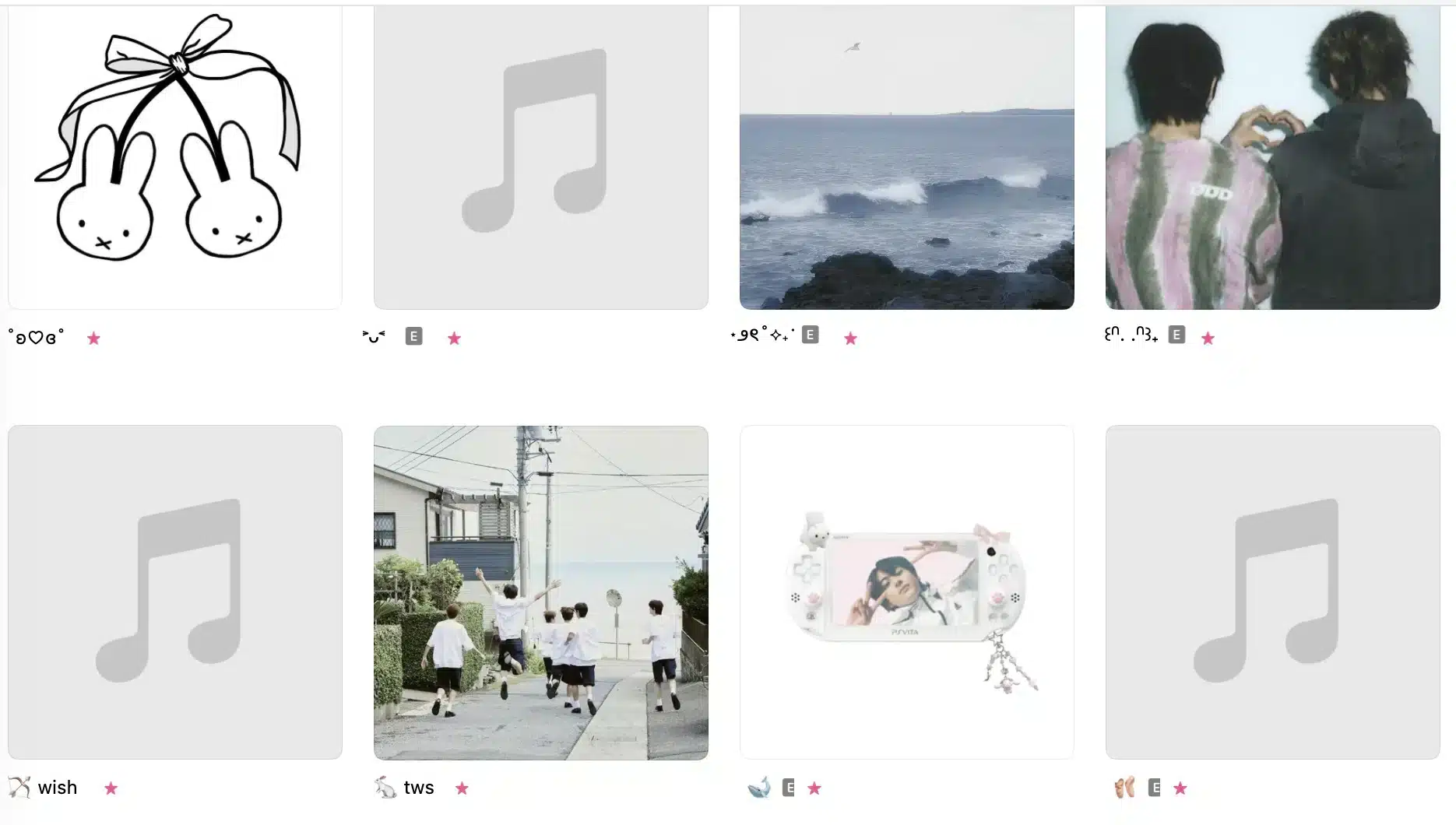
It’s frustrating when your carefully curated playlist covers suddenly disappear in Apple Music on your Mac. This common issue is usually caused by a corrupted cache, a syncing error with iCloud Music Library, or a temporary software glitch. Here are the most effective ways to restore your missing artwork.
1. Rebuild the Artwork Cache (Most Effective Fix)
The local cache that stores images can become corrupted. Clearing it forces the Music app to redownload all artwork.
-
Quit the Music app completely.
-
Press Command+Shift+G in Finder, paste this path, and press Enter:
~/Library/Caches/com.apple.Music -
Delete the entire contents of the folder that opens.
-
Relaunch the Music app. It will rebuild the cache, and your covers should gradually reappear.
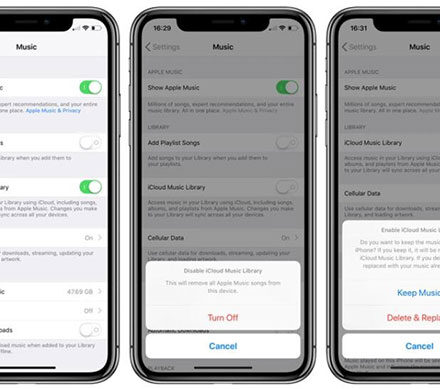
2. Refresh Your iCloud Music Library
This syncs your library with Apple’s servers again, which can restore missing metadata like covers.
-
In the Music app, go to the menu bar and select File > Library > Update Cloud Library.
-
Wait for the process to complete. This may take a few minutes depending on your library’s size.
3. Toggle Sync Library
A simple reset of the library sync connection can often resolve the issue.
-
Open Music > Settings… (or Preferences…) and go to the General tab.
-
Turn off Sync Library and confirm.
-
Wait a moment, then turn Sync Library back on.
4. Update macOS
An outdated operating system can cause compatibility issues with Apple Music. Always ensure your Mac is running the latest version of macOS via System Settings > General > Software Update.
5. Reset the Music App’s Preferences
If the problem persists, resetting the app’s preferences can help.
-
Quit the Music app.
-
Press Command+Shift+G in Finder, paste this path, and press Enter:
~/Library/Preferences/ -
Find the file named
com.apple.Music.plistand move it to your Desktop (as a backup). -
Relaunch the Music app. If this fixes the issue, you can delete the file from your Desktop.
By following these steps, you should be able to recover your missing playlist covers and restore the visual organization of your music library.