How to Clear Your iPhone Cache (And Why You Should)

How to Clear Your iPhone Cache (And Why You Should)
Your iPhone is designed for speed, but over time, it can slow down due to the accumulation of temporary files, or cache. Clearing this cache is a simple yet highly effective way to boost your iPhone’s performance and free up valuable storage space.
What is Cache and Why Clear It?
The cache consists of temporary files that your apps and browser store for quick access. While helpful, this data can become bloated or corrupted, leading to:
-
Sluggish performance
-
Apps crashing unexpectedly
-
“Storage Almost Full” warnings
Clearing it gives your iPhone a fresh start, resolving these common issues.
How to Clear Different Types of Cache
1. Clear the System Cache (The Easiest Fix)
A simple restart clears temporary system files and can resolve minor glitches.
-
On iPhone X or later: Press and hold the Side button and either Volume button until the power-off slider appears. Drag the slider, wait 30 seconds, then turn your phone back on.
-
On iPhone 8 or earlier: Press and hold the Side (or Top) button until the slider appears.
2. Clear an App’s Cache (Without Losing Data)
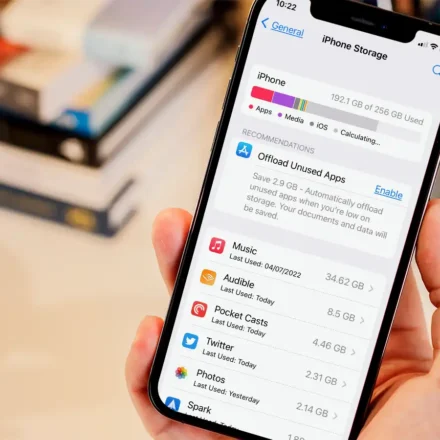
Use the “Offload App” feature, which removes the app but keeps its documents and data.
-
Go to Settings > General > iPhone Storage.
-
Select the app causing issues.
-
Tap Offload App.
-
Reinstall the app from the App Store. Your data will be restored, but the accumulated cache will be gone.
Note: Selecting “Delete App” will remove the app and all of its data permanently.
3. Clear Safari Browser Cache
Method 1: Clear Everything (History, Cookies, Cache)
-
Go to Settings > Safari.
-
Scroll down and tap Clear History and Website Data.
-
Confirm by tapping Clear History and Data.
Method 2: Clear Cache But Keep History
-
Go to Settings > Safari > Advanced > Website Data.
-
Tap Remove All Website Data to delete the cache and cookies while preserving your browsing history.
4. Clear Cache for Other Browsers (e.g., Chrome)
The process is done within the app itself:
-
Open Google Chrome.
-
Tap the three dots (•••) > History > Clear Browsing Data.
-
Select the time range and data types (e.g., Cached images and files).
-
Tap Clear Browsing Data.
Final Recommendation
For a quicker, smoother iPhone experience, make clearing your cache part of your regular maintenance. Start with a simple restart, and if specific apps or Safari are acting up, use the targeted methods above. This simple habit can significantly improve your device’s performance and free up storage with minimal effort.