How to Change Your Mac Profile Picture: A Step-by-Step Guide
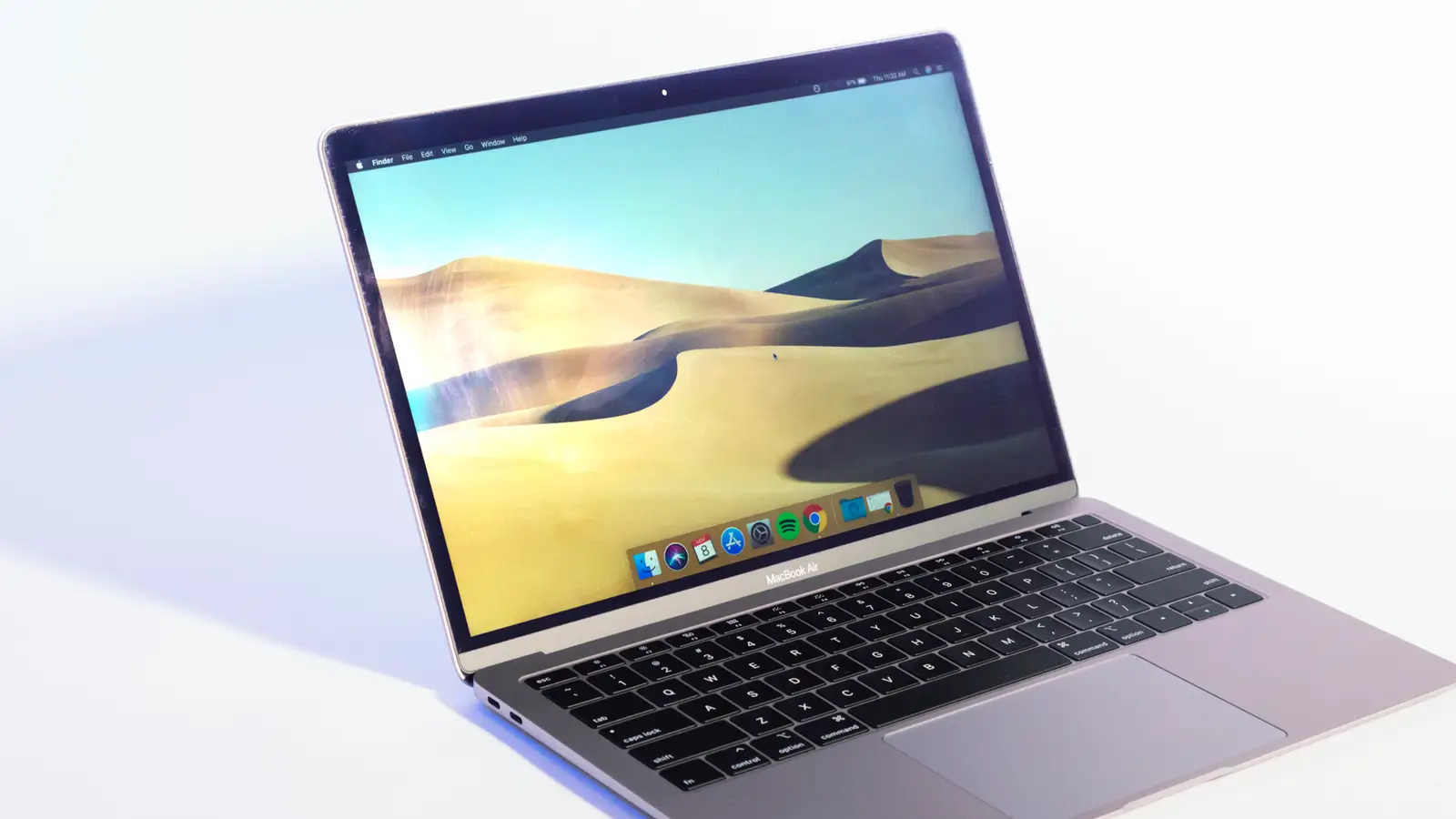
When it comes to customization, macOS gives users plenty of ways to personalize their Apple-branded tech. One part of the user interface you’re able to change is the account picture that appears on your MacBook Lock Screen. This is also the same photo that’s shown on the login screen, in System Settings, and in most other spots where your Apple Account info is displayed. Apple even gives you more than one way to change your profile picture, and it all starts with System Settings (or System Preferences if you’re using macOS 12 or earlier).
Method 1: Change Your Profile Picture via System Settings
This is the primary method for updating your user account image.
-
Launch System Settings (or System Preferences on older macOS versions).
-
Select Users & Groups.
-
Click the photo that appears next to your profile name.
-
You will see three customization options:
-
Select a Memoji – choose or create a custom Memoji.
-
Select an emoji – pick an emoji to represent your account.
-
Select a monogram – use your initials in a stylized format.
-
-
For the first two options, click the plus icon to choose a new Memoji or emoji.
-
After selecting an image, you can modify its placement within the cropped circle. Use the on-screen slider to zoom in or out.
-
Click Save to complete your edits.
Method 2: Use Photo Booth to Capture a New Picture
If you want a fresh photo taken with your Mac’s built-in camera, Photo Booth offers a quick solution.
-
Open Photo Booth (a built-in macOS app).
-
Frame your shot using your Mac’s camera.
-
Click the camera button to capture the photo.
-
The image will automatically appear as an option to set as your user picture.
Method 3: Select an Image from Your Photos Library
You can also choose any existing photo from your Photos app or Finder.
-
Open Finder and locate the image you want to use.
-
Drag the image directly to the user image circle in System Settings.
-
The photo will be applied as your new profile picture.
Alternatively, you can:
-
Open the Photos app, select an image, and use the share menu to set it as your user picture.
Method 4: Use Suggestions (macOS-Generated Options)
If you prefer to let macOS do the work:
-
In the profile picture editor, click Suggestions.
-
Choose an image from the curated options provided by macOS.
-
Adjust the placement within the cropped circle using the zoom slider.
-
Click Save to apply the change.
Important Note About Secondary Users
You will not be able to change the photo for a secondary user who is already logged into their profile. To do so:
-
The other user must be actively logged in to change their own picture.
-
Alternatively, they must be logged out for another user (with admin privileges) to change their account image.
Summary
| Method | Description |
|---|---|
| System Settings | Select a Memoji, emoji, or monogram |
| Photo Booth | Capture a photo using your Mac’s camera |
| Photos / Finder | Drag and drop an existing image |
| Suggestions | Choose from macOS-generated options |
Conclusion
Apple goes to great lengths to ensure macOS runs smoothly, whether you’re switching between multiple open apps or making a cosmetic change to the profile image attached to your Apple Account. The process really hasn’t changed much over the years, so even a Mac user running an older OS will have just as easy a time changing the user image as someone using the latest version of macOS. With multiple methods available—from Memoji to Photo Booth to drag-and-drop—you can personalize your Mac’s appearance in just a few clicks.