Lost Your TV Remote? Here’s How to Use Your Phone Instead
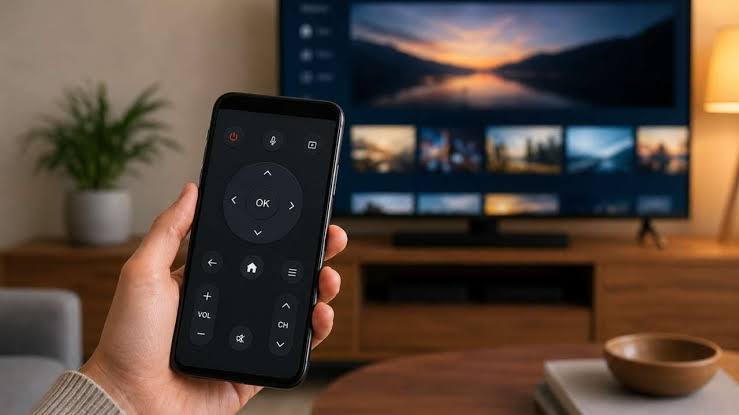
No Remote? No Problem
Misplacing your TV remote or losing it between the couch cushions doesn’t have to be as frustrating as it seems. Sure, it’s always a great idea to track down that remote, but in a pinch you can also use your phone—especially if you have any old Android phones or tablets lying around. This is one of the best ways to repurpose your old Android devices.
There are actually several ways to set this up, but the methods—or apps, really—can differ slightly from TV brand to TV brand. Roku, for example, has its own app for Roku devices and TVs, as do Samsung (SmartThings), Google, and other brands. In fact, you can use this free alternative on almost any smart TV out there.
Method 1: Use Your TV’s Official Mobile App
The easiest and fastest way to set this up—if your phone and TV are on the same Wi-Fi network (and they most likely are)—is to use a mobile app of your choosing and connect via the local network.
| TV Brand | Official App |
|---|---|
| Roku | Roku app (iOS/Android) |
| Samsung | SmartThings app |
| Google TV / Android TV | Google TV app |
| Amazon Fire TV | Fire TV Remote app |
| Apple TV | Apple TV Remote (Control Center) |
Pro Tip: These official apps are free and often offer more features than the physical remote, including keyboard input for search, voice control, and quick access to apps.
How to Set It Up
-
Download the official app for your TV brand.
-
Ensure your phone and TV are on the same Wi-Fi network.
-
Open the app and follow the on-screen pairing instructions.
-
Start controlling your TV.
Method 2: Use a Third-Party Universal Remote App
If there’s no official app available—or you want a single app to control multiple brands—you can find third-party options on Google Play.
| App | Platform | Notes |
|---|---|---|
| Universal TV Remote | Android | Works with most smart TVs over Wi-Fi |
| Bluetooth Remote | Android | Connects via Bluetooth instead of Wi-Fi |
| Sure Universal Remote | Android | Supports Wi-Fi, Bluetooth, and IR (with hardware) |
Note: Third-party apps may show ads, but they’re often free and work with a wide range of devices. Some apps, like Bluetooth Remote, connect to your TV via Bluetooth rather than Wi-Fi—ideal if your network setup is complicated.
Method 3: Use an IR Blaster (Hardware Solution)
If Wi-Fi or Bluetooth aren’t your style—or they’re simply unavailable—you can also use a small device called an infrared (IR) blaster. It turns just about any smartphone into a universal remote, no internet required.
What Is an IR Blaster?
An IR blaster is a small device that plugs into your phone’s USB-C port and operates as an IR controller. It communicates directly with the TV’s built-in IR receiver, using infrared signals—just like a traditional remote.
| Feature | Benefit |
|---|---|
| No Wi-Fi or Bluetooth needed | Works offline and without network setup. |
| Universal compatibility | Controls TVs, air conditioners, media players, and more. |
| Low cost | Typically $15–$20. |
Recommended IR Blaster Models
| Model | Price | Features |
|---|---|---|
| Standard USB-C IR Blaster | ~$15 | Basic IR remote functions. |
| Mini-Hub IR Blaster | ~$20 | Supports voice commands via Google Home and Alexa. |
| SwitchBot IR Blaster | ~$36 | Smart home integration, compatible with SwitchBot ecosystem. |
Pro Tip: A mini-hub IR blaster can also connect to smart home devices, TVs, media players, air conditioners, and much more. You could ditch multiple remotes using something like this.
Which Method Should You Choose?
| Method | Best For |
|---|---|
| Official App | Fastest setup; best features for your specific TV brand. |
| Third-Party App | Controlling multiple brands from one app. |
| IR Blaster | Offline use; universal compatibility with older or non-smart TVs. |
Comparison Table: Remote Options at a Glance
| Method | Cost | Requires Wi-Fi? | Requires Bluetooth? | Works with Any TV? |
|---|---|---|---|---|
| Official TV App | Free | ✅ Yes | ❌ No | ❌ Brand-specific |
| Third-Party App (Wi-Fi) | Free (with ads) | ✅ Yes | ❌ No | ✅ Most smart TVs |
| Third-Party App (Bluetooth) | Free (with ads) | ❌ No | ✅ Yes | ✅ Most smart TVs |
| IR Blaster | $15–$36 | ❌ No | ❌ No | ✅ Any IR-compatible TV |
Frequently Asked Questions
Can I use my phone as a TV remote without Wi-Fi?
Yes. You can use a Bluetooth remote app or a USB-C IR blaster to control your TV without a Wi-Fi connection.
Do I need an internet connection for an IR blaster?
No. IR blasters use infrared signals and do not require Wi-Fi, Bluetooth, or an internet connection.
What is the best free TV remote app?
The best app depends on your TV brand. For Roku, use the Roku app. For Samsung, use SmartThings. For a universal option, try Universal TV Remote or Bluetooth Remote for Android.
Can I use an old Android phone as a TV remote?
Absolutely. Install a remote app or use an IR blaster to turn any old Android phone into a dedicated TV remote.
Do IR blasters work with every TV?
IR blasters work with any TV that has an infrared receiver, which includes most modern and older TVs. However, check your TV’s specifications to confirm.
Quick Reference Summary
| Step | Action |
|---|---|
| 1 | Check if your TV brand has an official app. |
| 2 | If not, try a third-party universal remote app. |
| 3 | For offline use, buy a USB-C IR blaster. |
| 4 | Install the app or connect the IR blaster. |
| 5 | Start controlling your TV from your phone. |
Final Thoughts
Misplacing your TV remote doesn’t have to be a headache. With the right app or a small IR blaster, your phone can take over as a fully functional remote—often with more features than the original.
The bottom line: Most apps for Wi-Fi and Bluetooth are free, and if you go the IR blaster route, they are relatively low-cost and easily accessible. Whether you use an official app, a third-party option, or a hardware solution, you’ll never be stuck without a remote again.