How to Open Notification Center on iPhone in iOS 27 (and See Older Notifications)
How to Open Notification Center on iPhone in iOS 27
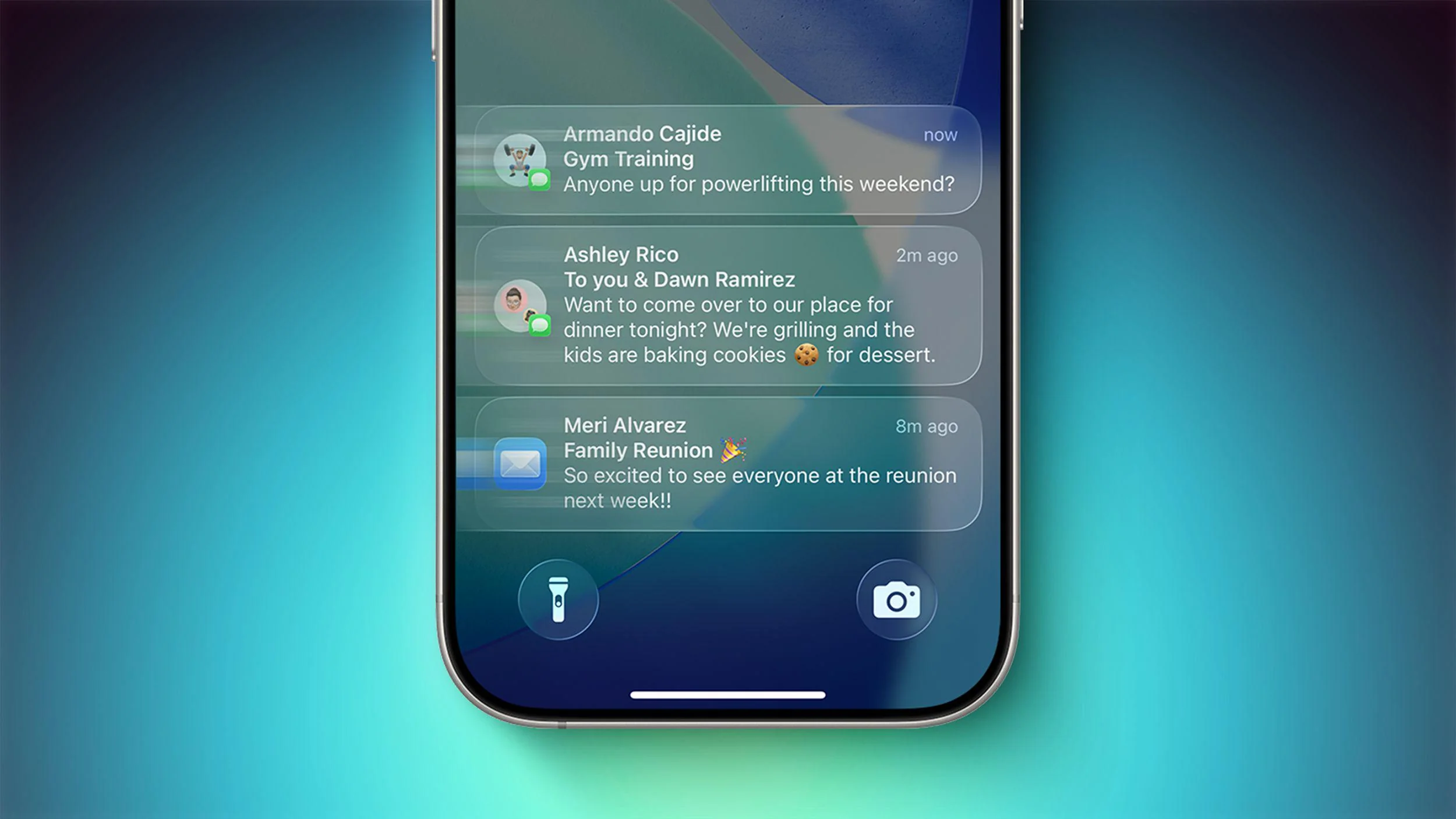
You glanced away for a second and a banner vanished. A message, a missed call, a reminder, and now it’s gone from the screen. It’s not gone for good, though. As long as you haven’t cleared it, it’s sitting in Notification Center.
The gesture depends on whether your iPhone is unlocked or showing the Lock Screen.
Open Notification Center When Your iPhone Is Unlocked
Swipe down from the top center of any screen, then scroll up to see older notifications.
- Put one finger at the top edge of the display, near the middle.
- Swipe straight down until Notification Center fills the screen.
- Scroll through your alerts, and tap one to open its app.
- Swipe up to close Notification Center.
Don’t start in the top-right corner. On a Face ID iPhone, that corner opens Control Center instead. If a swipe opens the wrong panel, you started too far to the right.
See Older Notifications From the Lock Screen
Your Lock Screen already shows recent alerts. To see the rest:
- Wake your iPhone so the Lock Screen is showing.
- Swipe up from the middle of the screen.
- Keep scrolling to see earlier notifications.
- Use Face ID, Touch ID, or your passcode if an alert contains private information.
Don’t swipe up from the very bottom of the screen. That opens your Home Screen instead.
If the Lock Screen Swipe Doesn’t Work
Access to Notification Center while locked can be switched off in your passcode settings.
- Open Settings and tap Face ID & Passcode (or Touch ID & Passcode on iPhones with a Home button).
- Enter your passcode.
- Scroll to Allow Access When Locked.
- Turn on Notification Center.
- Lock your phone and try the swipe again.
Keep in mind that turning this on means anyone holding your locked iPhone may be able to see the list of notifications. You can limit what shows by choosing Settings > Notifications > Show Previews > When Unlocked.
Manage Your Notifications
Once Notification Center is open, you can do more than read.
- Open an alert: Tap it.
- Clear or manage it: Swipe left over a notification and tap Clear, or tap Manage for more options.
- Send an app’s alerts straight to Notification Center: Swipe left, tap Manage, then tap Deliver Quietly. That stops the app’s alerts from lighting up the screen, playing a sound, or appearing on the Lock Screen. You can reverse it by choosing Deliver Prominently.
- Turn off an app’s notifications: Swipe left, tap Manage, then tap Turn Off.
- Clear everything: Look for the clear (X) button in Notification Center and confirm.
If an App’s Notifications Are Missing
- Open Settings and tap Notifications.
- Choose the app.
- Make sure Allow Notifications is on.
- Under Alerts, make sure Notification Center is selected.
Also check whether a Focus is on. A Focus can delay or filter alerts, so they may not show up the way you expect.
Change How Notifications Look
Go to Settings > Notifications > Display As and choose Count, Stack, or List. This changes how alerts appear on the Lock Screen, but the swipe gestures stay the same.
FAQ
Why does Control Center open instead of Notification Center?
Your swipe probably started near the top-right corner. Start in the top center instead.
Can I get back a notification I already cleared?
No. Once you clear a notification, it’s removed from Notification Center and you can’t view it again. The app itself may still show the message or item.
Does Notification Center keep notifications forever?
No. It shows alerts that haven’t been cleared, so it isn’t a permanent archive.
Can I see Notification Center on the Lock Screen without unlocking?
Yes, if Allow Access When Locked is turned on. Some alerts may still ask you to unlock before showing their content.