How to Customize Your iPhone Lock Screen in iOS 27: Clock, Widgets, Controls & Focus
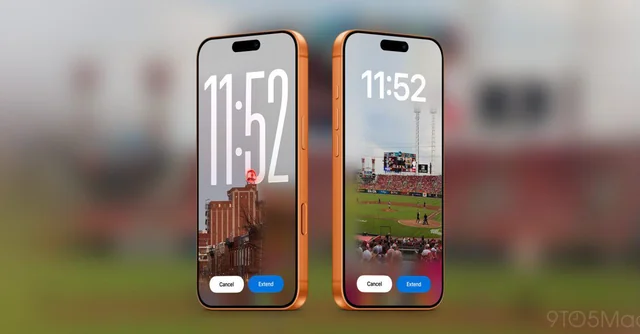
How to Customize Your iPhone Lock Screen in iOS 27
Your Lock Screen is the first thing you see every time you pick up your iPhone, so it’s worth making it useful. You can change much more than the wallpaper: the clock style, the widgets under it, the buttons at the bottom, and even which Focus mode switches on with each design.
Most of these steps work the same way on iOS 26 and iOS 18, with small differences in menus. What you can change also depends on your iPhone model and the photo you pick.
Open the Lock Screen Gallery
Touch and hold the current Lock Screen. From there you can tap Add New to create a design, or pick a saved one and tap Customize to edit it. Your phone may ask you to unlock first.
You can keep several Lock Screens, for example one for work, one for travel, and one for sleep. Nothing is saved until you tap Done, so feel free to experiment.
Create a New Lock Screen
- Touch and hold the Lock Screen to open the gallery.
- Tap the plus button.
- Choose a wallpaper type, such as a photo, Photo Shuffle, Weather, Astronomy, Emoji, or a color.
- Adjust the preview, then tap Add.
- Choose whether to set the wallpaper as a pair or customize the Home Screen separately.
Change the Clock, Widgets, and Controls
Open your Lock Screen design and tap Customize, then tap the Lock Screen to edit it. Each area is separate, so tap the part you want to change.
- Clock: Tap the clock to change its font, style, and color. Apple’s iOS 26 guide also describes adjusting the clock’s height.
- Widgets: Tap the widget area to add information like weather, calendar events, or battery levels. The space under the clock holds up to four small widgets or two rectangular ones.
- Bottom controls: Tap the minus button on a control to remove it, then tap the plus to choose a replacement, such as Timer or Voice Memo.
Tap Done when you’re happy with the result.
Use the Depth or Spatial Effect
If you choose a regular 2D photo on iOS 26 and later, you can tap the small mountain-and-sun icon to turn on Spatial Scenes. It adds depth without hiding the subject behind the clock. Apple documents Spatial Scenes wallpaper for iPhone 12 and later.
Not every photo works. If the depth effect is missing, the photo, the crop, or your widget layout may be the reason. Try another picture, remove a widget, or move the subject.
Link a Lock Screen to a Focus
A linked Focus can silence certain notifications and change other behavior whenever that Lock Screen is active.
- Touch and hold the Lock Screen to open the gallery.
- Swipe to the design you want to link.
- Tap Focus at the bottom and choose one, such as Do Not Disturb, Personal, Sleep, or Work.
- Close the picker.
After that, switching to that Lock Screen turns on the matching Focus.
Switch Between or Delete Lock Screens
To switch, touch and hold the Lock Screen, swipe left or right, and tap the design you want. If it’s linked to a Focus, the Focus changes at the same time.
To delete one, open the gallery, swipe up on the design, and tap the trash icon.
Tips for a Better Lock Screen
- Pinch and drag a photo with two fingers to place the subject around the clock and widgets.
- Choose a clock color that contrasts with your wallpaper so you can read it at a glance.
- Duplicate or create a new Lock Screen before big changes, so the original stays available.
- Don’t pile on widgets. They can compete with your photo and make everything harder to read.
FAQ
Why can’t I add more widgets?
The widget area has limited space, and bigger widgets take up more of it. Remove one or pick a smaller size.
Why is the depth effect missing?
The photo, the crop, your iPhone model, or the widget layout may not support it. Try another photo or reduce the widgets.
Can my Lock Screen and Home Screen use different wallpapers?
Yes. After you add a Lock Screen, choose to customize the Home Screen separately instead of keeping the paired wallpaper.
How do I change the Lock Screen controls?
Open the editor, tap the minus button on a bottom control, then tap the plus button to choose a replacement.