How to Free Up Storage Space on Your Samsung Phone: 7 Effective Methods
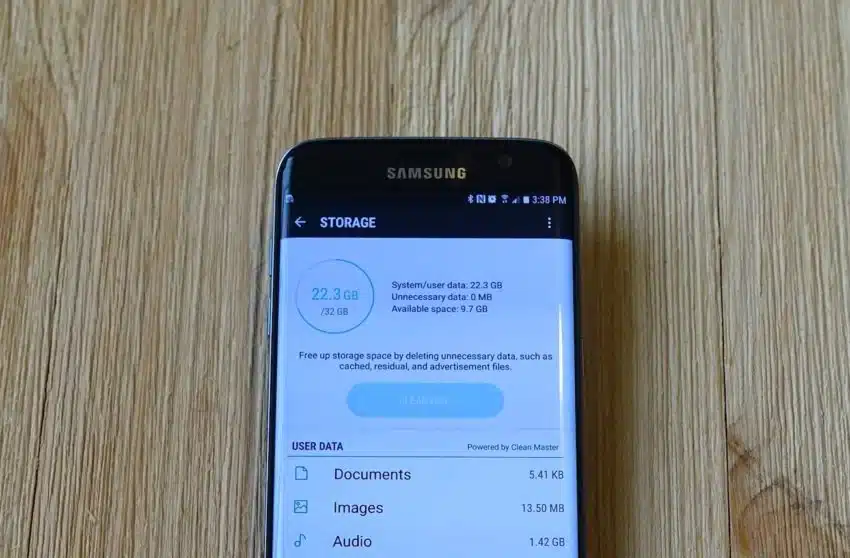
Smartphones’ maximum storage capacity has increased over time, with some Samsung models offering up to 1TB of internal storage. However, the average smartphone user typically picks the 128GB or 256GB model. If your phone memory is nearly full and you don’t want to delete existing media, you have multiple options to make some room. Before starting a cleanup session, you must check the total memory used by images stored on your phone.
Samsung’s My Files app can tell you all the storage statistics and even sorts the files into different categories. Launch the app and tap on the Images icon in the top section. It’ll list the images on your phone with the total occupied size at the top-right corner.
1. Uninstall Unused Apps
Removing unused apps is a great starting point because it cleans up your app drawer and home screen. Tap and hold on the app icon and select Uninstall. Go for the rarely used apps like preinstalled Samsung apps, games, social apps, and borderline-adware tools.
2. Clear App Cache
Social media apps and games store huge app caches for faster loading, sometimes in multiple gigabytes. Cleaning them can free space to some extent. The app will slowly rebuild it, so you may need to repeat the process in a few weeks.
-
Long-press the app icon.
-
Select App info.
-
Tap on Storage.
-
Select the Clear cache option.
3. Empty the Recycle Bin
The recycle bin is a fail-safe feature to preserve accidentally deleted files. Even when you bulk delete items, the app keeps them in the trash for 30 days, which still occupies storage space. Before hastily deleting more photos, you should empty the recycle bin first.
Steps:
-
Open the My Files app.
-
Tap on the Recycle bin option.
-
Tap the vertical ellipsis button on the top right.
-
Select Empty.
-
Tap Delete to clean the trash.
The Gallery app shows a Recycle bin option as well, but that only shows media files that you put in the trash. Clearing the My Files Recycle bin is sufficient.
4. Remove Large Files and Duplicates
Next, remove large files and duplicates on your phone. They’ll mostly be video files, screen recordings, or documents that you repeatedly share or download.
Steps:
-
Open the My Files app.
-
Tap Manage storage and select Large files.
-
Manually select the files (over 500MB) and tap Delete.
-
Tap Delete again.
-
Go back and tap on Duplicate files.
-
Select all items and tap Delete all.
The Manage storage tool also shows a few suggestions. Review the files and delete the ones you don’t need.
5. Delete Downloads from Streaming Apps
You might have downloaded multiple movies and shows in streaming apps like Netflix and never bothered to delete them. These high-quality video files take up huge space and don’t show up in the My Files app storage calculator. Streaming apps encrypt them to prevent piracy, so you must manually open each app’s download folder and wipe it clean.
6. Move Files to External Storage
If all the above methods fail to free a major chunk of storage space, it’s time to move important files elsewhere.
-
USB drive via OTG adapter – Connect a USB drive and transfer files.
-
SD card – If your phone supports it, move files to an SD card.
-
PC connection – Connect your phone to a computer and copy large files.
These methods promote local data storage but aren’t very convenient. SD cards are rare in smartphones now, and USB storage is a temporary option.
7. Use Cloud Storage Services
Instead of physical storage, use a cloud storage provider like Google Drive or Dropbox to back up your important files. The free tier can store your important files, and you can use the PC transfer option when space runs out. You can also purchase a cloud storage subscription with ample storage space, like Google One, which offers up to 5TB storage capacity.
Benefits of cloud storage:
-
Files sync automatically across devices.
-
Access your files whenever necessary.
-
Hardened security measures to protect your files.
-
Redundancy by maintaining multiple copies of data.
-
No upkeep required from your end.
Summary Table
| Method | Best For | Effort Level |
|---|---|---|
| Uninstall Apps | Rarely used or bloatware apps | Low |
| Clear Cache | Social media and games | Medium |
| Empty Recycle Bin | Recovering accidentally deleted storage | Low |
| Remove Large Files | Videos, documents, screenshots | Medium |
| Delete Streaming Downloads | Netflix, Prime Video, etc. | Medium |
| External Storage | Large file backups | High |
| Cloud Storage | Long-term, automatic backups | Low (after setup) |
Conclusion
Freeing up storage on your Samsung phone doesn’t have to be a daunting task. By using the My Files app to identify storage hogs, clearing app caches, deleting downloads from streaming apps, and leveraging cloud storage or external drives, you can reclaim significant space. For the best results, combine multiple methods – especially clearing caches and moving large files to the cloud. The key is to make storage management a regular habit rather than a reactive fix.