How to Fix Apple Maps Taking Up Too Much iPhone Storage
When Apple Maps Eats Your Storage
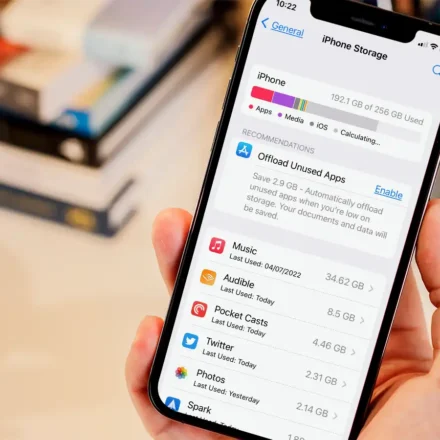
If you have an iPhone with 64GB of storage—or even 128GB—you might find yourself without a lot of space to store your photos, music, and apps. It’s important to have some spare storage on your device so you can continue to take photos, download content, and update to the latest operating system.
While there are a number of reasons why your iPhone storage is almost full—such as your iPhone cache, which you can clear—there are times that Apple Maps could be taking up more storage than you realize.
There are two possibilities for this:
| Possibility | Description |
|---|---|
| Stored data | You may be storing more data on your Maps app than you realized (favorite places, offline maps, routes). |
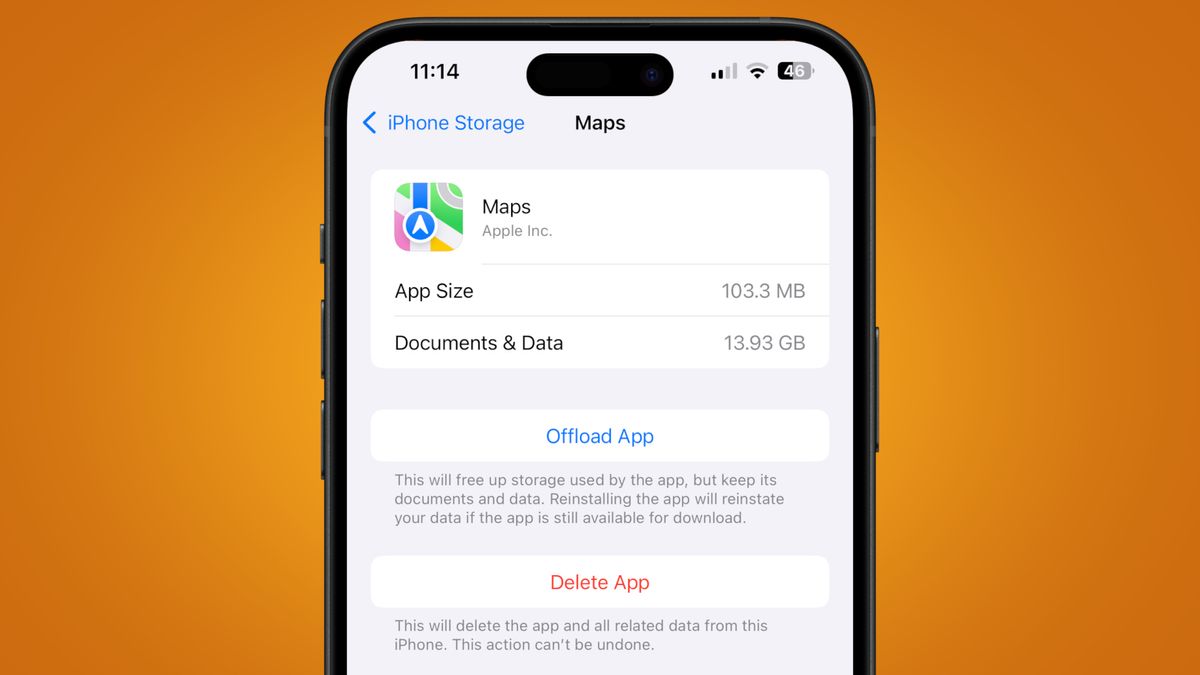
| Phantom storage bug | A very common bug plaguing users in iOS 26 and previous iOS versions—the app appears to take up space even when it’s not actively used. |
Why Is Apple Maps Taking Up So Much Space?
If Apple Maps is your go-to map app, it makes sense why it’s taking up storage. The app stores:
| Data Type | What It Includes |
|---|---|
| Offline Maps | Downloaded map data for offline navigation. |
| Favorite Places | Saved locations and addresses. |
| Visited Addresses | History of places you’ve searched or visited. |
| Personalized Routes | Custom routes and guides. |
| Guides | Curated lists of places and recommendations. |
The More Data You Store, the More Storage It Occupies.
Step 1: Delete Offline Maps and Saved Data
If Apple Maps is your go-to map app, then it makes sense why it’s taking up so much storage. The app stores your favorite places, visited addresses, and any downloaded maps you may have used and forgotten to delete.
How to Delete Offline Maps
-
Open Apple Maps.
-
Tap the icon of your face (or initials) in the top-right corner.
-
Go to Offline Maps.
-
Swipe left on any downloaded map and tap Delete.
How to Delete Places, Routes, and Guides
-
In Apple Maps, tap the icon of your face.
-
Tap Places.
-
Swipe left on any location and tap Delete.
-
Repeat for Routes and Guides if you want to clear those as well.
Pro Tip: Deleting offline maps and saved data can free up several gigabytes of storage.
Step 2: Toggle Off Location System Services
If you don’t actually use Apple Maps, you may be dealing with phantom iPhone storage. A known bug in iOS can cause Apple Maps to appear to take up space even when it’s not.
How to Turn Off Location Services for System Features
-
Go to Settings > Privacy & Security > Location Services.
-
Scroll down and tap System Services.
-
Toggle off the following:
-
Routing & Traffic
-
Improve Maps
-
Significant Locations
-
Note: This prevents Apple Maps from continuing to collect and store location data in the background.
Step 3: Disable iCloud Backup for Apple Maps
Apple Maps may also be backing up data to iCloud, which can contribute to storage issues.
How to Disable iCloud Backup for Maps
-
Go to Settings > Your Apple Account (your name at the top).
-
Tap iCloud > Storage > Backups.
-
Select your device.
-
Toggle off Apple Maps in the backup list.
What This Does: Prevents Apple Maps data from being backed up to iCloud, which can free up both local and cloud storage.
Step 4: Offload or Delete the App
You can either offload the app (keeps data, frees app storage) or delete it entirely (removes both app and data).
| Option | What It Does | Result |
|---|---|---|
| Offload App | Removes the app but keeps documents and data. | Frees up some storage; data remains. |
| Delete App | Removes the app and all associated data. | Frees up the most storage. |
How to Offload or Delete Apple Maps
-
Go to Settings > General > iPhone Storage.
-
Find Apple Maps in the list.
-
Tap it and choose either:
-
Offload App
-
Delete App
-
Combined Approach
After toggling off system services and iCloud backup:
-
Go back to iPhone Storage.
-
Delete Apple Maps again.
-
This should solve your issues once and for all.
Important: The bug seems to persist unless you turn off these system services before deleting the app. Simply deleting the app alone may not work.
What If Nothing Works?
If following those steps still leaves you with storage being occupied by Apple Maps, you have a few options:
Option 1: Update iOS
-
Go to Settings > General > Software Update.
-
Install the latest version of iOS.
-
Check if the issue is resolved.
Note: Apple often releases bug fixes in software updates that address phantom storage issues.
Option 2: Factory Reset and Restore
-
Back up your iPhone to iCloud or your computer.
-
Go to Settings > General > Transfer or Reset iPhone > Erase All Content and Settings.
-
Restore from your backup after the reset.
Why This Works: A factory reset cleans the cache from system data and other parts of the system that are no longer necessary but may remain after software updates.
Option 3: Upgrade Your Device
If you’re struggling with little space on your iPhone, the best recommendation may be to update to a new device. All iPhone models introduced in late 2025 and beyond offer at least 256GB of storage—significantly more than the 64GB or 128GB baseline of older models.
Comparison Table: Quick Fixes at a Glance
| Fix | Storage Impact | Difficulty | Time Needed |
|---|---|---|---|
| Delete Offline Maps | High | Easy | 2 min |
| Delete Places/Routes | Medium | Easy | 2 min |
| Turn Off System Services | Medium | Easy | 3 min |
| Disable iCloud Backup | Low | Easy | 2 min |
| Offload App | Medium | Easy | 1 min |
| Delete App | High | Easy | 1 min |
| Update iOS | Low | Easy | 10–20 min |
| Factory Reset & Restore | High | Advanced | 30–60 min |
Frequently Asked Questions
Why is Apple Maps taking up so much storage on my iPhone?
It could be due to downloaded offline maps, saved places, or a known iOS bug that causes Apple Maps to report phantom storage usage.
How do I delete offline maps in Apple Maps?
Open Apple Maps, tap your face icon, go to Offline Maps, and swipe left on any downloaded map to delete it.
Does deleting Apple Maps free up storage?
Yes, but for the phantom storage bug, you also need to toggle off system services (Routing & Traffic, Improve Maps, Significant Locations) before deleting the app.
What is the phantom storage bug in Apple Maps?
A bug in iOS 26 and earlier versions causes Apple Maps to appear to take up significant storage even when it’s not actively storing data. The fix involves turning off specific system services before deleting the app.
Should I offload or delete Apple Maps?
Offloading frees up app storage while keeping your data. Deleting removes both the app and all associated data, freeing up the most storage.
What if none of these fixes work?
Try updating iOS, performing a factory reset and restore, or upgrading to a newer iPhone with more storage.
Quick Reference Summary
| Step | Action |
|---|---|
| 1 | Open Apple Maps > tap your face icon > Offline Maps > delete downloaded maps. |
| 2 | Delete saved Places, Routes, and Guides. |
| 3 | Go to Settings > Privacy & Security > Location Services > System Services > toggle off Routing & Traffic, Improve Maps, and Significant Locations. |
| 4 | Go to iCloud > Storage > Backups > toggle off Apple Maps. |
| 5 | Go to iPhone Storage > Apple Maps > Delete or Offload. |
| 6 | If the issue persists, update iOS or factory reset and restore. |
Final Thoughts
Apple Maps can take up more storage than you realize—whether through offline maps, saved data, or a frustrating iOS bug. The good news is that you can fix it yourself without needing to upgrade your phone.
The bottom line: Start with the simplest fix (deleting offline maps and saved places) and work your way up. If you’re dealing with the phantom storage bug, remember to toggle off system services before deleting the app. A little maintenance goes a long way toward reclaiming valuable storage space.