How to Free Up Google Storage Space: Manage Gmail, Drive & Photos Efficiently

Not managing your cloud storage is one of the biggest mistakes you can make with your Google account. The 15 GB of free storage that comes with a Google account is valuable, and if not managed properly, you may lose incoming emails and shared files. Recently, Google changed its policy: new accounts now receive only 5 GB of free storage unless you link a phone number, which restores the 15 GB limit. Even 15 GB can be hard to manage, and with only 5 GB, running out of space may feel inevitable.
You can increase storage to 15 GB by adding your phone number, or pay for additional space. But if you don’t want to do either—or you’ve already used up your 15 GB—there is still an easy way to free up space in Gmail, Google Drive, and Google Photos. Go to Google One Storage Manager, where you’ll find several options to clear storage effectively.
Your Google account storage is shared between Gmail, Drive, and Photos. The Storage Manager shows exactly how much space each service uses. From there, you can follow Google’s recommendations: delete large files in Drive, unwanted images and videos in Photos, and emails with sizeable attachments or spam in Gmail.
Use App Filters to Identify Large or Unwanted Files
Beyond the immediate options in Storage Manager, each service offers deeper cleanup tools.
-
Gmail: Delete items in Trash and Spam (they count toward storage until permanently removed). Clear Social, Promotions, and Updates tabs. Use search modifiers like
older_than:1yorbefore:YYYY/MM/DDto find old emails, andlarger:1mbto find large attachments. -
Google Drive: Navigate to Storage in the sidebar to see all files sorted by size. Delete unneeded files. Files shared with you do not count toward your storage, but any copies you make do – find and delete those as well.
-
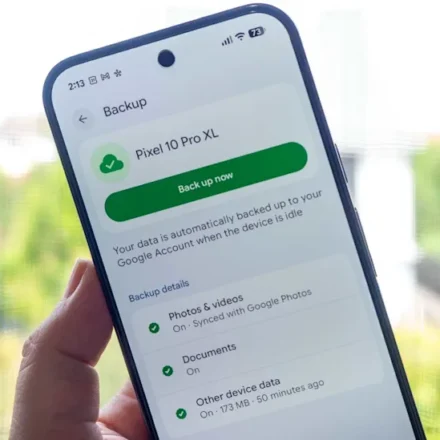
Google Photos: Browse “Screenshots” and “Archived” folders, search for “blurry,” and manually delete unnecessary images. Turn off backup to save space for other apps, or configure which folders get backed up (e.g., exclude screenshots). Use the Storage saver quality option (Settings > Backup quality) to compress photos and videos, saving significant space.
Prevent Future Storage Issues
-
Turn off backup for specific folders or large video files.
-
Regularly empty Trash in all three services.
-
Use the built‑in file compression feature in Google Photos.
-
Periodically review and delete old emails and large Drive files.
Conclusion
Running out of Google storage doesn’t have to be a crisis. With the Google One Storage Manager and a few minutes of cleanup in Gmail, Drive, and Photos, you can reclaim gigabytes of space. Using filters, deleting trashed items, compressing photos, and managing backups will help you stay within your free limit longer.