How to Fix Washed-Out Widgy Widgets in iOS 26
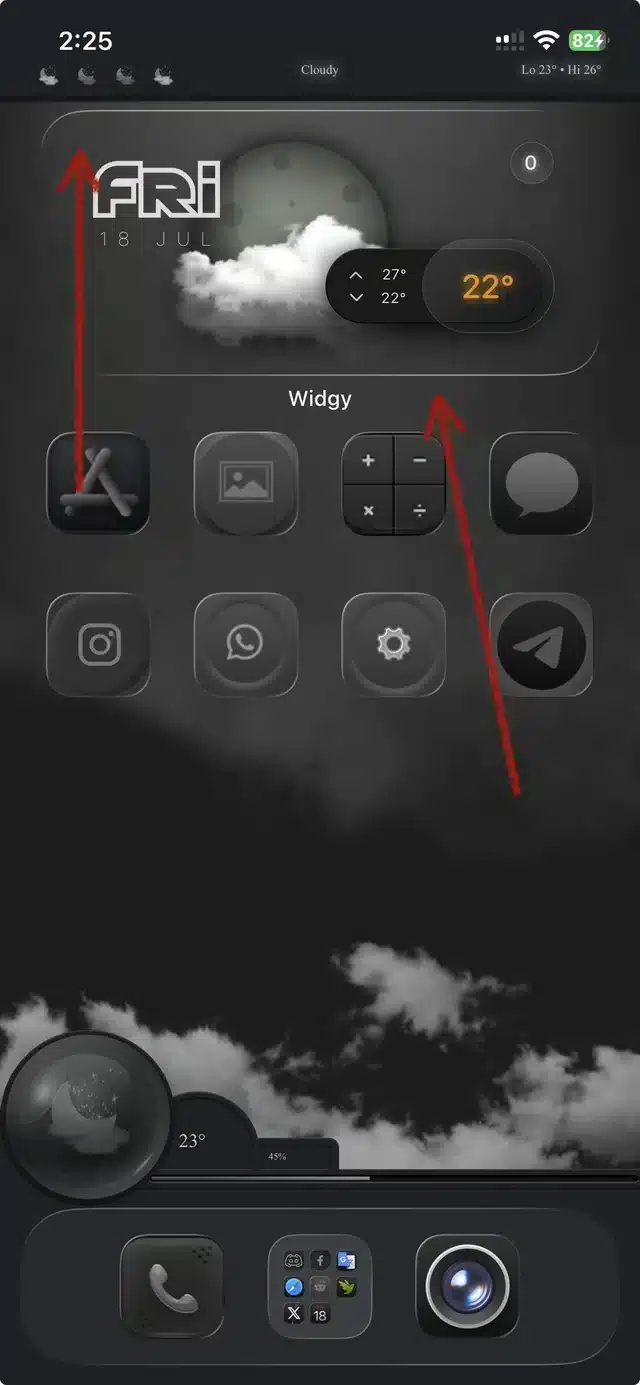
Apple’s iOS 26 introduced a beautiful “Liquid Glass” design with translucent effects across the system. However, this new aesthetic has a significant downside for users of the powerful customization app Widgy: it can cause widgets to appear washed out and unreadable due to excessive background transparency.
Fortunately, there is a clever and permanent solution known as the “Helper Widgy” method. This guide will walk you through the process step-by-step.
The Problem: iOS 26’s Liquid Glass UI
The Liquid Glass interface applies a deep translucency to UI elements, including the space behind widgets. This system-level effect overrides local settings, making Widgy widgets blend too much with the background and lose readability.
The Solution: The Helper Widgy Method
This fix works by creating a custom, solid background image that counteracts the system’s transparency. You will create a helper widget, export its background, and apply it to your main widget.
Part 1: Create the Helper Widgy Background
-
Create a New Widget: Open Widgy and create a new widget. Crucially, it must be the same size and type (e.g., Medium, Rectangular) as the widget you want to fix.
-
Add an Image Layer: Tap the + icon to
Add New Layer. Select theImageoption. -
Set a Transparent Background: In the
Backgroundtab for this new Image layer, set the color to fully transparent. -
Enable Transparency Editing: Go to the main
Documenttab and toggle onEdit Transparency Layer. This step is essential. -
Frame the Image: Select your Image layer again, go to the
Frametab, and adjust theSizeto ensure the transparent image fills the entire widget canvas. -
Set the Correct Position: Tap the square icon in the top-right corner, select
Widget Position, and match the location (e.g., Top, Middle, Bottom) to your main widget’s position on the home screen. -
Export the Background: Save the widget, then open it (without editing). Tap
Share Widget>Share Image Previewand save the resulting transparent image to your Photos library.
Part 2: Apply the Fix to Your Main Widget
-
Edit Your Main Widget: Open the Widgy widget that was appearing washed out.
-
Remove the Old Background: Delete its current background layer.
-
Add the Helper Image: Tap
Add New Layer>Image. Then, go toSystem>Image Libraryand select the transparent image you just saved from your Photos. -
Save and Apply: Save the widget and apply it to your home screen. It should now have a solid, readable background.
How It Works & FAQs
This method uses the transparent image from the Helper Widgy as a custom backplate. Because it was created with the Edit Transparency Layer mode active and the correct position, it perfectly neutralizes the system’s translucency effect.
Q: Is this fix permanent?
A: Yes, for as long as your widget’s size and home screen position remain the same. You can reuse the same helper image for multiple widgets of the same size and position.
Q: Does this break any widget features?
A: No. This only affects the background layer. All interactivity, tap actions, and data updates in your Widgy will continue to work perfectly.
Q: Will this work for all widget sizes?
A: Yes, but you must create a separate Helper Widgy for each unique widget size and screen position.