How to Fix Monitor Ghosting Complete Guide (2026)
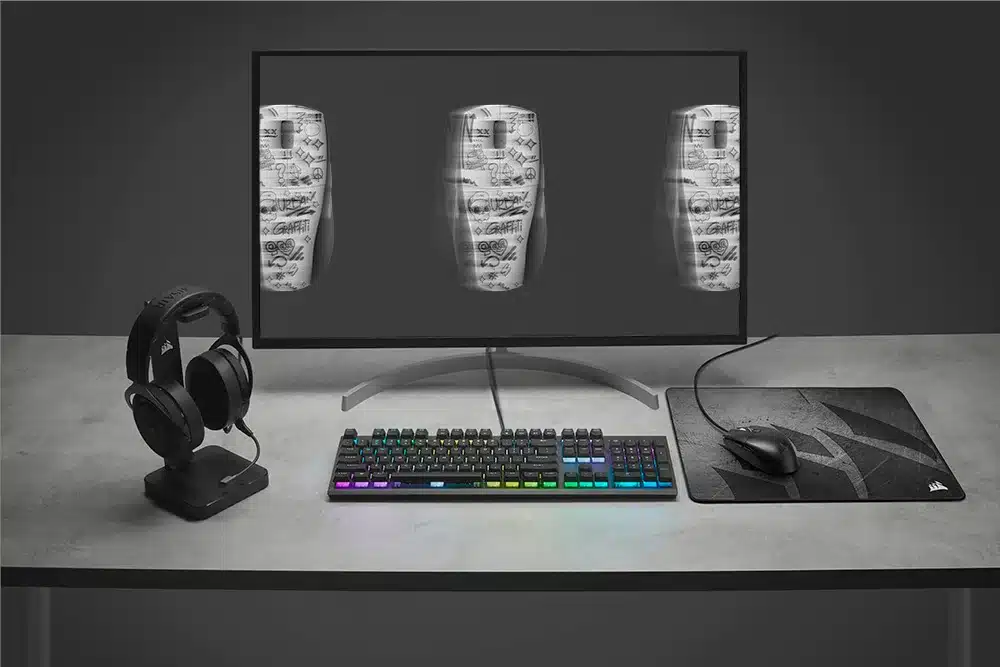
Monitor ghosting appears as a blurry trail or shadow following moving objects. It happens when pixels can’t transition colors fast enough to keep up with the refresh rate or frame rate. While often a hardware limitation, you can reduce or eliminate ghosting through software tweaks and settings adjustments.
Quick Diagnosis: The UFO Motion Test
Before making changes, confirm ghosting is the issue.
| Step | Action |
|---|---|
| 1 | Go to testufo.com/ghosting (Blur Busters UFO Test) |
| 2 | Watch the moving UFO image |
| 3 | If you see a clear trail or smear behind it → ghosting is present |
1. Enable Overdrive (Response Time) Setting
Most monitors have a pixel overdrive setting that increases voltage to pixels, speeding up transitions.
| Step | Action |
|---|---|
| 1 | Open your monitor’s On-Screen Display (OSD) menu |
| 2 | Look for Overdrive, Response Time, or Trace Free |
| 3 | Try Medium or Normal – these usually give the best balance |
| 4 | Avoid the highest setting (may cause inverse ghosting – bright halos) |
Tip: Check your monitor’s manual or manufacturer website for recommended overdrive levels.
2. Update Graphics Drivers
Outdated drivers can cause frame synchronization issues that mimic ghosting.
| GPU | How to Update |
|---|---|
| NVIDIA | GeForce Experience → Drivers → Check for updates |
| AMD | AMD Adrenalin → Check for updates |
| Intel | Intel Driver & Support Assistant |
Enable automatic updates to stay current.
3. Check Cables and Connections
Faulty or low-quality cables can degrade signal and cause artifacts.
| What to Do | Why |
|---|---|
| Inspect HDMI/DisplayPort cables for fraying or damage | Damaged cables cause signal loss |
| Use high-bandwidth certified cables (e.g., Ugreen, Cable Matters) | Ensure full refresh rate support |
| Try a different port on your GPU and monitor | Eliminate port failure |
Note: Expensive “premium” cables rarely offer benefits over well‑made standard cables. Read reviews.
4. Adjust Refresh Rate and Adaptive Sync
| Setting | How to Change (Windows) | Effect |
|---|---|---|
| Refresh rate | Settings → System → Display → Advanced display → Choose refresh rate | Lowering to 60 Hz gives pixels more time, reducing ghosting (but hurts smoothness) |
| Adaptive Sync | NVIDIA: G-Sync; AMD: FreeSync; enable in GPU control panel | Synchronizes monitor refresh rate with GPU frame rate, reducing tearing and improving motion |
For console gamers: enable VRR on PS5 or Xbox.
5. If Ghosting Persists: Panel Technology Matters
Some panel types are inherently prone to ghosting.
| Panel Type | Ghosting Tendency | Best For |
|---|---|---|
| OLED | None (0.03ms response) | Fastest motion, no ghosting |
| Fast IPS | Very low | Great all‑around |
| TN | Low but poor colors | Competitive gaming |
| VA | High (especially dark smearing) | Avoid for fast games |
Recommendation: If you’re buying a new monitor, choose OLED for perfect motion clarity or Fast IPS for a budget‑friendly alternative. Avoid VA panels for competitive gaming.
Summary Table: Ghosting Fixes
| Fix | Difficulty | Effectiveness |
|---|---|---|
| Enable overdrive (Medium) | Easy | High |
| Update GPU drivers | Easy | Medium |
| Check/replace cables | Easy | Low to Medium |
| Lower refresh rate | Easy | Medium (trade‑off) |
| Enable Adaptive Sync | Easy | Medium |
| Upgrade to OLED/Fast IPS | Hard (cost) | Very High |
Conclusion
Monitor ghosting is frustrating but often manageable. Start with the UFO test to confirm the issue, then enable overdrive at a medium setting. Update drivers and check cables. If ghosting remains, consider lowering refresh rate or enabling Adaptive Sync. For a permanent solution, invest in an OLED or Fast IPS monitor.