info@real4web.com
logo
  • Home
  • News
  • Lyrics
  • Tech Troubleshooting
  • Variety
  • Ai Prompt
  • web tools
  • Legal Guides
  • Contact Us
  • العربية
logo
  • Home
  • News
  • Lyrics
  • Tech Troubleshooting
  • Variety
  • Ai Prompt
  • web tools
  • Legal Guides
  • Contact Us
  • العربية
  • Home
  • News
  • Lyrics
  • Tech Troubleshooting
  • Variety
  • Ai Prompt
  • web tools
  • Legal Guides
  • Contact Us
  • العربية
real-logo
  • Home
  • News
  • Lyrics
  • Tech Troubleshooting
  • Variety
  • Ai Prompt
  • web tools
  • Legal Guides
  • Contact Us
  • العربية
Home Variety How to Fix iOS 26.2 Camera Bugs

How to Fix iOS 26.2 Camera Bugs

How to Fix iOS 26.2 Camera Bugs

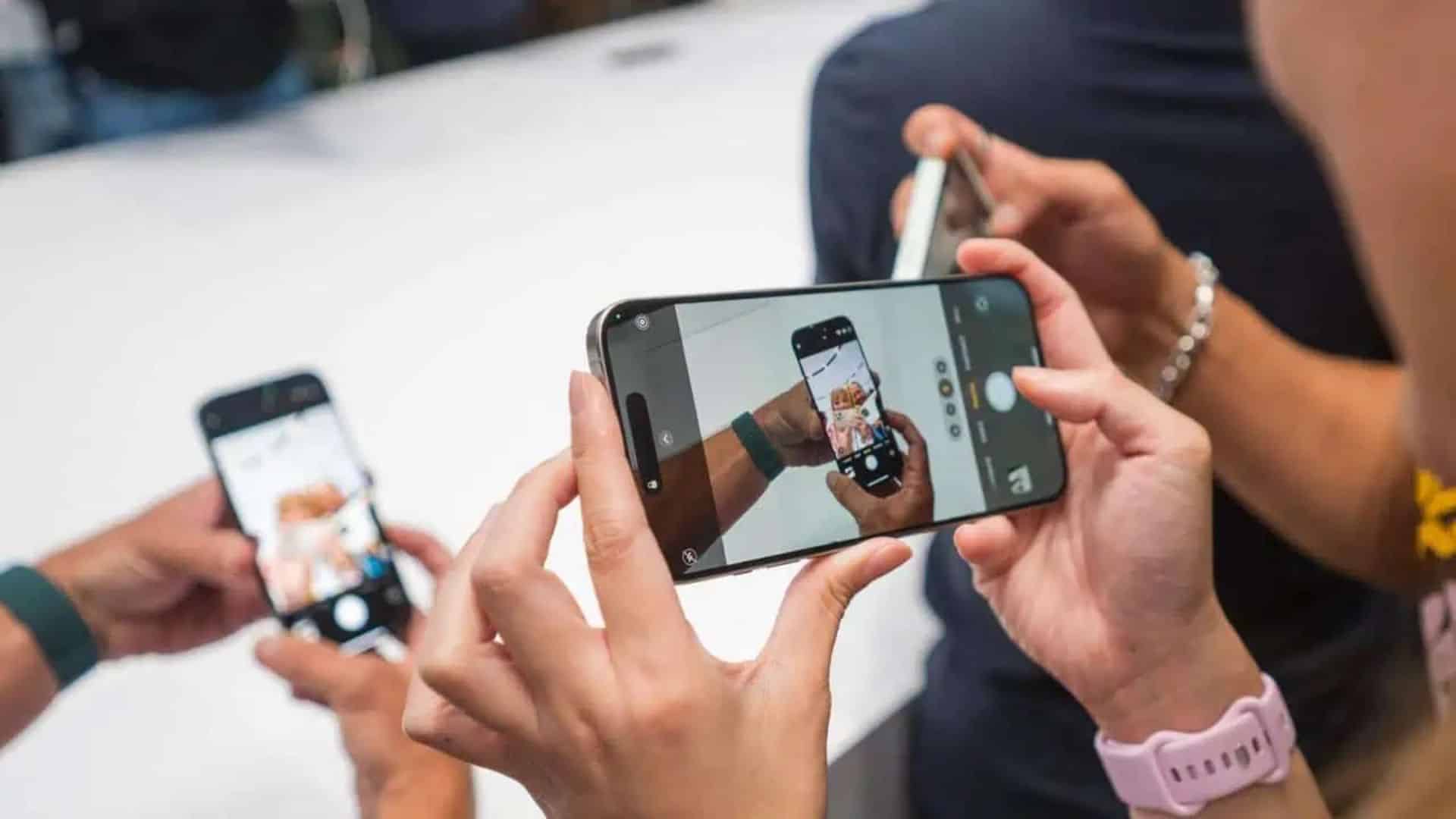
The iOS 26.2 update has introduced camera-related issues for many users, including blurry photos, a frozen viewfinder, lens-switching failures, or a black screen. These problems are typically caused by software glitches from the update rather than hardware failure. Follow the steps below to resolve them.

Table of Contents

  • Common Causes of Camera Bugs

  • Step-by-Step Fixes

  • When to Contact Apple Support

Common Causes of Camera Bugs
Issues after an update usually stem from:

  1. Software Glitches: Bugs introduced in the new iOS version.

  2. Low Storage: Insufficient space for the camera to process media.

  3. Conflicting Apps: Third-party apps with camera access interfering with the native Camera app.

  4. Settings Conflicts: Permission or configuration errors post-update.

  5. Hardware Damage: A less likely cause, but possible if the device was recently damaged.

Step-by-Step Fixes

1. Force Close & Reopen the Camera App
A glitched process may require a fresh start.

  • Swipe up from the bottom (or double-press the Home button on older models) to open the App Switcher.

  • Swipe the Camera app preview up to close it.

  • Reopen the Camera app from the Home Screen.

2. Restart Your iPhone
This clears temporary system errors.

  • For Face ID models: Press and hold the Side button and either Volume button, then slide to power off.

  • For Home Button models: Press and hold the Side (or Top) button until the slider appears.

  • Wait 30 seconds, then turn the device back on.

3. Check and Free Up Storage
The camera requires free space to function properly.

  • Go to Settings > General > [Device] Storage.

  • If storage is critically low, offload unused apps or delete unnecessary files.

4. Update or Remove Conflicting Apps
An app with camera permissions may be causing the issue.

  • Update all apps via the App Store.

  • If problems began after installing a specific app, try uninstalling it temporarily.

5. Reset All Settings
This reverts all system settings to default without erasing personal data.

  • Navigate to Settings > General > Transfer or Reset iPhone.

  • Tap Reset and choose Reset All Settings.

  • You will need to reconfigure Wi-Fi, Bluetooth, and preferences afterward.

6. Install the Latest iOS Update
Apple often releases patches for known bugs.

  • Go to Settings > General > Software Update.

  • Install any available update (e.g., iOS 26.2.1 or 26.3).

When to Contact Apple Support
If none of the above steps work, the issue may be hardware-related. Contact Apple Support or visit an Apple Authorized Service Provider if:

  • The camera shows persistent physical damage.

  • Issues began after a significant drop or exposure to liquid.

  • You see consistent errors even after a full software restore.

Final Note
Camera bugs following an iOS update are typically software-related and resolvable. Start with simple restarts and app management before progressing to settings resets. If the problem is widespread, waiting for the next official patch from Apple is often the simplest solution.

You Might Also Like

  • How To Fix “FaceTime Photos Must Be Enabled on Both Devices”
    How to Fix "FaceTime Photos Must Be Enabled on Both Devices" Error
  • 4 Of The Best Android Tablets According To Consumer Reports
    Why Your iPad Is Slow on iPadOS 26 — and How to Fix It
  • What is Google Sites? And how to use it
    What Is Google Sites? And How to Use It (Complete Guide)
black screen camera blurry photos iOS conflicting apps. fix camera issues force close app frozen viewfinder low storage camera bug Reset All Settings software update fix
Sultan - Bulleya Lyrics English TranslationPrevSultan - Bulleya Lyrics English TranslationDecember 23, 2025
How to Remove Conversation Backgrounds and Reset Chat Appearance in iMessageDecember 23, 2025 How to Remove Conversation Backgrounds and Reset Chat Appearance in iMessage Next
  • About Us
  • Our Clients
  • Our Portfolio
  • Brand Design Service
  • Web Design Service
  • E-marketing Service