How to Fix “FaceTime Photos Must Be Enabled on Both Devices” Error
When attempting to capture a Live Photo during a FaceTime call, you may encounter the error message: “FaceTime Photos must be enabled on both devices to use this feature.” This typically indicates that one or both participants have the Live Photos feature disabled. However, if the settings appear correct, the issue may stem from a temporary software glitch, particularly in some iOS 26 builds.
This guide provides a structured approach to resolving this error, ranging from simple toggles to system-level checks.
Quick Troubleshooting Overview
The table below summarizes the most common causes and their corresponding fixes. Follow the steps in order for the best results.
| Cause | Solution | Complexity |
|---|---|---|
| Feature Disabled | Enable FaceTime Live Photos in Settings on both devices. | Low |
| Temporary Software Glitch | Toggle the setting Off and On, then restart the call. | Low |
| Screen Time Restrictions | Verify Camera and FaceTime are allowed in Content & Privacy Restrictions. | Medium |
| Outdated iOS | Update both devices to the latest iOS version. | Medium |
| System-Level Bug | Restart both devices to clear temporary files and refresh connections. | Low |
Step-by-Step Fixes
Method 1: Enable FaceTime Live Photos on Both Devices
This is the most frequent cause. Both participants must have the feature enabled before the call begins.
-
Open the Settings app on your iPhone or iPad.
-
Scroll down and tap FaceTime.
-
Locate the toggle for FaceTime Live Photos and ensure it is turned ON (green).
-
Ask the other person to repeat the exact same steps on their device.
-
After confirming both sides have the feature enabled, end the current call and start a new one. The feature only activates at the beginning of a call.
Method 2: Toggle the Setting Off and On Before Calling
If the settings are already enabled, a simple toggle can refresh the permission, resolving a known temporary bug in some iOS 26 versions.
-
Go to Settings > FaceTime.
-
Turn FaceTime Live Photos OFF.
-
Wait for about 10 seconds.
-
Turn FaceTime Live Photos ON again.
-
Initiate a new FaceTime call to test if the error is resolved.
Method 3: Check Screen Time Restrictions
Sometimes, restrictions can silently disable camera access or FaceTime features, causing the error even when the toggle appears active.
-
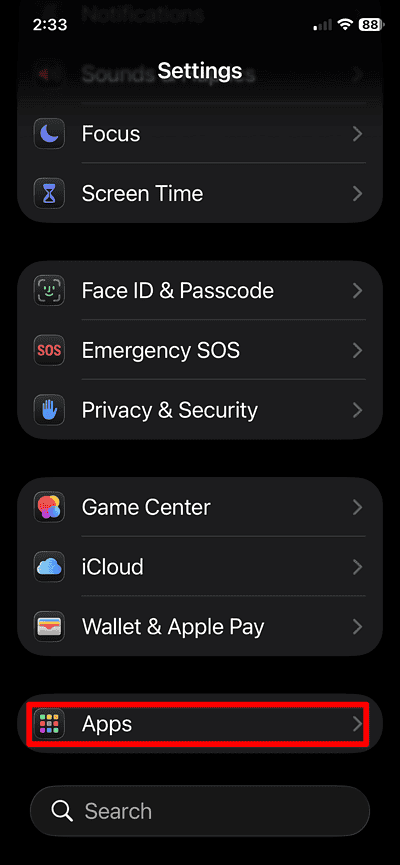
Open Settings and tap Screen Time.
-
Tap Content & Privacy Restrictions. If this is enabled, you may need to enter your Screen Time passcode.
-
Tap Allowed Apps & Features.
-
Ensure that both Camera and FaceTime are toggled ON (green). If they are off, turn them on.
-
Attempt a new FaceTime call.
Method 4: Update iOS on Both Devices
Specific iOS 26 versions have had intermittent bugs affecting FaceTime Live Photos. Apple often resolves these in subsequent updates.
-
Go to Settings > General > Software Update.
-
If an update is available, tap Download and Install.
-
Ensure both participants update their devices.
-
After installation, restart the devices and test a new FaceTime call.
Method 5: Restart Both Devices
A simple restart can clear temporary system glitches that may be interfering with FaceTime features.
-
On each device, go to Settings > General > Shut Down.
-
Drag the power slider to turn off the device.
-
Wait at least 10 seconds, then press and hold the top button (or side button) until the Apple logo appears to restart.
-
Start a new FaceTime call.
Important Tips for Success
-
Enable Before Calling: Always ensure FaceTime Live Photos is enabled in Settings before you place a call. The setting is checked at the start of a call and cannot be activated mid-call.
-
Confirm FaceTime Sign-In: Verify that both devices are signed in to FaceTime with an active Apple ID. Go to Settings > FaceTime and check the email/phone number listed under “You can be reached by FaceTime at.”
-
Use a Stable Connection: A poor Wi-Fi or cellular connection can sometimes interfere with feature negotiation. Try switching to a strong Wi-Fi network.
-
Start a Fresh Call: If the error appears during a call, do not try to fix it within that same call. End the call, apply the necessary fix, and start a brand new session.
Frequently Asked Questions (FAQs)
Why does FaceTime say photos must be enabled on both devices?
This message appears because the FaceTime Live Photos feature is disabled on at least one participant’s device, or a temporary iOS issue is preventing the setting from syncing correctly.
Can I turn on Live Photos during a call to fix it?
No. The feature’s availability is determined at the moment the call connects. You must end the call, enable the setting, and then start a new call for the change to take effect.
Is this a known issue in iOS 26?
Yes, some users have reported this specific error in certain iOS 26 builds. Toggling the setting off and on, or updating to the latest iOS version, are the most effective solutions for bug-related cases.
Summary: Fixing the “Both Devices” Error
To resolve the “FaceTime Photos must be enabled on both devices” error:
-
Enable FaceTime Live Photos in Settings > FaceTime on both devices.
-
Toggle the feature Off and On to refresh the system permission.
-
Verify that Screen Time restrictions are not blocking Camera or FaceTime.
-
Update both devices to the latest iOS version.
-
Restart both devices before placing a new call.
By methodically working through these steps, you should be able to successfully capture Live Photos during your FaceTime calls.