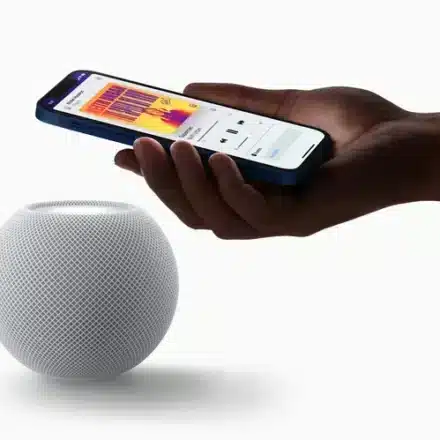
How to Fix HomePod Not Showing in Home App: Complete Troubleshooting Guide

A HomePod that doesn’t appear in the Home app is typically due to network conflicts, incorrect settings, or a software glitch. This guide provides a systematic, step-by-step approach to diagnose and resolve the issue, moving from simple checks to advanced solutions.
🔍 Mandatory Prerequisites Checklist
Before troubleshooting, verify these non-negotiable requirements. If any are missing, setup will fail.
| Requirement | How to Check & Why It’s Essential |
|---|---|
| 1. Correct Software | iPhone/iPad must run iOS/iPadOS 16.3 or later. Check in Settings > General > About. |
| 2. Bluetooth & Wi-Fi | Bluetooth (for discovery) and Wi-Fi must be ON. The devices must share the same primary home network (not a guest network). |
| 3. iCloud & Apple ID | Your iPhone must be signed into the correct Apple ID with iCloud, Keychain, Two-Factor Authentication, and “Home” enabled (Settings > [Your Name] > iCloud). |
| 4. Network Permissions | The router must not have “Client Isolation” enabled. VPNs on the iPhone must be turned off during setup. |
🛠️ Tiered Troubleshooting: From Simple to Advanced
Follow these solutions in order. Test if the HomePod appears after each step.
| Tier | Solution | When to Use It |
|---|---|---|
| 1. Basic Restarts | Restart HomePod, iPhone, and Wi-Fi router. | First step for all general connection issues. |
| 2. Verify Core Settings | Check iCloud “Home” toggle; reinstall Home app; ensure correct Apple ID. | If restarts don’t work or you suspect account/sync issues. |
| 3. HomePod Reset | Perform a standard or full factory reset of the HomePod. | For persistent visibility issues or a “stuck” setup. |
| 4. Network Reconfiguration | Disable VPNs; unify Wi-Fi band SSIDs; check router isolation settings. | If you suspect advanced network interference. |
| 5. Firmware Restore (Mac/PC) | Restore HomePod firmware via a computer. | Last resort for unresponsive devices or orange/red lights. |
📝 Detailed Steps for Key Fixes
1. Restart the HomePod and Network
-
Restart HomePod: Unplug it for 20 seconds, then plug it back in. Wait for the pulsing white light.
-
Restart Your iPhone and Wi-Fi Router.
-
Reopen the Home App and check for the device.
2. Reset the HomePod
-
Standard Reset (For Setup Issues):
-
Unplug the HomePod for 5 seconds and plug it back in.
-
Wait for the white light. Then, press and hold the top until the light turns red and you hear three beeps.
-
This resets it for a fresh pairing. Bring your iPhone close to start setup.
-
-
Factory Reset (Via Home App – If Visible):
-
In the Home app, long-press the HomePod tile.
-
Tap the gear icon (Settings), scroll down, and select “Remove Accessory.”
-
Then attempt to re-pair it as new.
-
3. Check iCloud Home Settings
This is a critical but often overlooked step.
-
On your iPhone, go to Settings > [Your Name] > iCloud.
-
Tap “Show All” and ensure the toggle for “Home” is ON. If it was off, turning it on may require a device restart.
-
This ensures your Home data is syncing correctly.
4. Restore HomePod via Computer (Advanced Fix)
For a completely unresponsive HomePod or persistent orange/red light:
-
Use a USB-C to USB-C cable to connect the HomePod mini to a Mac (or PC with iTunes).
-
On a Mac, open Finder. On Windows, open iTunes.
-
Select the HomePod from the sidebar and click “Restore HomePod…” to reinstall its firmware.
💡 Pro Prevention Tips
-
Keep Devices Close: Hold your iPhone near the HomePod during the entire initial setup process.
-
Update Regularly: Maintain the latest software on your iPhone, HomePod (in Home app settings), and router.
-
Avoid Problematic Networks: Do not attempt setup on public, enterprise, or guest networks that restrict device-to-device communication.
❓ Frequently Asked Questions
-
Why did my HomePod disappear from the Home app after working?
This is usually due to a temporary iCloud sync failure or a Wi-Fi dropout. Restarting all devices (HomePod, iPhone, router) typically resolves it. -
Can I use a different Apple ID for the Home app?
The HomePod is tied to the Apple ID of the person who sets it up (the Home owner). Other users can control it via Home Invites, but it will only appear in the primary owner’s Home app for management. -
What does an orange/red light mean?
A solid orange/red light often indicates a software fault. A firmware restore via computer (Fix 5) is the standard solution.
✅ Summary of Key Actions
To fix a HomePod not showing in the Home app:
-
Verify all prerequisites: Same Wi-Fi, correct iOS, Bluetooth on, iCloud Home enabled.
-
Restart everything: HomePod, iPhone, and router.
-
Reset the HomePod using the touch surface method.
-
Check for network interference from VPNs or router isolation settings.
-
As a last resort, restore the HomePod’s firmware using a Mac or PC.
Following this structured approach eliminates guesswork and systematically addresses the most common causes, from simple glitches to complex network or software issues.