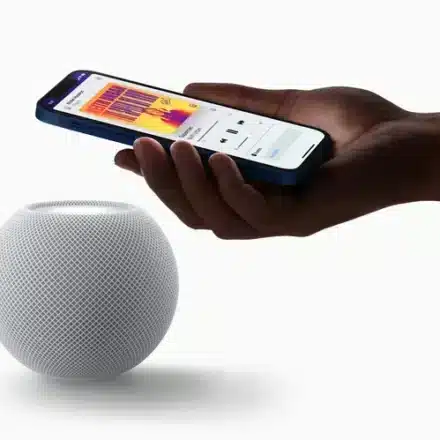
How to Fix HomePod Mini Not Connecting to iPhone

If your HomePod Mini won’t connect to your iPhone during setup, the issue is usually due to wireless settings, iCloud status, or a glitch in the initial pairing process. Follow this step-by-step guide to diagnose and resolve the problem.
🔍 Prerequisites: The “Must-Haves” for Connection
Before troubleshooting, ensure these foundational requirements are met, as they are critical for the setup prompt to appear.
| Requirement | Why It’s Important & How to Check |
|---|---|
| 1. Bluetooth & Wi-Fi On | Bluetooth is used for the initial discovery; Wi-Fi completes setup. Enable both in your iPhone’s Control Center or Settings. |
| 2. Same Wi-Fi Network | Your iPhone and HomePod must be on the same primary home network. Avoid guest networks. |
| 3. Active Apple ID & iCloud | Your iPhone must be signed into the Apple ID that will manage the Home. Verify in Settings > [Your Name]. |
| 4. Close Physical Proximity | Hold your iPhone near the top of the HomePod Mini for the setup card to appear via Bluetooth. |
🛠️ Tiered Troubleshooting Guide
Start with the basic checks and proceed to more involved solutions if the problem persists.
| Tier | Solution | Best For |
|---|---|---|
| 1. Basic Connection Fixes | Enable Bluetooth/Wi-Fi; restart both devices; disable VPN. | When the setup card doesn’t appear when bringing devices close. |
| 2. Software & Settings Refresh | Sign out/in of Apple ID; update iOS; check iCloud Home. | Intermittent connection or repeated setup prompts. |
| 3. HomePod Reset | Perform a standard or factory reset of the HomePod Mini. | Persistent failure to connect or a “stuck” setup state. |
📝 Detailed Steps for Key Fixes
1. Restart All Devices
This resolves most transient software conflicts.
-
Restart Your iPhone.
-
Restart Your HomePod Mini: Unplug it for 10 seconds, then plug it back in. Wait for the pulsing white light.
-
Restart Your Wi-Fi Router (if possible).
2. Verify Apple ID & iCloud Settings
Incorrect iCloud settings are a common blocker.
-
On your iPhone, go to Settings > [Your Name].
-
Ensure iCloud Keychain and Two-Factor Authentication are ON.
-
Scroll down and verify “Home” is toggled on. If it’s off, enabling it may require you to sign out and back into your Apple ID.
3. Reset the HomePod Mini
If the device is stuck or unresponsive, a reset is necessary.
-
Standard Reset (Using the Device):
-
Unplug the HomePod, wait 5 seconds, and plug it back in.
-
Wait for the white light. Then, press and hold the top touch surface until the light turns red and you hear a tone.
-
Release. The HomePod will reset and is ready for a fresh setup.
-
-
Reset via Home App (If Previously Paired):
-
Open the Home app.
-
Long-press the HomePod tile, tap the gear icon (Settings), scroll down, and select “Remove Accessory.”
-
💡 Pro Tips for a Successful Setup
-
Disable VPN: Turn off any VPN on your iPhone, as it can block the local network communication needed for setup.
-
Check Router Settings: Ensure your router does not have “Client Isolation” or “AP Isolation” enabled, which prevents devices on the same network from seeing each other.
-
Update Software: Ensure your iPhone is updated to the latest iOS version.
❓ Frequently Asked Questions
-
Why does the setup card not appear when I hold my iPhone close?
The most common reasons are Bluetooth being disabled, the devices being on different Wi-Fi networks, or a VPN interfering. Ensure all prerequisites are met. -
Does setup require Wi-Fi, or is Bluetooth enough?
Bluetooth is only used for the initial handshake. A stable Wi-Fi connection is required to complete the setup and for the HomePod to function. -
Why does my HomePod keep asking to be set up again?
This typically indicates corrupted setup data. A full reset of the HomePod Mini (as described above) almost always resolves this.
✅ Summary of Key Actions
To fix a HomePod Mini not connecting to your iPhone:
-
Enable Bluetooth and Wi-Fi on your iPhone and ensure both devices are on the same network.
-
Hold your iPhone close to the top of the HomePod to trigger the setup card.
-
Restart your iPhone, HomePod, and router.
-
Verify your Apple ID and iCloud Home settings.
-
Reset the HomePod Mini and attempt setup as a brand new device.
By methodically checking wireless settings and performing a reset if needed, you can successfully establish a stable connection between your HomePod Mini and iPhone.