How to Change Shutter Speed on iPhone 18 Pro and iPhone 18 Pro Max
How to Change Shutter Speed on iPhone 18 Pro and iPhone 18 Pro Max
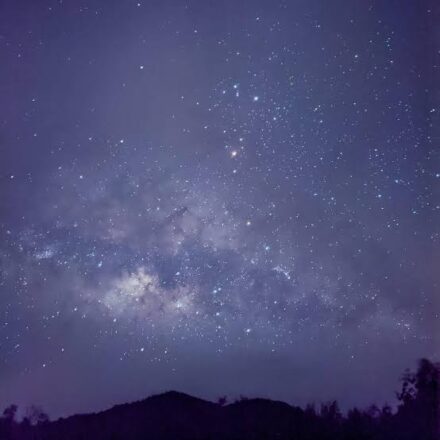
Shutter speed controls how long the camera sensor collects light for each shot. A short exposure freezes a running dog or a jumping athlete. A longer one brightens a dark scene and turns movement into blur. The iPhone 18 Pro and iPhone 18 Pro Max let you choose it yourself in the built-in Camera app.
What Shutter Speed Does
A fast shutter speed means less light and a sharper freeze of motion. A slow one lets in more light but records everything that moves while the shutter is open, including your hand.
Shutter speed is one of the new Pro controls in the iPhone 18 Pro’s Camera app, along with white balance, aperture, and a histogram. It’s only part of the exposure, though. Aperture and the camera’s automatic sensitivity also affect brightness, so check the preview instead of copying a number from a different scene.
How to Set Shutter Speed
- Open the Camera app on your iPhone 18 Pro or iPhone 18 Pro Max.
- Open the expanded Pro controls.
- Select Shutter Speed from the control pane.
- Drag the slider, which runs from 1/1600 of a second to 1 second. Move toward the fast end to reduce blur, or toward the slow end to gather more light and show motion.
- Check focus and brightness in the live preview, then tap the shutter button.
The practical range can differ depending on whether you’re shooting photos or video, so test it before an important shot.
Add Shutter Speed to Your Quick Controls
If you adjust it often, pin it where you can reach it quickly. Open the expanded controls, tap the edit icon at the top left, and choose which settings you want as quick-access controls. This helps with sports, street photography, or low light that keeps changing.
Check Your Exposure With the Histogram
The histogram is a graph of how brightness is spread across your image. It’s useful when the screen looks brighter or darker than your saved photo, which can happen in strong outdoor light.
- Open the Pro controls and turn on the Histogram, or add it to your quick controls.
- Change the shutter speed while watching the graph.
- If most of the graph is piled against the left edge, the shot may be too dark and lose shadow detail.
- If it’s piled against the right edge, you may lose highlight detail.
- Take a test shot and review it at full size before you continue.
Tips for Sharper or Better Shots
- Pick the shutter speed for the motion first. Choose fast for sports, kids, and pets, and slow when you want motion blur.
- Steady the phone for long exposures. Use a tripod or rest it on a stable surface, especially in low light.
- Watch for flicker. Fast shutter speeds under some artificial lights can cause banding or flicker in photos and video.
- For video, don’t just pick the fastest speed. A very fast shutter can make motion look choppy.
- Switch back to automatic when the light changes quickly. Manual control can be slower than the situation requires.
FAQ
Can older iPhones set shutter speed in the Camera app?
This guide covers the iPhone 18 Pro and iPhone 18 Pro Max, where Pro controls are built into the Camera app. Older iPhones may need a third-party camera app for manual shutter speed, and the options depend on that app.
Why do my long-exposure photos look blurry?
The sensor records everything that moves while the exposure is open, including small hand movements. Use a tripod and ask your subject to stay still.
Does a fast shutter speed make the photo darker?
Usually, because the sensor gets less light. The camera may compensate with a wider aperture or higher sensitivity, which can change depth of field or add noise.
Does the iPhone remember my shutter speed?
Don’t assume it does. Check the value on screen each time you reopen the Camera app.