How to Adjust White Balance on iPhone 18 Pro and iPhone 18 Pro Max
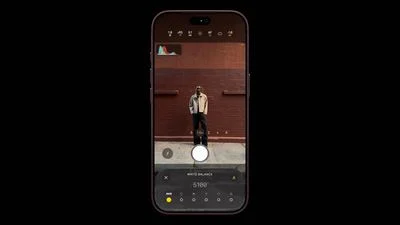
How to Adjust White Balance on iPhone 18 Pro and iPhone 18 Pro Max
Photos that come out too orange under indoor lights, or too blue in the shade, are usually a white balance problem. The iPhone 18 Pro and iPhone 18 Pro Max let you set white balance yourself in the built-in Camera app, so you can fix the color before you shoot.
What White Balance Does
White balance tells the camera how to read the color of the light in a scene. It determines how the camera interprets the color temperature of what it sees. Get it wrong, and white objects look yellow under warm bulbs or blue under cool light. Skin tones can look off even when focus and exposure are perfect. It’s different from exposure. White balance changes the color. Brightness stays the same.
It’s also not a new gimmick. On the iPhone 18 Pro models, Apple added Pro controls in the Camera app for shutter speed, white balance, and aperture, plus a histogram. White balance is especially handy for video or a series of photos, where automatic color can drift from one frame to the next.
- Open the Camera app on your iPhone 18 Pro or iPhone 18 Pro Max.
- Open the expanded Pro controls in the Camera app.
- Select White Balance from the control pane.
- Adjust the value until the live preview looks natural. A white or gray object in the scene helps you judge it, and so do skin tones.
- When you’re happy with the setting, tap the shutter button.
Set it under the same light that will actually be on your subject. If you walk into another room or step outside, the setting you chose may no longer be right.
Add White Balance to Your Quick Controls
If you change lighting often, you can put White Balance where it’s one tap away. Open the expanded controls, tap the edit icon at the top left, and choose which settings you want as quick-access controls. A permanent shortcut is useful for product photos, interviews, and any project where color has to match from shot to shot.
One white balance value can’t perfectly fix two very different light sources at once, such as a warm lamp and a cool window. Here’s what works:
- Decide which part of the frame matters most, usually the subject’s face, and balance for that.
- Turn off or move a lamp that’s fighting the main light, if you can.
- Compare a few values against a white sheet of paper or a gray card.
- Take a short test photo or clip and check it outside the live preview before you shoot the whole sequence.
Tips for Better Color
- Keep your light consistent. Steady lighting matters more than chasing a perfect value for each frame.
- Use a gray card for accuracy. It’s worth it for products and artwork.
- Reset it after you move. Change it when you go between rooms, sun and shade, or different lamps.
- Don’t remove all the warmth. A sunset or candlelit scene should still feel warm.
- Test video first. Color shifts are more distracting in moving footage than in a still.
- Go back to automatic in fast-changing light. Manual corrections can slow you down.
FAQ
What does bad white balance look like?
White objects look yellow or orange under warm light, or blue under cool light. People’s skin can look unnatural.
Does white balance affect exposure?
No. It changes color, not brightness.
Does it matter for RAW photos?
RAW files give you more room to adjust color afterward, but choosing a sensible value while shooting still makes review and matching shots easier.
Why does the color change when I move the phone?
Automatic processing or mixed lighting can be shifting the scene. Set white balance again once your composition is final, and keep the subject in steady light.
Is manual white balance on every iPhone?
No. This guide is for the iPhone 18 Pro and iPhone 18 Pro Max, where the Pro controls are built into the Camera app. Older models may need a third-party camera app for manual white balance.