HomeKit Secure Video Not Recording Clips? 6 Fixes for Your Home App Camera
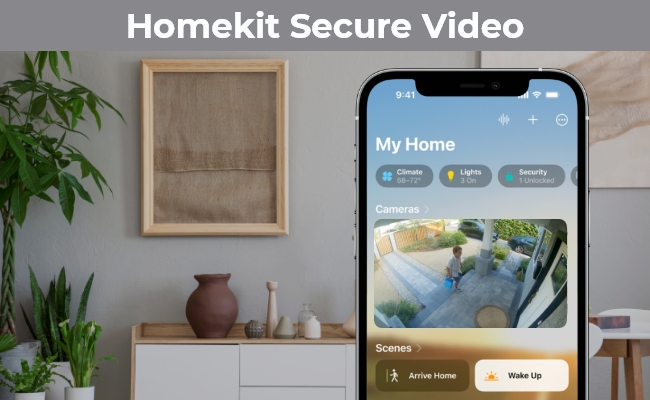
HomeKit Secure Video Not Recording? How to Fix Missing Clips
You open the Home app and the live view works fine. But when you check for motion clips, there aren’t any. That’s a common problem with HomeKit Secure Video, and it usually doesn’t mean the camera is broken. A working live stream doesn’t prove recording is set up correctly. Recording has its own settings, filters, and iCloud+ requirements.
Work through these checks in order.
1. Check the Recording Options for Home and Away
HomeKit Secure Video lets you choose different behavior for when people are home and when everyone is away. For example, you might stop an indoor camera from streaming and recording while you’re home, but keep an outdoor camera running.
- Open the Home app.
- Tap and hold the camera, choose Accessory Settings, then tap Recording Options.
- Look at both When Home and When Away.
- Make sure the one you need is set to Stream & Allow Recording. Stream only lets people watch live video but nothing is saved.
A common cause is When Home being set to Stream while the Home app thinks someone is in the house. Also check that the app is detecting who is home correctly, since it uses that to decide which setting applies.
2. Loosen the Motion Filter
If you’ve chosen to record only certain types of motion, like people or packages, the camera ignores everything else. HomeKit Secure Video detects people, animals, vehicles, and packages. Temporarily switch the setting to record any motion. If clips start appearing, a filter was excluding the events you expected, and the camera was fine all along.
3. Check Your Activity Zones
If you’ve set Activity Zones, only movement inside those zones counts. Activity Zones are one of the best ways to cut down on noisy recording, but they can also hide motion you wanted. Make sure what you expected to be recorded happened inside a selected zone.
4. Check Your iCloud+ Plan and Camera Count
The 50GB iCloud+ plan supports one HomeKit Secure Video camera for recording, the 200GB plan supports up to five cameras, and the 2TB plan supports unlimited cameras. The 6TB and 12TB plans also support unlimited cameras.
The camera limit applies to recording, not to live viewing. You can have more HomeKit Secure Video cameras than your plan records and still get notifications and live streaming. That’s why a camera can show a live picture and still save no clips. If you’ve added more cameras than your plan allows, upgrade the plan or turn recording off for a camera you don’t need.
5. Check Your Home Hub
HomeKit Secure Video needs a home hub in the house. An iPad, HomePod, or Apple TV can serve as the hub. It connects the cameras to the internet and analyzes whether the camera sees a person, animal, vehicle, or other object.
Make sure your hub is online and not offline or asleep because of a network problem. Restart it if the Home app says it’s not responding.
6. Update Everything
Install updates for your hub, your iPhone, and the camera’s firmware. Also check that Home is syncing with iCloud. On a Mac, for example, that’s in System Settings > Apple Account > iCloud > See All > Home. On an iPhone, look under Settings > your name > iCloud > Show All > Home.
Don’t Do This First
Resist the urge to delete the home or factory reset the camera. Both create extra setup work and don’t tell you what was wrong. Go through the checks above first.
If Clips Are Still Missing
Before you contact the camera maker, write down:
- The time the motion happened
- What kind of motion it was (a person, an animal, a car)
- Whether the Home app showed you as home or away
That record helps separate a camera detection problem from a Home app, hub, or iCloud setting.
FAQ
Why does my HomeKit camera show live video but save no clips?
The usual causes are recording set to Stream only, a motion filter, an Activity Zone, or more cameras than your iCloud+ plan supports for recording.
How long does HomeKit Secure Video keep clips?
With iCloud+, you can view the last 10 days of activity.
Do recordings use my iCloud storage?
No. HomeKit Secure Video content doesn’t count against your iCloud storage limit.
Do I need a home hub?
Yes. HomeKit Secure Video needs an Apple TV, HomePod, or iPad acting as the hub.