

Troubleshooting Guide: Can’t Add Your Digital ID to Apple Wallet
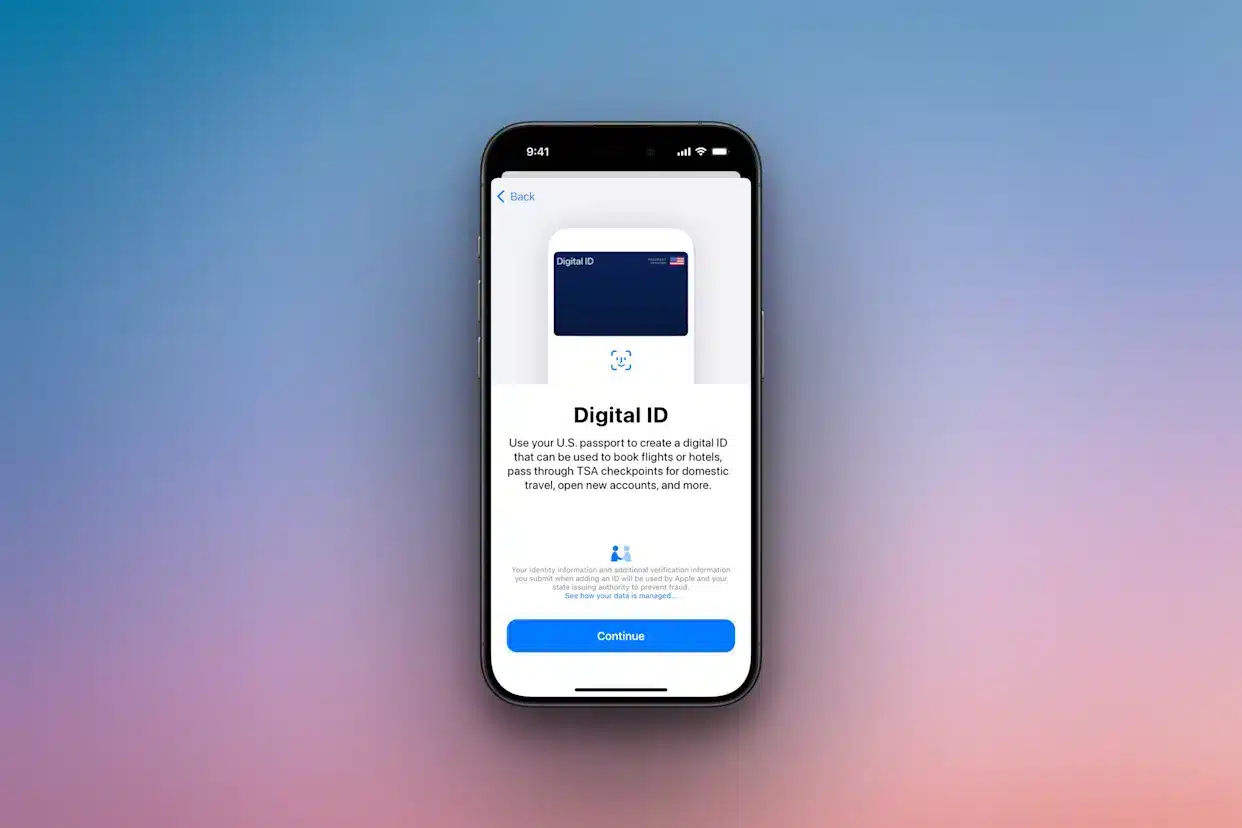
The ability to add your ID to Apple Wallet is a convenient feature, but the setup process can sometimes hit a snag. If you’re having trouble, the issue typically falls into a few common categories. Here’s a systematic guide to diagnose and fix the problem.
1. Verify Your Device is Compatible
This feature requires specific, relatively new hardware. Ensure you have:
-
An iPhone 11 or later.
-
The latest version of iOS (or iPadOS).
-
An Apple Watch Series 6 or later if you want to use your ID from your wrist.
-
A valid, chip-enabled U.S. passport.
If your devices are older, the “Add to Wallet” option will not be available.
2. Update Your Software
An outdated operating system is a frequent culprit. Go to Settings > General > Software Update and install any available updates. Restart your device afterward, as this can resolve underlying glitches that block the setup process.
3. Master the Passport Scan
The process requires both scanning the photo page and reading the NFC chip.
-
For the NFC Chip: Hold the top of your iPhone flat against the center of your passport’s back cover. Maintain contact until you feel a vibration and see an on-screen confirmation.
-
Remove your phone case to ensure a strong connection.
-
Perform the scan in a well-lit area and avoid damaging the passport’s chip.
4. Check Your Security Settings
Digital ID requires maximum security to be enabled. Confirm the following are turned on in your Settings:
-
Face ID/Touch ID
-
A six-digit passcode
-
Two-Factor Authentication for your Apple ID
-
Location Services
5. Optimize the Selfie Verification
The live selfie scan can fail due to poor conditions.
-
Perform the scan in bright, even lighting.
-
Keep your face at eye level with the front-facing camera.
-
Remove hats or heavy glasses that obscure your features.
-
Follow the on-screen head movement prompts slowly and deliberately.
Final Checks:
If you’ve tried all the above and it still fails, restart your iPhone. Also, remember that Digital ID is rolling out regionally; it may not yet be supported in your state or country. By ensuring your device, software, and security settings are all in order, you can successfully add your Digital ID and enjoy a more streamlined way to verify your identity.


