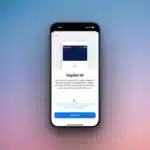
How to Add Your U.S. Passport to Apple Wallet in iOS 26

A key feature of iOS 26 is the ability to add a verified Digital ID, including your U.S. passport, directly to your Apple Wallet. This provides a secure and contactless way to verify your identity at participating TSA checkpoints for domestic travel. Here’s what you need and how to set it up.
Before You Begin: Check Your Eligibility
To use this feature, you must meet specific requirements:
-
Device: An iPhone 11 or later running iOS 26.1 or newer.
-
Security: Face ID or Touch ID, a device passcode, and two-factor authentication for your Apple ID must be enabled.
-
Document: A valid, physical U.S. passport with an NFC chip.
-
Important Note: This digital passport is currently for domestic use only at supported locations. You must still carry your physical passport for international travel.
Step-by-Step Setup Guide
Adding your passport is a straightforward process that involves scanning and verification:
-
Open the Wallet app on your iPhone and tap the + button in the top-right corner.
-
Select Driver’s License & ID Cards or Digital ID.
-
Follow the on-screen prompts to:
-
Scan the photo page of your physical passport using your iPhone’s camera.
-
Hold your iPhone near the back cover of your passport to read the embedded NFC chip.
-
Complete a live selfie, which includes performing small head movements to verify you are the passport holder.
-
Once verified, your digital passport will be securely stored in Apple Wallet.
How to Use Your Digital Passport
When you need to present your ID, for example, at a TSA checkpoint:
-
Double-click the Side Button (or use your Apple Watch) to bring up your Wallet.
-
Select your digital passport and authenticate with Face ID or Touch ID.
-
Hold your device near the identity reader. The system will show you what information is being requested before it is securely transmitted.
Key Things to Know
-
Security: Your passport data is encrypted and stored directly on your device; Apple cannot access it.
-
Limitations: This is not a replacement for your physical passport, especially for international travel. Acceptance is still rolling out, so always have your physical passport as a backup.
-
Battery: If your iPhone battery dies, you will need to use your physical ID.
By setting up your Digital ID, you can enjoy a faster, more convenient way to verify your identity while maintaining a high level of privacy and security.