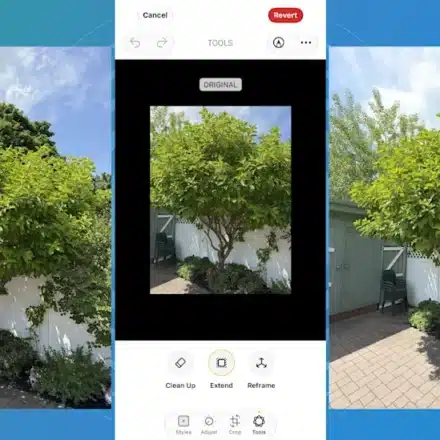
iOS 27 Spatial Reframing: How to Change Photo Composition Using Apple Intelligence
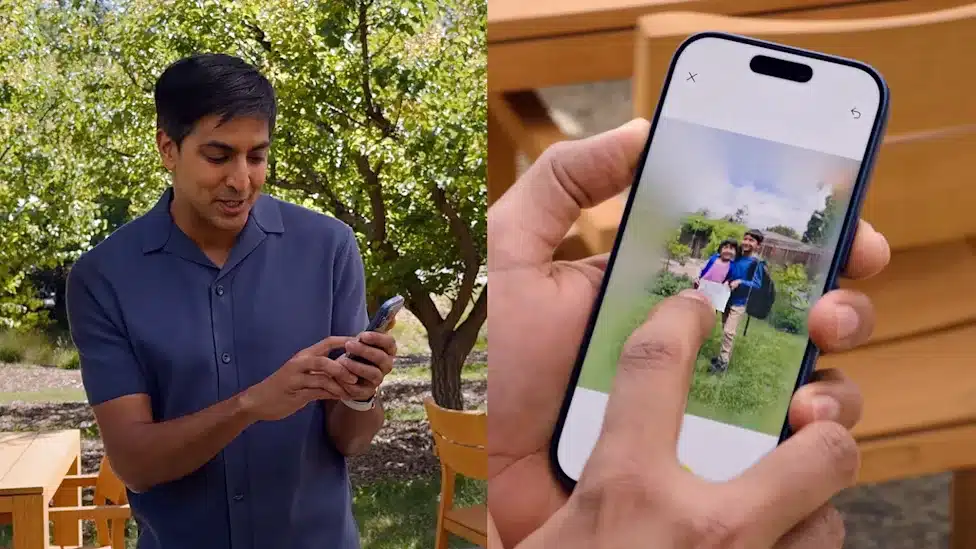
Apple introduced Spatial Reframing in iOS 27 as part of its latest Photos app improvements. This new Apple Intelligence feature lets you change the angle, framing, and perspective of a photo even after it has been taken.
Instead of simply cropping an image, Spatial Reframing creates a virtual camera movement and intelligently fills missing areas to produce a more natural result. Apple says the feature is designed to help users improve composition while keeping the original scene intact.
If you have ever captured a great moment but wished the subject was positioned differently, Spatial Reframing can help fix that without requiring another shot.
How Spatial Reframing Works
Spatial Reframing allows you to reposition the camera view after capturing a photo. The feature uses Apple Intelligence to generate additional image content only where needed, adjusting the framing so the final result appears natural.
Apple automatically generates new content only in areas exposed by the reframing process, helping maintain a realistic appearance.
How to Use Spatial Reframing in iOS 27
-
Open the Photos app on your iPhone running iOS 27.
-
Select the photo you want to edit.
-
Tap Edit.
-
Choose the Spatial Reframing option from the editing tools.
-
Drag the image to change the camera angle or perspective.
-
Adjust the framing until the subject is positioned the way you want.
-
Zoom in or out if needed for better composition.
-
Review the AI‑generated adjustments.
-
Tap Done to save your changes.
Tips for Best Results
-
Use photos with a clear subject and background separation.
-
Portrait photos often produce stronger reframing effects.
-
Avoid extreme perspective changes for the most realistic results.
-
Review generated areas carefully before saving.
-
Keep the original photo if you may want to compare versions later.
FAQs
What is Spatial Reframing in iOS 27?
It is an AI‑powered editing feature that lets you change a photo’s perspective and composition after it has been taken.
Does Spatial Reframing crop the image?
No. It can generate additional content where needed, allowing more flexible adjustments than a standard crop.
Is Spatial Reframing part of Apple Intelligence?
Yes. The feature uses Apple Intelligence image models and AI processing to create new image areas when reframing a photo.
Can I undo Spatial Reframing edits?
Yes. Like other Photos edits, you can return to the original image and revert changes.
Summary
-
Spatial Reframing is a new Photos feature in iOS 27.
-
It lets you adjust a photo’s angle and composition after capture.
-
Apple Intelligence fills newly exposed areas automatically.
-
The tool works directly inside the Photos editing interface.
-
It can help improve framing without taking multiple photos.
Conclusion
Spatial Reframing is one of the most interesting photo editing additions in iOS 27. It gives iPhone users more control over composition after a picture has been taken and can rescue photos that would otherwise be poorly framed. With just a few taps in the Photos app, you can adjust perspective, reposition subjects, and create a stronger final image while preserving a natural look.