iOS 27 Extend Tool: How to Expand Photos with Apple Intelligence
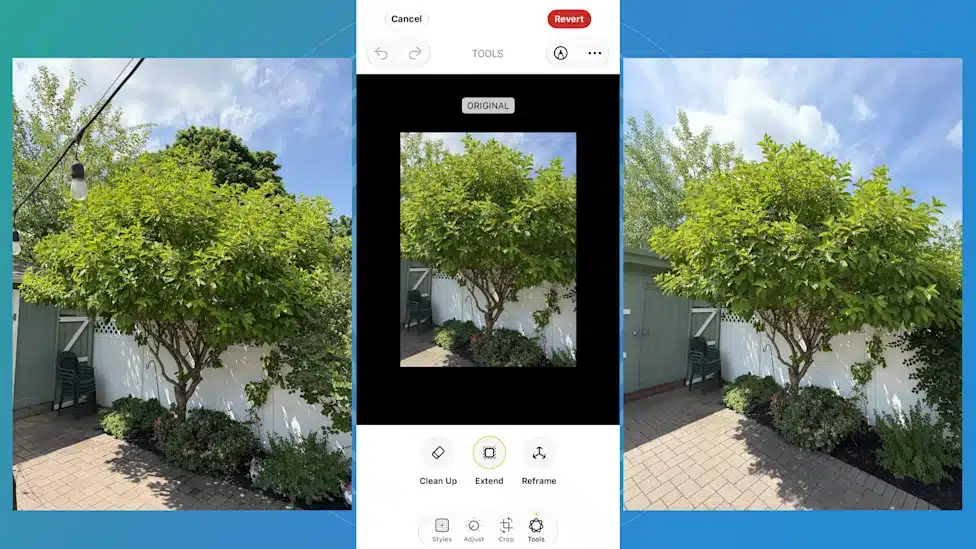
iOS 27 introduces a powerful new Extend tool in the Photos app that helps you fix photos that were cropped too tightly. Instead of removing parts of an image like a traditional crop tool, Extend uses Apple Intelligence to generate additional content around the edges of a photo.
This makes it possible to recover missing space, improve composition, create wallpapers, and adjust aspect ratios without cutting out important details. Apple also introduced Spatial Reframing, which can reposition a photo after it has been taken to improve its overall composition.
If you’ve ever wished you had stepped back before taking a picture, iOS 27 now gives you a way to fix it directly from the Photos app.
Use the Extend Tool to Add More Space Around a Photo
The Extend tool is the easiest way to fix a photo that feels too zoomed in or tightly cropped. It expands the image beyond its original borders and fills in the missing areas using AI. Apple says it can also help straighten horizons and adjust aspect ratios while keeping important subjects in the frame.
-
Open the Photos app on your iPhone.
-
Select the photo you want to edit.
-
Tap Edit.
-
Open the new Apple Intelligence Tools section.
-
Tap Extend.
-
Drag the image frame outward in the direction where you need more space.
-
You can also select a different aspect ratio such as square, landscape, or wallpaper.
-
Wait while Apple Intelligence generates the new image content.
-
Review the result carefully.
-
Tap Done to save the edited photo.
Use Spatial Reframing for Better Composition
Spatial Reframing is another new iOS 27 feature that helps improve a photo’s composition. It lets you shift perspective and reposition the image as if you had moved the camera before taking the shot. The feature generates new content only where needed to keep the image looking natural.
-
Open the photo in the Photos app.
-
Tap Edit.
-
Open Apple Intelligence Tools.
-
Select Reframe or Spatial Reframing.
-
Wait for the image analysis to complete.
-
Drag the photo to adjust its perspective.
-
Use two fingers to zoom, pan, or rotate.
-
Fine‑tune the composition until it looks balanced.
-
Tap Done to save the changes.
Summary
-
iOS 27 adds a new Extend tool to the Photos app.
-
Extend expands a photo beyond its original frame using Apple Intelligence.
-
The feature helps fix tight crops, adjust aspect ratios, and create wallpapers.
-
Spatial Reframing can improve composition by shifting perspective after a photo is taken.
-
Both tools are built directly into the Photos editing interface.
-
Results work best with landscapes, travel photos, architecture, and group shots.
Conclusion
The new Extend feature in iOS 27 makes it much easier to rescue photos that were framed too tightly. Whether you need extra space around a subject, want to create a wallpaper, or need a better composition for social media, the Photos app can now handle these tasks without requiring third‑party editing software. Combined with Spatial Reframing, iOS 27 offers some of the biggest photo editing improvements Apple has introduced in years.