How to Use Voice Control on iPhone: The Ultimate Hands-Free Guide
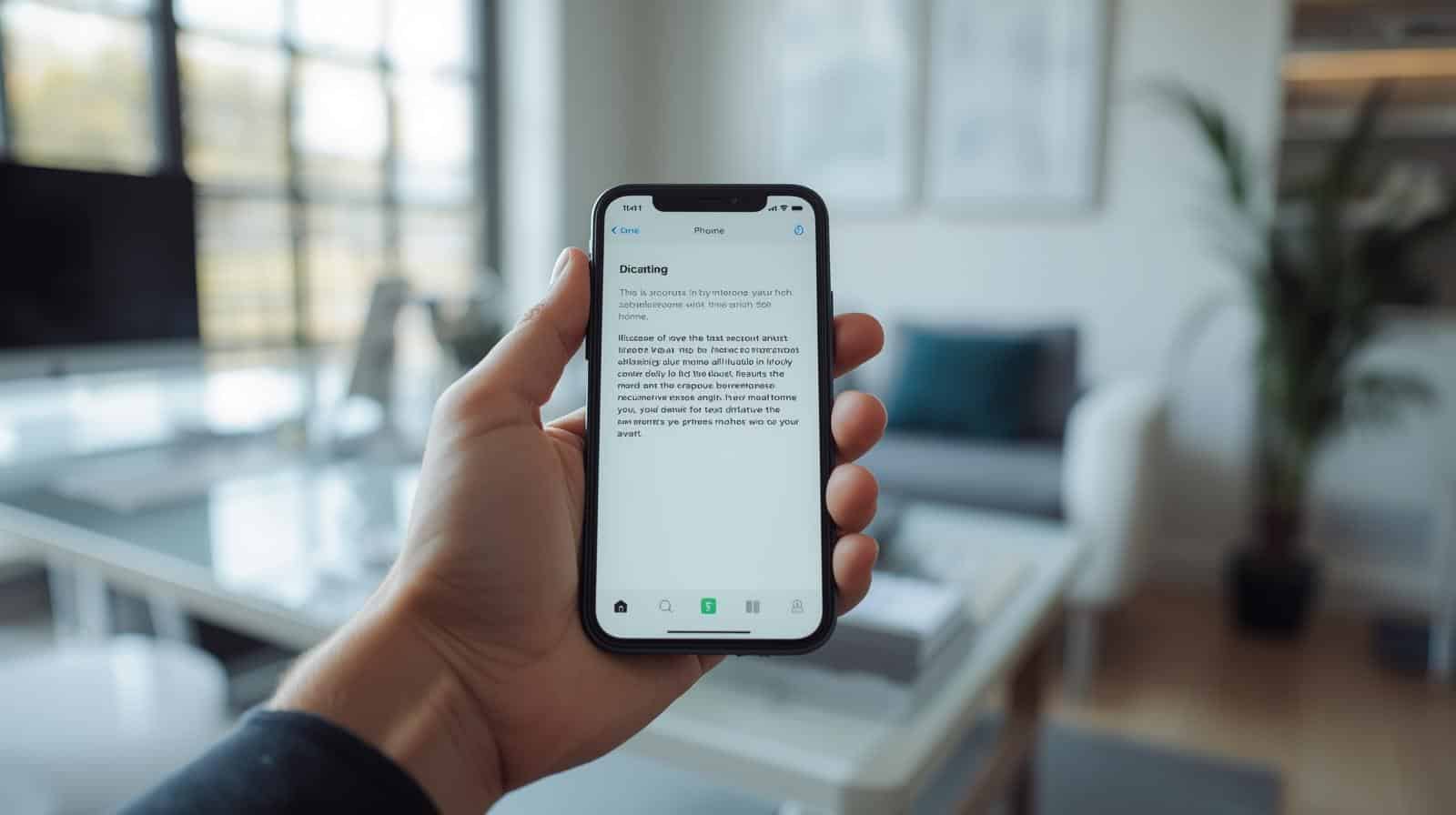
Voice Control transforms your iPhone into a completely hands-free device, allowing you to navigate, dictate, and execute commands using only your voice. It’s an essential accessibility feature that’s incredibly useful for anyone—whether you’re multitasking, driving, or simply prefer speaking to tapping.
Voice Control vs. Siri: What’s the Difference?
While both use your voice, they serve different purposes:
-
Siri: An intelligent assistant that uses the internet to answer questions, set reminders, control smart home devices, and perform complex tasks.
-
Voice Control: An on-device accessibility tool designed for navigating your iPhone’s interface. It doesn’t need an internet connection and gives you precise control over taps, swipes, and text editing.
Think of it this way: Siri is for asking, Voice Control is for doing.
How to Set Up Voice Control
1. Enable in Settings
-
Open the Settings app.
-
Navigate to Accessibility.
-
Tap Voice Control.
-
Toggle Voice Control on.
-
Your iPhone will download a small language file. Once complete, a blue microphone icon will appear in your status bar, indicating it’s active.
2. Activate with Siri (Quickest Method)
Simply say, “Hey Siri, turn on Voice Control.” To turn it off, say, “Hey Siri, turn off Voice Control.” This is perfect for situations when your hands are full.
Essential Voice Commands to Get Started
Once enabled, you can start using commands immediately. Speak clearly and naturally.
Basic Navigation:
-
“Go home” – Returns to the Home Screen.
-
“Open [App Name]” – Launches any app (e.g., “Open Messages”).
-
“Swipe left/right/up/down” – Navigates between pages or scrolls.
-
“Tap [Item Name]” – Taps any visible button or link (e.g., “Tap Compose”).
Text Dictation and Editing:
-
“Dictate mode” – Start speaking text into any text field.
-
“Select [word/sentence]” – Highlights text for editing.
-
“Delete that” – Removes the selected text.
-
“Capitalize [word]” – Capitalizes a specific word.
-
“New line” – Moves the cursor to the next line.
Advanced Techniques: Overlays and Numbered Grids
For complex apps where button names aren’t obvious, use overlays to label every tappable element.
How to Use Numbered Overlays:
-
With Voice Control on, say, “Show numbers.”
-
Every button and link on your screen will be tagged with a number.
-
Say the number to interact with it (e.g., “Tap 12”).
-
Say “Hide numbers” to turn the overlay off.
This is invaluable for precisely navigating websites, games, or complex applications.
Customizing Your Experience
Make Voice Control truly yours by creating custom commands.
-
Go to Settings > Accessibility > Voice Control > Customize Commands.
-
Tap the + button to create a new command.
-
Phrase: Enter what you want to say (e.g., “Sleep mode”).
-
Action: Select what it should do (e.g., run a Shortcut, activate a gesture).
Example: Create a command like “Take a screenshot” to perform that action without using the physical buttons.
Pro Tips for Better Performance
-
Speak Naturally: You don’t need to sound robotic. Use a clear, conversational tone.
-
Use with AirPods: For discrete use or in noisy environments, Voice Control works seamlessly with AirPods and other headphones.
-
Manage Battery: Turn Voice Control off when not in use to conserve battery life.
-
Practice: It may feel awkward at first, but with a little practice, it becomes second nature.
FAQ
Does Voice Control work offline?
Yes! All processing happens directly on your iPhone, so it works without Wi-Fi or cellular data.
Can I use it with headphones?
Absolutely. It works perfectly with AirPods, Beats, or any connected Bluetooth headphones.
What if a command isn’t working?
Ensure you’re speaking clearly and using a recognized command. Using the “Show numbers” overlay is a reliable fallback for any tricky screen.
Is it available on all iPhones?
Voice Control is available on any iPhone running iOS 13 or later.
Conclusion
Voice Control is one of the most powerful yet underutilized features on the iPhone. It offers unparalleled hands-free convenience and is a game-changer for accessibility. By mastering basic commands, utilizing numbered overlays for precision, and creating custom phrases, you can navigate your device faster and more efficiently than ever before.