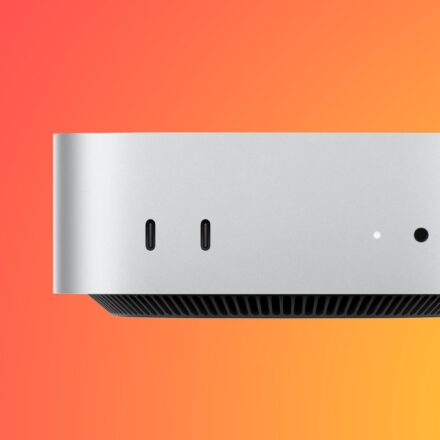
How to Turn an Old Mac Mini Into a Powerful Home Media Server

If you have an old Mac Mini sitting unused, you may not need to replace it or send it to the recycling bin. With the right software and configuration, an older Mac Mini can be transformed into a reliable home media server for streaming movies, TV shows, music, and other digital content across your network.
Intel-based Mac Mini models are particularly useful for this purpose because they can run Linux distributions designed for servers. Once Linux is installed, applications such as Docker or Podman can be used to deploy popular media server platforms, including Jellyfin and Plex.
However, choosing the right Mac Mini is important. Older PowerPC models are generally unsuitable, while some Intel models may struggle with modern media workloads. For many users, the 2018 Mac Mini offers an excellent balance of processing power, memory, connectivity, and hardware video acceleration.
Why the 2018 Mac Mini Is a Great Media Server
The 2018 Mac Mini remains an interesting option for anyone looking to build an inexpensive home server.
It comes with an eighth-generation Intel processor and can be configured with at least 8GB of RAM, providing enough performance for many common home media server workloads. More importantly, its Intel processor supports Quick Sync Video, which can be extremely useful for hardware-accelerated transcoding.
Transcoding becomes necessary when the device receiving your video cannot directly play the original file format. Instead of requiring the client device to handle the conversion, the server can convert the video into a compatible format while it is being streamed.
This makes hardware acceleration an important consideration when choosing a machine for Plex or Jellyfin.
Key Advantages of the 2018 Mac Mini
- Eighth-generation Intel processor
- Support for Intel Quick Sync
- Upgradeable RAM
- Compact desktop design
- Low power consumption compared with many traditional PCs
- Multiple connectivity options
- Suitable for Linux server distributions
- Compatible with Docker and Podman
- Good performance for Plex and Jellyfin
Can You Install Linux on an Intel Mac Mini?
Yes, although some Intel Mac Mini models require additional consideration.
The 2018 Mac Mini includes Apple’s T2 security chip, which can create additional challenges when installing and running Linux. Hardware support is not always as straightforward as it is on a conventional PC.
Fortunately, Linux distributions and community projects provide documentation and workarounds for installing Linux on Intel Macs with T2 hardware.
For users who prioritize stability and simplicity, Debian and Ubuntu Server are two practical choices for creating a Linux-based Mac Mini media server.
Before installing Linux, however, it is important to check the current hardware compatibility documentation for your exact Mac Mini model. Drivers and hardware support can change as Linux development progresses.
Docker vs. Podman for a Mac Mini Media Server
After installing Linux, the next step is deciding how you want to run your media server software.
Docker and Podman are two popular container platforms that allow applications to run in isolated environments. Instead of installing every component directly into the operating system, you can package applications and their dependencies inside containers.
This approach makes it easier to install, update, remove, and manage applications.
Docker
Docker remains one of the most widely used container platforms and has extensive documentation and community support.
For home media servers, Docker can make it easier to deploy applications such as:
- Jellyfin
- Plex Media Server
- Sonarr
- Radarr
- Prowlarr
- Transmission
- Other self-hosted applications
Docker Compose can also be used to manage multiple containers from a single configuration file.
However, Docker may have a learning curve for beginners, particularly when configuring volumes, permissions, networking, and hardware acceleration.
Podman
Podman provides a similar container-based approach but is designed with a more modular architecture and does not rely on the same centralized daemon model used by Docker.
For experienced Linux users, Podman can be an attractive alternative for running self-hosted services.
The best choice ultimately depends on your familiarity with Linux and container technology. For beginners, Docker often has an advantage because of the enormous amount of documentation and community examples available online.
Installing Jellyfin or Plex
Once your Linux server and container platform are ready, you can install your preferred media server.
Jellyfin is particularly popular among self-hosting enthusiasts because it is open-source and designed specifically for managing and streaming personal media collections.
Plex Media Server is another established option and provides a polished interface across a wide range of devices.
Both platforms can use hardware acceleration when the underlying hardware and software configuration support it.
For a Docker-based installation, you will typically configure the media server container to access your media directories and, where supported, the system’s hardware acceleration features.
Always follow the current installation instructions provided by the media server project because container configurations can change over time.
Understanding Docker Storage Locations
One of the concepts that can confuse beginners is how Docker handles storage.
When configuring a Jellyfin or Plex container, you may see settings for a source directory and a target directory.
The source is the actual location of your media files on the Mac Mini or connected storage. The target is the directory path that the application sees from inside the container.
For example, you could have your movies stored on a physical drive connected to the Mac Mini while Jellyfin sees that location through a directory such as /media.
The container effectively creates a bridge between the physical storage location and the application’s internal file structure.
Understanding this concept makes Docker Compose configurations much easier to manage.
What About an M1 or M4 Mac Mini?
Apple’s transition from Intel processors to Apple Silicon changes the situation considerably.
The M1 Mac Mini offers impressive performance and energy efficiency, making it an excellent computer for many server applications. The newer M4 Mac Mini is even more powerful and efficient.
However, using Linux on Apple Silicon Macs is different from installing Linux on Intel-based Macs.
Projects such as Asahi Linux have made significant progress toward supporting Apple Silicon hardware, but hardware support can vary between models and features. Media server users should pay particular attention to video encoding and decoding support.
If your primary goal is running Jellyfin or Plex on an Apple Silicon Mac Mini, staying with macOS and using native versions of the applications may be the simpler solution for many users.
This is especially important if you depend on hardware-accelerated video transcoding.
Why Hardware Transcoding Matters
Not every streaming device supports every video codec, resolution, audio format, or container.
For example, a media file may play perfectly on a modern computer but fail to play directly on an older smart TV. A media server can solve this problem by transcoding the content into a compatible format.
Software transcoding can require significant CPU resources. Hardware acceleration can dramatically reduce the processing burden when supported by the processor and configured correctly.
This is one of the biggest reasons the 2018 Intel Mac Mini remains attractive for a home media server.
Its Intel Quick Sync capabilities can help Plex and Jellyfin handle compatible transcoding workloads more efficiently.
What You Need to Build the Server
You do not need an expensive server rack to get started.
A basic setup can include:
- An Intel Mac Mini, preferably the 2018 model
- At least 8GB of RAM
- Linux such as Debian or Ubuntu Server
- Docker or Podman
- Jellyfin or Plex Media Server
- Internal or external storage for your media library
- A reliable network connection
- Ethernet connectivity for demanding streaming workloads
For large media collections, external USB storage or network-attached storage can also be added.
Is an Old Mac Mini Worth Using as a Media Server?
For many users, absolutely.
An old Intel Mac Mini can provide enough performance for a home media server while consuming considerably less space and power than a traditional desktop computer.
The 2018 model is especially attractive because of its Intel processor, Quick Sync support, compact design, and ability to run Linux.
However, the exact performance you can expect depends on the number of simultaneous streams, video resolution, codecs, transcoding requirements, storage speed, and network configuration.
If you mainly stream media directly without transcoding, even relatively modest hardware can perform well. If you expect multiple simultaneous 4K transcoding sessions, you should consider more powerful hardware or a dedicated server.
Final Thoughts
Turning an old Mac Mini into a media server is one of the more practical ways to give aging hardware a new purpose. Intel-based models can run Linux, Docker, or Podman and provide a solid foundation for self-hosted applications such as Jellyfin and Plex.
The 2018 Mac Mini stands out as a particularly capable option thanks to its eighth-generation Intel processor and Quick Sync hardware acceleration.
Apple Silicon models such as the M1 and M4 Mac Mini offer considerably more modern performance, but Linux compatibility and hardware video acceleration should be carefully considered before choosing them for a Linux-based media server.
For beginners, a good starting point is a Linux distribution such as Debian or Ubuntu Server combined with Docker and Jellyfin. Once the basic setup is working, you can expand the server with additional self-hosted applications and storage.
With the right configuration, an old Mac Mini can become a compact, efficient, and surprisingly capable home media server.