How to Save a Sticker From iMessage
iMessage stickers offer a creative way to enhance your messages. While sending them is straightforward, saving a sticker received from a friend allows you to reuse it and build a personal collection. Here’s how to save and manage stickers directly within iMessage.
Simple Methods to Save iMessage Stickers
1. Save a Received Sticker to Your Collection
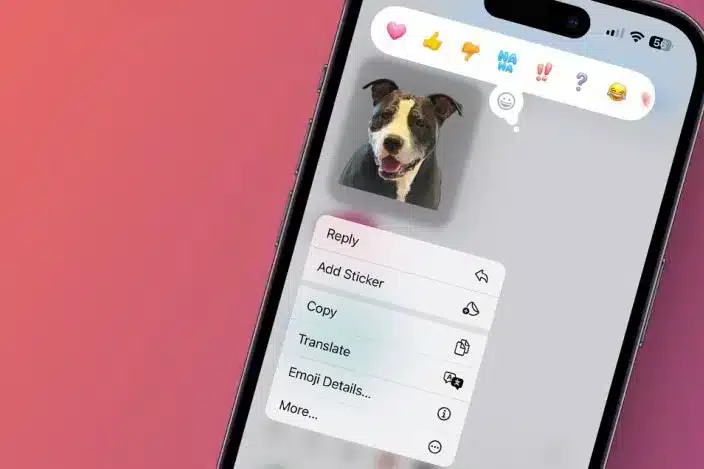
You can directly add any sticker sent to you into your own sticker drawer for future use.
-
Open the iMessage conversation containing the sticker.
-
Long-press on the specific sticker you want to save.
-
Tap “Add Sticker” or the download icon from the pop-up menu.
-
The sticker will now appear in your personal sticker collection within the Messages app.
2. Create a Sticker from a Photo
You can turn any image from your Photos app into a custom sticker.
-
In a Messages conversation, tap the Plus (+) icon next to the text field.
-
Select the Stickers icon (the smiling square).
-
Tap the “+” inside your sticker drawer.
-
Choose a photo, adjust the cutout if needed, and tap “Add Sticker.”
3. How to Delete Saved Stickers
To keep your collection organized, you can remove unwanted stickers.
-
In Messages, tap the Stickers icon to open your drawer.
-
Long-press on the sticker you wish to remove.
-
Tap “Delete” from the menu that appears.
FAQ
-
Where are saved iMessage stickers stored?
They are stored in your iMessage sticker drawer, accessible from the keyboard. If saved as images, they go to your Photos app. -
Can I save stickers from Android users?
Stickers sent from Android via SMS/RCS typically arrive as static images and cannot be added to the native iOS sticker drawer. -
Why don’t I see the “Add Sticker” option?
This may happen with animated stickers, during a software bug, or if the sticker format isn’t supported. Try restarting the Messages app.
Conclusion
Saving and creating custom iMessage stickers is a simple process that enhances your messaging experience. By using the built-in tools, you can easily build a personalized library. Regularly managing your collection by deleting unwanted stickers will keep your sticker drawer organized and efficient.