How to Remove the Gray Dot on Your iPhone: A Complete Guide to Assistive Touch
The Gray Dot That Won’t Go Away
One of the more underrated benefits of having an iPhone is the hidden Back Tap feature and the extensive accessibility options that come with it. Apple’s lineup of smartphones is packed with features designed to help users navigate their devices more easily—from voice control to eye-tracking assistance. However, one accessibility feature, Assistive Touch, can be a source of confusion when a gray dot suddenly appears on your screen and won’t go away.
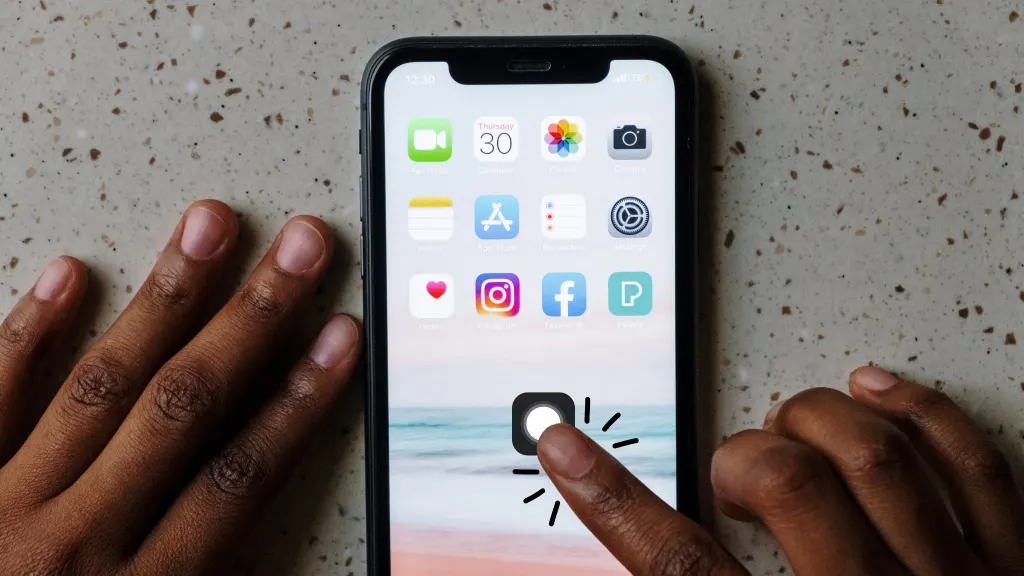
If you’re seeing a gray dot on your iPhone screen, it’s almost certainly Apple’s Assistive Touch feature. While it’s designed to simplify navigation for users who need it, the gray dot can be obtrusive for others. Fortunately, removing it is simple—whether through the Settings menu or by asking Siri.
This guide explains exactly what Assistive Touch is, how to disable it, and how to customize its appearance if you’d prefer to keep it but make it less noticeable.
What Is Assistive Touch and Why Is There a Gray Dot?
Assistive Touch has been available since iOS 5 and is designed to help users navigate their iPhone more easily. It adds a gray dot to the screen that provides quick access to essential functions and gestures that might otherwise be difficult for some users.
What Assistive Touch Can Do
| Feature | Function |
|---|---|
| Virtual Buttons | Lock screen, adjust volume, rotate screen—no physical buttons needed. |
| Gesture Replication | Access Control Center, Notification Center, and more via the gray dot menu. |
| Custom Actions | Assign specific functions to single-tap, double-tap, or long-press. |
| Siri Integration | Launch Siri directly from the Assistive Touch menu. |
| Device Controls | Restart, screenshot, mute, and other system functions. |
While Assistive Touch is invaluable for users with mobility challenges or those who prefer virtual controls, many users accidentally enable it and find the gray dot distracting or intrusive.
How to Turn Off Assistive Touch (Remove the Gray Dot)
There are two quick ways to disable Assistive Touch and remove the gray dot from your screen.
Method 1: Use Siri (Fastest)
The simplest way to disable Assistive Touch is to ask Siri:
-
Activate Siri by saying:
-
“Hey Siri” (on supported devices)
-
Press and hold the Side button or Home button.
-
-
Say: “Disable Assistive Touch” or “Turn off Assistive Touch.”
-
Siri will confirm and disable the feature immediately.
Result: The gray dot disappears from your screen instantly.
Method 2: Via Settings Menu
If you prefer to use the Settings app:
-
Open the Settings app on your iPhone.
-
Tap Accessibility.
-
Select Touch.
-
Tap Assistive Touch.
-
Toggle the switch to the OFF position.
Result: The gray dot is removed from your screen.
How to Turn Assistive Touch Back On
If you ever want to re-enable Assistive Touch:
-
Via Siri: Say “Enable Assistive Touch” or “Turn on Assistive Touch.”
-
Via Settings: Follow the same steps above and toggle the switch to ON.
How to Customize the Gray Dot (Opacity Adjustment)
If you find Assistive Touch useful but dislike how prominent the gray dot is, you can adjust its opacity to make it less obtrusive.
Step-by-Step Instructions
-
Open Settings > Accessibility > Touch.
-
Tap Assistive Touch.
-
Scroll down and look for Idle Opacity.
-
Tap the slider and adjust it to your preference:
-
Lower opacity: The gray dot becomes more transparent.
-
Higher opacity: The gray dot becomes more visible.
-
Pro Tip: You can also customize the Top Level Menu (the options that appear when you tap the gray dot) to include only the functions you actually use.
Additional Assistive Touch Customization Options
| Feature | What You Can Do |
|---|---|
| Custom Actions | Assign functions to single-tap, double-tap, or long-press. |
| Top Level Menu | Add, remove, or rearrange icons (up to 8 total). |
| Pointer Style | Change the appearance of the pointer when using Assistive Touch. |
| Show/Show Control | Display the Assistive Touch menu when you tap the dot. |
Comparison Table: Assistive Touch vs. Other Accessibility Features
| Feature | Purpose | Best For |
|---|---|---|
| Assistive Touch | Virtual buttons and gestures | Users who have difficulty with physical buttons. |
| Back Tap | Double/triple tap on the back of iPhone | Quick shortcuts (e.g., screenshot, flashlight). |
| Voice Control | Full device control via voice | Hands-free navigation. |
| Switch Control | Control device with switches | Users with limited mobility. |
| Reachability | Pulls screen down for one-handed use | Easier thumb access to top of screen. |
Frequently Asked Questions
Why is there a gray dot on my iPhone screen?
The gray dot is Assistive Touch, an accessibility feature that provides quick access to device functions. It may have been enabled accidentally.
How do I remove the gray dot on my iPhone?
You can remove it by disabling Assistive Touch via Settings > Accessibility > Touch > Assistive Touch, or by asking Siri to disable it.
Will disabling Assistive Touch affect other accessibility features?
No. Disabling Assistive Touch only affects that specific feature. Your other accessibility settings remain unchanged.
Can I make the gray dot smaller or more transparent?
Yes. In Settings > Accessibility > Touch > Assistive Touch, adjust the Idle Opacity slider to make it less visible.
Is Assistive Touch only for accessibility?
While it’s primarily an accessibility feature, anyone can use it for convenience—especially if they prefer virtual buttons or quick shortcuts.
Quick Reference Summary
| Step | Action |
|---|---|
| 1 | Open Settings > Accessibility > Touch. |
| 2 | Tap Assistive Touch. |
| 3 | Toggle switch to OFF to remove the gray dot. |
| 4 | (Optional) Adjust Idle Opacity to make it less prominent. |
| 5 | (Optional) Ask Siri to disable or enable Assistive Touch. |
Final Thoughts: Take Control of Your iPhone’s Accessibility
The gray dot on your iPhone screen is nothing to worry about—it’s just Assistive Touch, a helpful accessibility feature that may have been enabled accidentally. Whether you choose to disable it completely, make it more subtle, or keep it as a convenience tool, the power is in your hands.
Key Takeaway: If the gray dot bothers you, disable it in seconds via Settings or Siri. If you find it useful but intrusive, adjust the opacity to your liking. Your iPhone is designed to work the way you want—and that includes accessibility features.