How to Optimize Your TV for Gaming: The Ultimate Settings Guide
Unlock Your TV’s Gaming Potential
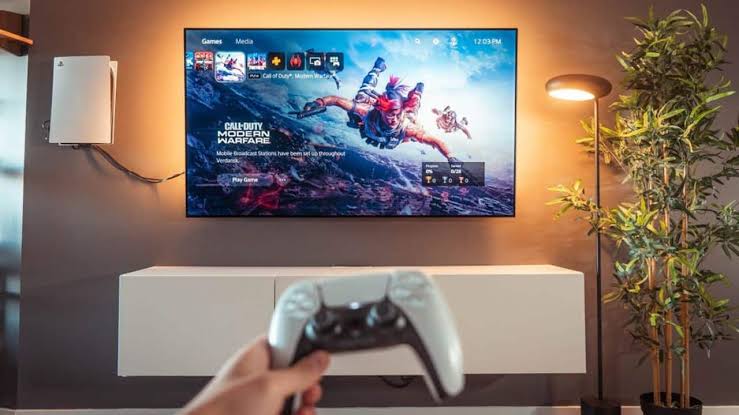
Modern TV picture technology does a solid job of reducing unwanted noise and other image artifacts in movies and TV shows. Some of this picture processing is also used to boost your TV’s gaming performance, which is particularly important for action-heavy online titles like “Battlefield 6” and “Helldivers 2.” However, not all TVs are created equal, and some sets are much better for console and PC gaming than others.
If you’re shopping for a new TV and you’re not limited by budget, it pays to invest in a set that at the very least supports 4K resolution at up to 120Hz. While not all games will deliver on these specs, locking down a UHD display with a refresh rate above 60Hz gives you the best shot at maximizing your current-gen gear while also future-proofing against hardware requirements down the line.
This guide covers everything you need to know to fine-tune your TV for the best gaming experience—from cables and picture presets to motion interpolation and audio optimization.
Quick Overview: Key Gaming Features
| Feature | What It Does | Why It Matters |
|---|---|---|
| HDMI 2.1 | Supports 4K at 120Hz, 8K at 60Hz, and 48 Gbps bandwidth. | Enables high refresh rate and dynamic HDR. |
| VRR (Variable Refresh Rate) | Matches TV refresh rate to console/PC frame rate. | Reduces screen tearing and stuttering. |
| ALLM (Auto Low Latency Mode) | Automatically switches TV to Game Mode. | Minimizes input lag for responsive gameplay. |
| Game Mode | Optimizes picture for low latency. | Essential for competitive gaming. |
| Motion Interpolation | Adds “fake” frames to smooth motion. | Helps 30 FPS games feel smoother. |
| HDR | High Dynamic Range for better contrast and color. | Makes games look more vibrant and realistic. |
Step 1: Use HDMI 2.1 Cables and Ports
Modern TVs, game consoles (PS5, Xbox Series X/S), and gaming PCs are built around the HDMI 2.1 standard (also known as Ultra High Speed HDMI), which entered the mainstream around 2020.
What HDMI 2.1 Delivers
| Specification | HDMI 2.0 | HDMI 2.1 |
|---|---|---|
| Bandwidth | 18 Gbps | 48 Gbps |
| 4K @ 60Hz | ✅ Yes | ✅ Yes |
| 4K @ 120Hz | ❌ No | ✅ Yes |
| 8K @ 60Hz | ❌ No | ✅ Yes |
| VRR Support | ❌ No | ✅ Yes |
| ALLM Support | ❌ No | ✅ Yes |
| Dynamic HDR | ❌ No | ✅ Yes |
Why It Matters
| If You Use… | Result |
|---|---|
| HDMI 2.0 or older | Limited to 4K/60Hz; no VRR, ALLM, or dynamic HDR. |
| HDMI 2.1 (proper cable) | Full 4K/120Hz support; VRR, ALLM, and dynamic HDR enabled. |
The Good News: HDMI 2.1 cables aren’t any more expensive than older cables. You can find several 2.1-certified cables for $20 or less.
Recommendation: Ensure both your TV and cable are HDMI 2.1-certified. Check the cable packaging for the “Ultra High Speed” label.
Step 2: Enable Game Mode or PC Preset
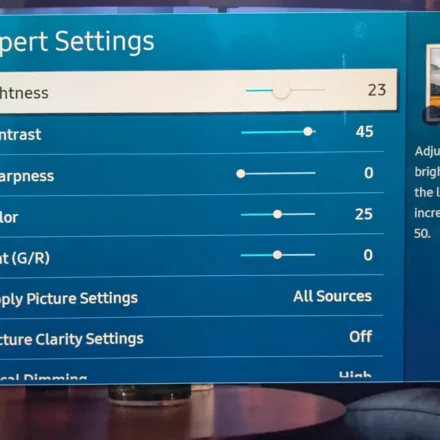
If the TV you’re gaming on was purchased in the last decade, there’s a good chance it has a Game or PC picture preset (it may also have both). These settings aren’t just for boosting colors and enhancing peak brightness—they’re engineered to optimize gameplay in real time.
Why Game Mode Matters
| Benefit | Effect |
|---|---|
| Reduced Input Lag | Faster response to controller inputs. |
| Minimized Screen Tearing | Smoother visuals during fast motion. |
| Optimized Frame Rate | Better consistency for competitive gaming. |
How Auto Low Latency Mode (ALLM) Helps
ALLM is an HDMI 2.1 feature that automatically switches your TV to Game Mode when a compatible console or PC is detected.
| Console | ALLM Support |
|---|---|
| Xbox Series X/S | ✅ Supported from launch. |
| PlayStation 5 | ✅ Added in March 2022 update. |
| PC (NVIDIA/AMD) | ✅ Supported with compatible GPUs. |
The Result: You never have to worry if you’re getting the best frame rate and lowest input lag when actively gaming. The hardware and software do all the thinking for you.
Step 3: Fine-Tune Motion Interpolation
Motion interpolation (sometimes called “fake motion” or “soap opera effect”) adds digitally generated frames to smooth out motion. While it’s usually disabled in Game Mode to minimize input lag, it can be a game-changer for 30 FPS games that feel stiff or choppy.
When to Use Motion Interpolation
| Scenario | Recommendation |
|---|---|
| 30 FPS games | ✅ Worth trying—adds smoothness. |
| 60 FPS+ games | ❌ Usually unnecessary. |
| Competitive/Fast-Paced | ❌ May introduce input lag. |
| Single-Player/Story Games | ✅ Often improves experience. |
Brand-Specific Motion Interpolation Names
| TV Brand | Feature Name |
|---|---|
| LG | TruMotion |
| Samsung | Auto Motion Plus |
| Sony | Motionflow |
| TCL | Action Smoothing |
| Hisense | Ultra Smooth Motion |
Important Note
Toggling motion interpolation may require disabling certain settings (like HDMI Deep Color on LG TVs). This may also disable Game Mode, so you’ll need to manually switch between presets for gaming versus movie watching.
The Tradeoff: Motion interpolation can introduce a small amount of input lag. For fast-paced games, this might be noticeable. For slower-paced, story-driven games, the improved smoothness may be well worth the tradeoff.
Step 4: Optimize Audio for Gaming
Video games demand a lot of visual power from your TV, and all these picture niceties can make it easy to forget about sound quality. That’s a shame, because many games are mixed and mastered using the same audio formats (Dolby Atmos, Dolby Digital, DTS) that movies and TV shows use.
TV Audio Settings to Check
| Setting | What to Look For |
|---|---|
| Audio Presets | Game, Cinema, Sports, Standard |
| Dialogue Enhancement | Voice, Vocal, Dialogue Mode |
| Mounting Type | Wall-mounted vs. Stand (affects output) |
| Equalizer | Manual adjustments for bass/treble |
Soundbar Recommendation
If you find your TV speakers lackluster (you’re not alone), consider investing in a soundbar.
| Soundbar Benefit | Why It Matters |
|---|---|
| Better Audio Quality | Clearer dialogue, deeper bass. |
| HDMI Switching | Connect console directly to the bar (useful for wall-mounted TVs). |
| Simple Setup | Most can be installed in minutes. |
| Dolby Atmos Support | Immersive 3D audio for supported games. |
Comparison Table: TV Gaming Features by Priority
| Priority | Feature | Why It’s Important |
|---|---|---|
| Essential | HDMI 2.1 (cable + port) | Enables 4K/120Hz, VRR, ALLM. |
| Essential | Game Mode / ALLM | Minimizes input lag. |
| Recommended | VRR Support | Reduces screen tearing. |
| Recommended | HDR (HDR10, Dolby Vision) | Enhanced contrast and color. |
| Optional | Motion Interpolation | Smoother 30 FPS games. |
| Optional | Soundbar | Better audio quality. |
Frequently Asked Questions
Do I need HDMI 2.1 for gaming?
Not for all games, but for 4K/120Hz, VRR, and ALLM, yes. If you have a PS5, Xbox Series X, or gaming PC with a modern GPU, HDMI 2.1 is highly recommended.
Will motion interpolation increase input lag?
Yes, typically. However, the added smoothness may be worth it for single-player or slower-paced games. For competitive gaming, leave it off.
What is ALLM, and do I need it?
Auto Low Latency Mode automatically switches your TV to Game Mode when a compatible device is connected. It’s convenient and ensures you’re always getting low input lag during gaming.
Can I use a soundbar with my gaming setup?
Absolutely. Many soundbars support HDMI pass-through, allowing you to connect your console to the soundbar and then to the TV. This is especially useful for wall-mounted setups.
Is VRR worth having?
Yes. VRR (Variable Refresh Rate) eliminates screen tearing and stuttering, providing a smoother gaming experience—especially in games with fluctuating frame rates.
Quick Reference Summary
| Step | Action |
|---|---|
| 1 | Use HDMI 2.1 cables (Ultra High Speed). |
| 2 | Enable Game Mode or PC preset (or ALLM). |
| 3 | Consider motion interpolation for 30 FPS games. |
| 4 | Optimize audio settings or add a soundbar. |
| 5 | Ensure HDR and HDMI-CEC are enabled on your console/PC. |
Final Thoughts: A Better Gaming Experience
Optimizing your TV for gaming doesn’t have to be complicated. By ensuring you’re using HDMI 2.1 cables, enabling Game Mode (or relying on ALLM), experimenting with motion interpolation, and improving your audio setup, you can unlock the full potential of your PS5, Xbox Series X, or gaming PC.
The bottom line: Start with the essentials (HDMI 2.1 and Game Mode), then fine-tune based on the games you play. Every adjustment brings you one step closer to the ultimate gaming experience.
Let me know if you would like this formatted as a ready-to-publish HTML file, a downloadable PDF guide, or if you need a TV gaming settings cheat sheet for specific brands (Samsung, LG, Sony, TCL, Hisense)!