How to Pause Location Sharing With One Person in iOS 27 (Find My Hide Location)
How to Pause Location Sharing With One Person in iOS 27
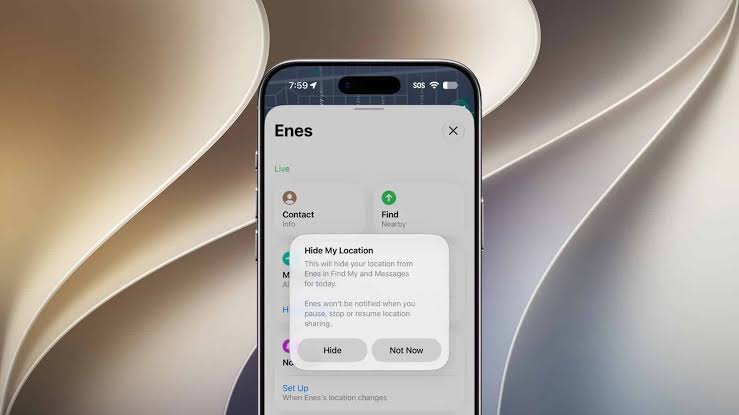
Until now, you had two blunt options if you wanted a break from someone seeing your location: stop sharing with them entirely, or turn off Location Services for everything. iOS 27 adds a middle ground. A new Hide Location button in Find My lets you pause sharing with one specific person while everyone else keeps seeing you as usual.
What Hide Location Does
Hide Location pauses your location sharing with a chosen person until the end of the day. The other person isn’t notified when you pause, stop, or resume sharing with them. They just see “No Location Found” in their Find My app.
A few things worth knowing:
- It doesn’t end your sharing relationship. Your existing settings with that person stay in place.
- It doesn’t turn off Location Services or Find My, so you can still locate your own devices.
- The other person won’t get an alert, but “No Location Found” isn’t invisible. If they check your location at that moment, they may notice it’s unavailable.
How to Pause Sharing With One Person
- Open the Find My app on your iPhone.
- Tap the People tab.
- Tap the name of the person you want to pause.
- Scroll down and tap Hide Location. Depending on your layout, you may need to tap the menu button on their card first, then confirm.
- Go back to the People list and check that the pause shows on the right contact.
How to Resume Sharing Early
While the pause is active, the button changes to Unhide Location, and you can tap it to restore sharing at any time. If you don’t, sharing resumes automatically at the end of the day, and a label shows when that will happen.
About the timing: Apple describes the pause as lasting until the end of the day. A few early reports mention different windows, such as 12 hours, so check the label on the person’s card in your own app to see exactly when sharing will come back.
How to Stop Sharing Permanently
If you want sharing to stay off until you turn it on again yourself:
- Open Find My and tap People.
- Tap the person’s name.
- Scroll down and tap Stop Sharing My Location, then confirm.
Unlike Hide Location, this ends the sharing arrangement. You’d have to share again to restore it.
New: Custom Sharing Durations
iOS 27 also improves temporary sharing. When you share your location with someone, a fourth Custom option appears next to the one-hour, end-of-day, and indefinite presets. It lets you choose a window between 15 minutes and 30 days. That’s handy for a trip or an event when you want sharing to switch itself off.
If You Need More Than a Pause: Safety Check
If your concern is about someone you don’t want to have access to your location or other data, Safety Check gives you a broader review.
- Open Settings and tap Privacy & Security.
- Tap Safety Check.
- Choose Manage Sharing & Access to review each person and app, or Emergency Reset to stop sharing with everyone right away.
If you ever feel unsafe, use Safety Check and consider contacting a trusted person or local support services. A pause is not a safety tool.
Tips
- Pick the person carefully. Make sure you’re changing the right contact before you confirm.
- Check Messages and Maps if you first started sharing from there.
- Don’t use Hide Location when someone is relying on your location for safety, such as a family member during a long drive.
- Remember it’s a pause, not a fix. If you regularly need to hide from someone, a conversation or a permanent change may be the better route.
FAQ
Will the other person get a notification when I pause?
Apple says no. They won’t be alerted when you pause or resume, but they’ll see “No Location Found” if they look for you.
Does Hide Location turn off Find My for my devices?
No. You can still find your own iPhone, Mac, and other devices.
What if I don’t see the Hide Location button?
Make sure your iPhone is on iOS 27 and that you picked a person who currently receives your location. If it still doesn’t appear, use Stop Sharing My Location as the fallback.
Does it work on other Apple devices?
Apple has rolled out the same flexible sharing controls across its latest OS versions, including iPadOS 27, macOS 27, and watchOS 27.
Is this the same as turning off Location Services?
No. Turning off Location Services affects many apps and features. Hide Location only affects what one chosen person sees.