

How to Fix a Blurry iPhone Camera After iOS 26 Update
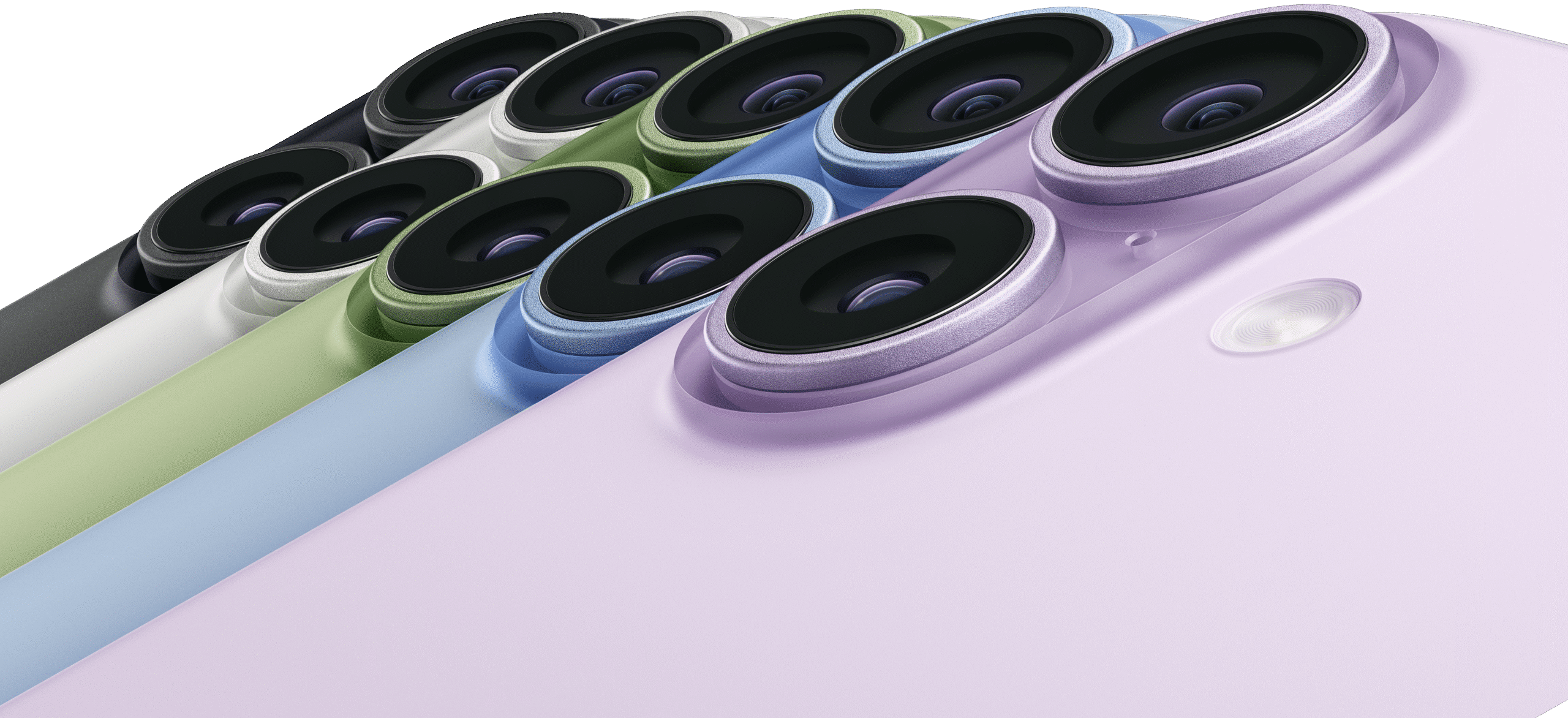
A common complaint after updating to iOS 26 is that the iPhone camera takes blurry photos. This is often due to software glitches, autofocus behavior, or simple obstructions. Here’s a structured guide to diagnose and fix the issue.
🔍 Quick Diagnostic Checklist
Before proceeding, rule out these simple, common causes:
-
Lens Smudges: Gently clean all camera lenses with a microfiber cloth.
-
Case Interference: Remove any phone case that might be covering a lens or the LiDAR scanner.
-
Basic Restart: Restart your iPhone to clear temporary software conflicts.
🛠️ Tiered Troubleshooting Guide
If the basics don’t help, follow these solutions in order from simplest to most involved.
| Tier | Solution | Best For |
|---|---|---|
| 1. App & Focus Fixes | Force-close Camera app; toggle Autofocus Lock; disable macro control. | Immediate fixes for focus lag or app freezes. |
| 2. Software Resets | Update iOS; reset all camera settings; reset all iPhone settings. | Glitches introduced by the iOS 26 update. |
| 3. Advanced Checks | Test with third-party apps; check for hardware damage. | Ruling out deeper software bugs or physical issues. |
📝 Detailed Steps for Key Solutions
1. Force Close the Camera App & Reset Focus
-
Close the App: Swipe up from the bottom (or double-press the Home button) to enter the app switcher, then swipe the Camera app up to close it. Reopen it.
-
Reset Autofocus: In the Camera app, tap on the screen where your subject is. If AE/AF Lock appears, tap another area to unlock it. Ensure your subject isn’t too close (which can trigger the macro mode unexpectedly).
2. Update and Reset Software
-
Update iOS: Go to Settings > General > Software Update. Install any available updates, as Apple often releases camera fixes in point updates (e.g., iOS 26.0.1).
-
Reset Camera Settings: Go to Settings > Camera > Preserve Settings. Try turning off all switches, then restart your phone. This resets preferences without deleting photos.
-
Reset All Settings: A stronger fix. Go to Settings > General > Transfer or Reset iPhone > Reset > Reset All Settings. This resets network, wallpaper, and privacy settings to default but does not erase your data.
3. Test and Isolate the Problem
-
Use a Third-Party Camera App: Test with an app like Halide or ProCamera. If the image is sharp, the issue is likely with the native Camera app’s software.
-
Check for Hardware Damage: Inspect the camera lens for cracks or deep scratches. Shake the phone gently near your ear—if you hear a rattle from the camera module, the optical image stabilization (OIS) might be damaged, requiring service.
❓ Frequently Asked Questions
-
Is this a hardware or software problem?
After a major iOS update, it’s usually software-related. If the problem appeared right after updating to iOS 26 and affects multiple photo modes, a software fix is likely. -
Will Apple release an official fix?
Very likely. Widespread camera issues are typically addressed in subsequent iOS point updates (e.g., iOS 26.1). Keep automatic updates on. -
Does this affect all iPhone models?
Reports are common on newer models (iPhone 16/17 series) but it can impact any iPhone updated to iOS 26 due to the system-level camera processing changes. -
Why are only some photos blurry?
If blur is inconsistent, it could be due to subject movement, low light causing slower shutter speeds, or the macro mode switching between lenses erratically on Pro models.
✅ Summary: How to Fix a Blurry Camera
To resolve blurry camera issues after iOS 26:
-
Clean the lens and restart your iPhone.
-
Force-close the Camera app and tap to reset focus.
-
Update to the latest iOS version available.
-
Reset All Settings as a deeper software refresh.
-
Test with a third-party app to isolate the issue to the native Camera app.
Start with the simple fixes—often, cleaning the lens or restarting the phone is all it takes. If the problem persists, the Reset All Settings option is a powerful step before considering hardware service.



