How to Connect Beats Solo 3 to Apple Devices
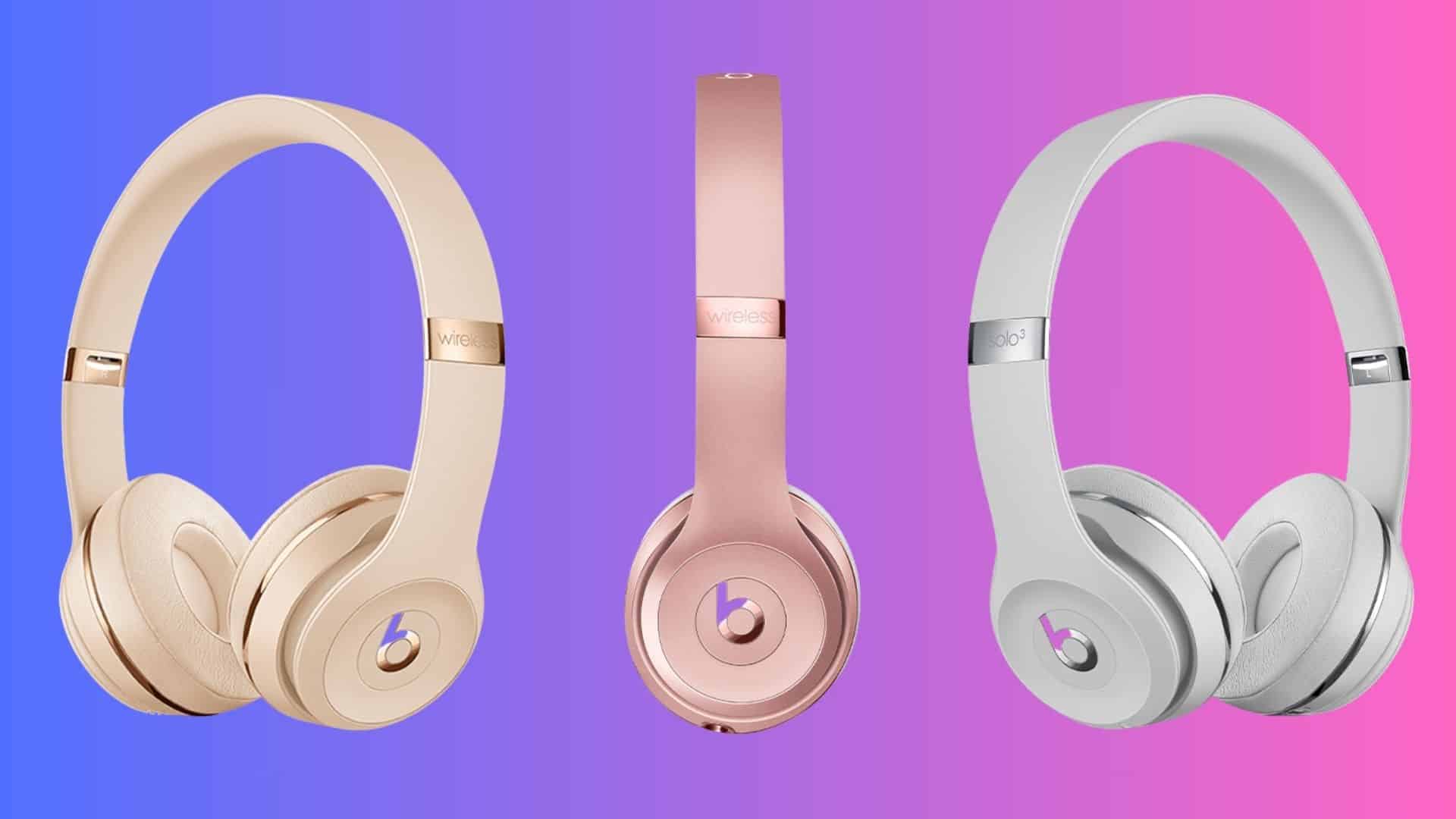
The Beats Solo 3 headphones feature Apple’s W1 chip for seamless pairing with iPhone, iPad, and Mac. Here’s a complete guide to connecting them across your Apple ecosystem.
Pairing with iPhone
Step 1: Enter Pairing Mode
-
Press and hold the power button on right ear cup
-
Wait for LED indicator to flash white
-
Release when flashing begins
Step 2: Connect on iPhone
-
Open Settings > Bluetooth
-
Ensure Bluetooth is Enabled
-
Tap “Beats Solo 3” under Other Devices
-
Wait for “Connected” confirmation
Automatic Setup:
-
If signed into iCloud, headphones may connect automatically
-
Works across all devices with same Apple ID
Pairing with iPad
Method 1: Standard Pairing
-
Enable Bluetooth in Settings
-
Put Beats in pairing mode (flashing LED)
-
Select “Beats Solo 3” from device list
-
Confirm connection
Method 2: Quick Switch
-
If already paired to iPhone with same Apple ID
-
Simply select Beats from Control Center > Audio
-
Automatic switching between devices
Pairing with Mac
Step-by-Step:
-
Put Beats in pairing mode (flashing light)
-
Click Apple menu > System Settings > Bluetooth
-
Find “Beats Solo 3” in list
-
Click “Connect”
Audio Settings:
-
After connection, go to System Settings > Sound
-
Set Beats Solo 3 as Output and Input device
-
Adjust volume from menu bar or Control Center
Troubleshooting Connection Issues
Basic Checks:
-
Ensure Beats are charged (above 20%)
-
Keep within 30 feet of device
-
Avoid wireless interference
-
Restart both headphones and device
Reset Beats Solo 3:
-
Press and hold Power + Volume Down for 10 seconds
-
LED will flash, then reset
-
Re-pair to devices
Update Software:
-
Keep iOS/iPadOS/macOS updated
-
Connect to iPhone for firmware updates
-
Check for Beats app updates if available
Multi-Device Management
Automatic Switching:
-
Devices must use same Apple ID
-
Beats automatically switch to active device
-
Manual selection available in audio settings
Manual Switching:
-
Disconnect from current device
-
Select from Bluetooth list on new device
-
Or use Audio settings in Control Center
Battery Monitoring
Check Battery Level:
-
iPhone/iPad: Open Control Center, tap audio card
-
Mac: Click Bluetooth icon in menu bar
-
Voice prompts: “Battery high/medium/low”
-
LED indicator: Flashing red when low
Optimizing Performance
Sound Quality:
-
Enable Audio Sharing for multiple listeners
-
Use EQ settings in Music app
-
Disable Sound Check for consistent volume
Connection Stability:
-
Keep devices updated
-
Avoid crowded Wi-Fi areas
-
Reset network settings if persistently unstable
FAQ
Can I use with Android/Windows?
Yes, via standard Bluetooth pairing, but automatic switching won’t work.
Why won’t my Beats connect?
Check charging, pairing mode, and device compatibility. Reset if needed.
How do I check firmware version?
Connect to iPhone and check in Bluetooth settings.
Can I use while charging?
Yes, but wireless performance may be affected.
Maintenance Tips
-
Store in case when not in use
-
Clean with dry, soft cloth
-
Avoid extreme temperatures
-
Update firmware regularly
Conclusion
The Beats Solo 3 offers seamless integration with Apple devices through the W1 chip. For best results, keep all devices updated, maintain adequate charging, and use within recommended range. The automatic switching feature provides a truly wireless experience across your Apple ecosystem.