How to Change Your Default Card in Apple Pay: A Complete Guide
Apple Pay streamlines contactless and in-app purchases, especially when you have multiple cards in your Wallet. Your default card is the one that automatically appears when you authorize a payment. Knowing how to manage this setting is crucial for controlling your spending and ensuring your preferred card is always used first. The process is quick and consistent across all Apple devices.
Managing Your Primary Payment Method
You can change your primary Apple Pay card instantly on your iPhone, iPad, Mac, or Apple Watch. This gives you full control, whether you want to use a debit card for everyday items or a credit card to earn rewards.
1. Change Your Default Card in the Wallet App on iPhone
The most direct method uses a simple drag-and-drop gesture in the Wallet app.
-
Open the Wallet app on your iPhone.
-
Touch and hold the card you want to set as the new default.
-
Drag it to the front of your card stack. A confirmation will appear once it’s set.
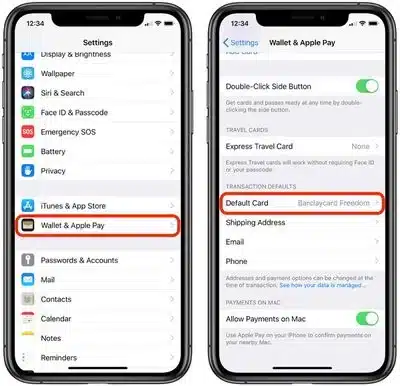
2. Update Your Default Card via Settings on iPhone or iPad
For a more detailed menu, use the Settings app. This is ideal if you have many cards.
-
Open the Settings app.
-
Tap Wallet & Apple Pay.
-
Under Transaction Defaults, tap Default Card.
-
Select your new preferred card from the list.
3. Switch the Primary Card on Your Apple Watch
Your Apple Watch has its own default card setting, managed through your paired iPhone.
-
On your iPhone, open the Watch app.
-
Go to the My Watch tab and tap Wallet & Apple Pay.
-
Under Transaction Defaults, tap Default Card and make your selection.
4. Set Your Default Card on a Mac with Touch ID
For secure online payments on your Mac, set the default card in System Settings.
-
Go to System Settings (or System Preferences on older macOS).
-
Click Wallet & Apple Pay.
-
Choose your new default card from the Default Card dropdown menu.
Quick Tip: Reordering Your Other Cards
While not setting them as the default, you can rearrange your other cards for quicker access.
-
In the Wallet app, touch and hold any card and drag it to a new position in the stack.
Frequently Asked Questions (FAQ)
-
Can I have different default cards on my iPhone and Apple Watch?
Yes. Each device maintains its own independent default card setting. -
Will changing my default card affect my recurring subscriptions?
No. Subscriptions are typically charged to the specific payment method you have on file with the service or your Apple Account, not your Apple Pay default card. -
What happens if I remove my current default card?
Apple Pay will automatically promote the next card in your Wallet to become the new default.
Conclusion
Taking a moment to configure your default Apple Pay card ensures a faster, more controlled payment experience. By using the simple steps for your iPhone, iPad, Apple Watch, or Mac, you can guarantee your preferred card is always ready for use, saving you time and preventing accidental charges to the wrong account. This small adjustment maximizes the convenience and security of using Apple Pay for all your transactions.