How to Change the Apple Maps Voice on Your iPhone

How to Change the Apple Maps Voice on Your iPhone
Apple Maps is a powerful navigation tool, but the default voice guidance might not be for everyone. The good news is you can easily customize it. The voice you hear in Apple Maps is directly tied to your Siri voice settings, allowing you to choose from different accents, genders, and languages to find the perfect guide for your journeys.
How to Change the Voice in 4 Simple Steps
Since the navigation voice is powered by Siri, changing it is a universal setting that applies across your device.
-
Open the Settings app on your iPhone.
-
Scroll down and tap on Siri & Search.
-
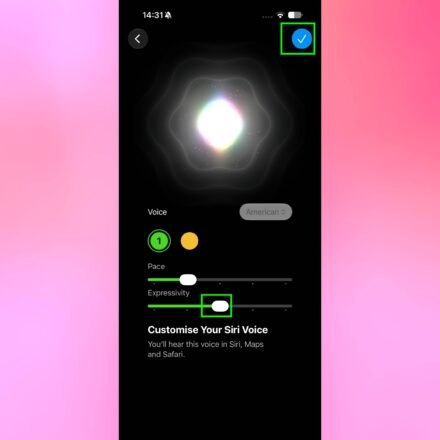
Select Siri Voice.
-
Choose your preferred Variety (e.g., American, British, Australian) and then select a specific Voice from the available options.
-
The new voice will download. Once completed, both Siri and Apple Maps will use this new voice for all spoken directions.
-
Important Note: This change will also apply to Apple Maps on CarPlay if you use it.
Pro Tips for the Best Experience
-
Use Wi-Fi: Download new voices over a Wi-Fi connection to avoid using your cellular data.
-
Choose for Clarity: Select a clear and familiar accent to ensure you understand directions easily while driving.
-
Adjust the Volume: If the voice is too loud or quiet, go to Settings > Maps > Spoken Directions and adjust the Navigation Voice Volume.
-
Restart if Needed: If the new voice doesn’t activate immediately, try restarting your iPhone.
Frequently Asked Questions (FAQ)
Q: Can I use a different voice for Siri and Apple Maps?
A: No. Apple Maps uses the same voice as Siri. Changing one will change the other.
Q: Why can’t I hear any voice directions?
A: Ensure “Spoken Directions” is turned on in Settings > Maps > Spoken Directions. Also, check that your iPhone isn’t on silent mode.
Q: Can I use a celebrity voice or upload a custom one?
A: No, Apple does not currently offer celebrity or custom voice options for Siri or Maps.
Q: How do I change the voice to a different language?
A: Go to Settings > General > Language & Region and change your iPhone’s language. This will change the language for Siri and Maps.
Conclusion
Personalizing your Apple Maps voice is a simple yet effective way to enhance your navigation experience. Whether you prefer a calm British tone or a clear American accent, following these steps will ensure your directions are not only accurate but also delivered in a voice that suits your style.