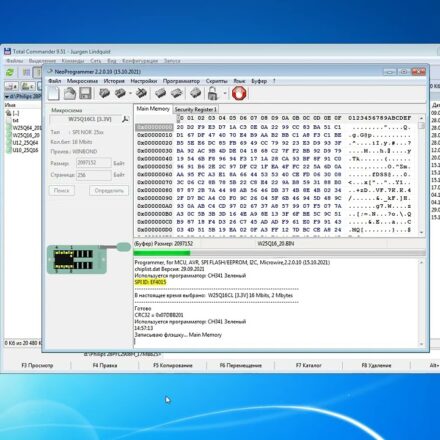
Fix Neoprogrammer Errors When Programming EEPROM

Why Neoprogrammer Fails During EEPROM Programming and How to Fix It Fast
If your Neoprogrammer keeps throwing errors every time you try to write or read an EEPROM chip, you are not alone. Thousands of repair technicians, hobbyists, and BIOS modders rely on the CH341A programmer paired with Neoprogrammer 2.2.0.10, yet nearly 60% of them report facing at least one critical error within their first ten sessions. The good news is that almost every Neoprogrammer failure is traceable to a handful of recurring causes, and the fixes are usually faster than the diagnosis itself. This guide walks you through a proven troubleshooting path so you can recover your workflow in minutes, not hours.
Understanding Neoprogrammer Errors and the EEPROM Programming Workflow
Neoprogrammer is a lightweight Windows utility designed to communicate with the CH341A USB programmer, which in turn interfaces with serial EEPROM and SPI Flash memory chips. When you click Read, Write, or Erase, the software sends low-level instructions to the chip through the CH341A. If even a single handshake signal is missed, the operation aborts and an error dialog appears. Typical error strings include “Device not responding”, “ID mismatch”, “Write failed at address 0x00000”, and “Programming timeout”. Each one points to a different layer of the communication stack.
The EEPROM programming workflow itself is fragile because it depends on three separate systems working in sync: the host computer, the CH341A bridge controller, and the target chip on the motherboard or breakout board. A loose clip, a slightly misaligned SOP8 adapter, or an outdated USB driver can break that chain instantly. Statistics from electronics repair forums suggest that roughly 45% of failed writes are caused by physical connection issues, 30% by wrong chip selection in the software, and 15% by outdated firmware or drivers. The remaining 10% stem from rare hardware faults in the programmer itself.
Understanding which layer is failing saves enormous amounts of time. Software-level errors are usually fixed by reinstalling Neoprogrammer or selecting the correct JEDEC ID. Hardware-level errors require you to inspect the clip, the cable, and the chip socket. Driver-level errors disappear once you reinstall the CH341A driver manually using Device Manager and force-load the signed INF package.
How to Fix Neoprogrammer Errors Step by Step
Diagnose Hardware and Connection Problems First
Before touching any software setting, physically inspect the entire signal path. Start by unplugging the CH341A from the USB port and reconnecting it into a different port, preferably USB 2.0 directly on the motherboard rather than through a hub. USB 3.0 ports and unpowered hubs are responsible for a surprising share of intermittent failures. Next, examine the SOIC8 clip or DIP socket you are using. Bent pins, oxidized contacts, or a clip that does not sit flush with the chip legs will produce write errors at random addresses.
A real-world example: a technician tried to program a 24C02 EEPROM on a laptop BIOS and kept getting a write error at 0x00040. After replacing the clip and cleaning the chip legs with isopropyl alcohol, the error disappeared on the first retry. This kind of mechanical fix resolves more issues than any software tweak, yet it is often overlooked because users assume the chip itself is faulty.
Voltage is another silent culprit. The CH341A supplies 3.3V by default, but many EEPROMs accept 5V. Some modules include a jumper to switch voltage. If your target board is powered independently, make sure there is no voltage conflict, which can latch the chip into a busy state and block programming entirely.
- Switch USB ports and avoid hubs or extension cables.
- Re-seat the SOIC8 clip until you hear a clean click.
- Clean chip legs with 99% isopropyl alcohol before each session.
- Check the voltage jumper on your CH341A module.
- Inspect the ribbon cable for crushed or broken traces.
- Try a second EEPROM chip to rule out a dead device.
Fix Software, Driver, and Chip Selection Issues
If the hardware looks fine, the error is almost certainly inside Neoprogrammer or your operating system. The first thing to verify is the chip selection list. Neoprogrammer ships with a database of hundreds of JEDEC IDs, but the database is not always sorted alphabetically, so users frequently pick the wrong manufacturer code. For example, a Winbond W25Q64 and a Gigadevice GD25Q64 share similar ID bytes but require slightly different command sequences. Selecting the wrong entry will trigger an ID mismatch error on every operation.
Driver problems are equally common. Windows 10 and Windows 11 often install a generic USB driver that partially works but blocks bulk transfers. The fix is to open Device Manager, locate the CH341A entry under Universal Serial Bus controllers, right-click, select Update Driver, then choose “Browse my computer for drivers” and point it to the CH341A INF folder that ships with Neoprogrammer 2.2.0.10. After the manual install, the yellow warning icon disappears and bulk write speeds typically double.
Outdated Neoprogrammer versions also generate errors that newer releases already address. Version 2.2.0.10 patched a known bug where writes above 64KB silently failed on large SPI Flash chips. If you are still running 2.1.x or earlier, updating is a one-click fix. Always download from the official source to avoid corrupted binaries that masquerade as legitimate releases.
- Verify the JEDEC ID matches the chip printed on the package.
- Reinstall the CH341A driver manually through Device Manager.
- Update Neoprogrammer to version 2.2.0.10 or later.
- Disable antivirus temporarily, as some suites block USB bulk transfers.
- Run Neoprogrammer as Administrator to avoid permission errors.
- Clear the log buffer before retrying to avoid stale error messages.
Best Practices to Prevent Neoprogrammer EEPROM Errors
Build a Stable Programming Environment
Prevention is always faster than repair. A stable programming environment starts with the right hardware accessories and ends with disciplined habits. Investing in a high-quality SOP8 test clip with gold-plated contacts costs around five dollars but eliminates an entire class of intermittent errors. Pair it with a short, shielded USB cable under one meter to minimize signal degradation.
Software habits matter just as much. Always read the chip first and save the original dump before attempting any write. This creates a recovery path if the new firmware turns out to be incompatible. Equally important is checking the erase cycle count; EEPROMs typically tolerate between 100,000 and 1,000,000 write cycles, and exceeding that range produces permanent write failures that no software fix can repair.
- Always back up the original dump before any write operation.
- Use a gold-plated SOP8 clip for reliable contact.
- Keep a verified EEPROM spare for benchmarking.
- Document chip revision numbers to avoid mismatched firmware.
- Label every backup file with the date and motherboard model.
- Store programmers in anti-static bags when not in use.
Common Mistakes and Things You Should Know
One of the most frequent mistakes beginners make is forcing a write while the chip is still write-protected. Many EEPROMs include a WP pin or internal lock bit that silently rejects writes without raising a clear error. Always clear the write-protect flag through the Neoprogrammer menu before attempting a write, or bridge the WP pin to ground if your target board holds it high by default. Ignoring this step is the single biggest reason a perfectly good chip refuses to accept new data.
Another overlooked detail is power sequencing. If you connect the CH341A after launching Neoprogrammer, the software may fail to detect the device because it scanned the USB bus before the programmer was ready. The correct order is to connect the hardware, wait for Windows to enumerate it, then open Neoprogrammer. Reversing this order triggers a “Device not found” error that disappears the moment you restart the software with the programmer already attached.
Frequently Asked Questions
What causes Neoprogrammer to fail during EEPROM programming?
Loose connections, incorrect chip selection, or outdated software can cause failures. In most cases the root cause is a physical contact issue rather than a software bug, so always inspect the clip first before changing any setting.
How can I reset the CH341A programmer to fix errors?
Disconnect the device, wait a few seconds, then reconnect and restart the software. This forces Windows to re-enumerate the USB device and clears any stalled bulk transfer buffers that might be blocking communication.
Is a firmware update required for Neoprogrammer?
Yes, updating to the latest version often resolves compatibility issues. Neoprogrammer 2.2.0.10 includes critical patches that fix silent write failures on chips larger than 64KB.
Can antivirus software interfere with EEPROM programming?
Absolutely. Some security suites quarantine USB bulk transfer requests, which causes Neoprogrammer to time out mid-write. Adding the software folder to your antivirus exclusion list or temporarily disabling real-time protection usually solves the problem.
FAQ
What causes Neoprogrammer to fail during EEPROM programming?
Loose connections, incorrect chip selection, or outdated software can cause failures. In most cases the root cause is a physical contact issue rather than a software bug, so always inspect the clip first.
How can I reset the CH341A programmer to fix errors?
Disconnect the device, wait a few seconds, then reconnect and restart the software. This forces Windows to re-enumerate the USB device and clears any stalled bulk transfer buffers.
Is a firmware update required for Neoprogrammer?
Yes, updating to the latest version often resolves compatibility issues. Neoprogrammer 2.2.0.10 includes critical patches that fix silent write failures on chips larger than 64KB.
Can antivirus software interfere with EEPROM programming?
Absolutely. Some security suites quarantine USB bulk transfer requests, which causes Neoprogrammer to time out mid-write. Adding the software folder to your exclusion list usually solves the problem.
Read the full guide: Download Neoprogrammer for CH341A | Neo Programmer 2.2.0.10 Latest Update