Common Soundbar Problems and How to Fix Them: A Complete Troubleshooting Guide
When Your Soundbar Acts Up {#introduction}
Despite all the improvements, many TVs still struggle to deliver the kind of audio experience we expect. Soundbars seem like a practical solution—they’re compact, affordable, easy to set up and use, and generally work well. But sometimes, soundbars run into issues or throw errors. The good news is that the problems are usually simple and easy to fix.
Common problems include:
-
Soundbar not connecting
-
Frequent drops in connectivity
-
Soundbar turning off automatically
-
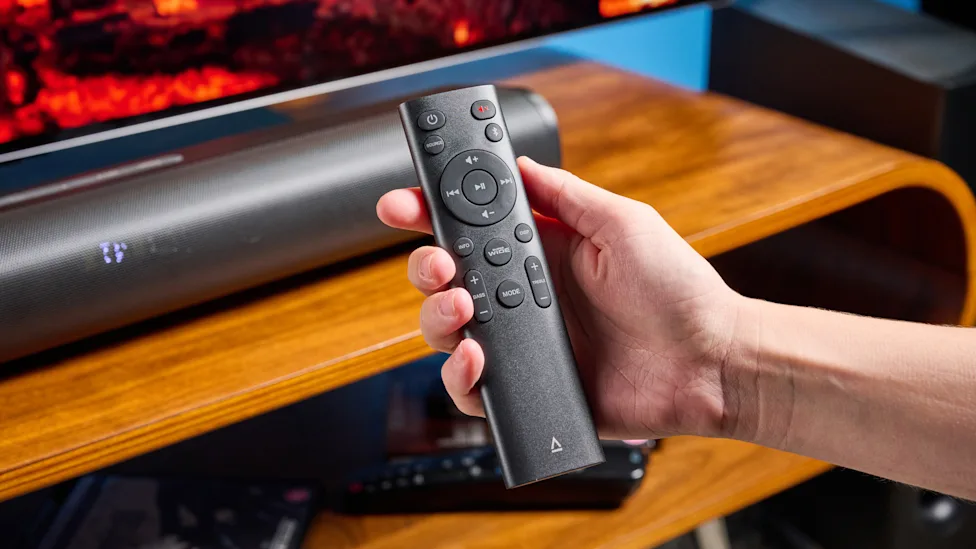
Remote not working
-
Sound coming from the TV speakers instead of the soundbar
-
Audio out of sync with video
-
No sound at all
Most of these issues are caused by improper connections, outdated firmware, damaged cables, or misconfigured settings. Sometimes a simple reboot does the trick, while other times you’ll need to identify and rectify the underlying cause.
Whether you own a simple budget soundbar or an advanced one, the solutions listed below apply to all. However, steps can vary by manufacturer, so check the exact steps for your device in the manual or on the manufacturer’s official website.
Soundbar Not Connecting {#not-connecting}
One of the most common problems with soundbars is connection failure, and it can have several different causes. This happens with both wired connections and Bluetooth—whether connecting to your TV, smartphone, or gaming console.
Wired Connection Issues
| Problem | Solution |
|---|---|
| Loose cable | Ensure the cable is plugged in firmly on both ends. |
| Wrong port | Use the dedicated ARC or eARC port on your TV. |
| eARC not working | Try disabling eARC in your TV’s settings. |
| Outdated firmware | Check for and install TV firmware updates. |
Bluetooth Connection Issues
| Problem | Solution |
|---|---|
| Not in pairing mode | Put the soundbar into pairing mode and retry. |
| Another device connected | Disconnect other devices (some soundbars allow only one connection). |
| Interference | Move devices closer; check for household device interference. |
| Devices too far apart | Bring the devices within range. |
Step-by-Step Fix
-
Check physical connections—ensure cables are firmly seated.
-
Verify you’re using the correct port (HDMI ARC/eARC).
-
For Bluetooth, make sure the soundbar is in pairing mode.
-
Reboot both devices and try again.
-
Update firmware on both the TV and soundbar if available.
Audio and Video Out of Sync {#audio-video-sync}
Sometimes, while the soundbar connects fine, the audio and video are out of sync. The audio could be ahead of the video or the other way around. This audio delay is usually due to misconfigured settings, processing delays, or wireless connections.
Common Causes
| Cause | Explanation |
|---|---|
| Bluetooth latency | Wireless connections can introduce delay. |
| Audio processing | Virtual Surround or Dolby Atmos may add processing time. |
| Streaming device connected to TV | HDMI passthrough can add lag. |
How to Fix Audio Sync Issues
-
Reboot both devices—often resolves temporary sync problems.
-
Connect the source directly to the soundbar if possible.
-
Disable audio processing features (Virtual Surround, Dolby Atmos).
-
Use the TV’s lip-sync feature:
-
Look for “Lip-Sync,” “Audio Video Sync,” or “Audio Delay” in TV settings.
-
Adjust the delay until audio and video match.
-
-
Switch to a wired connection—Bluetooth can introduce latency.
Pro Tip: If you’re using Bluetooth and nothing else works, switch to HDMI or optical for a lag-free experience.
No Sound at All {#no-sound}
If your soundbar is producing no sound at all, it could be due to misconfigured audio settings, improper input selection, audio format mismatch, or hardware issues.
Step-by-Step Troubleshooting
-
Rule out hardware issues—connect your soundbar to another TV or device to check if it works.
-
If it works on another device, the problem is likely with your TV settings:
-
Ensure the correct connection type is selected in the TV’s audio settings.
-
Verify the TV is outputting audio to the soundbar, not its built-in speakers.
-
Check that your streaming device is plugged into the HDMI ARC/eARC port.
-
-
Try connecting the streaming device directly to the soundbar (if it has extra HDMI ports).
-
Check the audio output format—switch between available formats (PCM, Dolby Digital, etc.) to find one that works.
If nothing works: Factory reset the soundbar. If the problem persists, the soundbar itself may be faulty.
Soundbar Keeps Turning Off {#keeps-turning-off}
In many cases, the soundbar works fine but keeps turning off at random times. While this may seem like a hardware issue, more often than not, it’s not.
Common Causes
| Cause | Solution |
|---|---|
| Power-saving mode | Disable Auto Standby or Energy Saving Mode. |
| HDMI-CEC interference | Disable HDMI-CEC in TV settings. |
| Loose power cable | Check and secure the power connection. |
| Overheating | Ensure proper ventilation; check for dust buildup. |
Step-by-Step Fix
-
Check the soundbar’s settings for:
-
Power Saving Mode
-
Energy Saving Mode
-
Auto Standby
-
Disable these features.
-
-
Disable HDMI-CEC in your TV’s settings—this feature can cause unexpected behavior.
-
Check the power adapter and cable connection.
-
Look for overheating—ensure the soundbar has proper ventilation and isn’t covered.
Remote Not Working {#remote-not-working}
When it comes to issues with the remote, there are two possible scenarios:
-
The soundbar’s dedicated remote isn’t working.
-
The TV remote that controls the soundbar’s volume isn’t working.
If the Soundbar’s Remote Isn’t Working
| Check | Action |
|---|---|
| Batteries | Ensure they’re firmly in place; replace if weak. |
| Obstructions | Remove anything blocking the soundbar’s IR receiver. |
| Test the remote | Point your phone’s camera at the remote’s front, press a button, and look for a flash (the IR signal). |
If you don’t see a flash after replacing batteries, the remote is likely malfunctioning.
If the TV Remote Isn’t Working
| Problem | Solution |
|---|---|
| HDMI-CEC disabled | Enable HDMI-CEC in TV settings. |
| Connection issue | Reconnect the TV and soundbar. |
| Persistent problem | Factory reset the soundbar. |
Step-by-Step Fix
-
Check and replace batteries in the remote.
-
Test the remote using your phone’s camera.
-
Enable HDMI-CEC on your TV (if using HDMI connection).
-
Reconnect the TV and soundbar.
-
Factory reset the soundbar as a last resort.
Comparison Table: Common Issues and Fixes {#comparison-table}
| Issue | Most Common Cause | Quick Fix | Difficulty |
|---|---|---|---|
| Not connecting (wired) | Loose cable or wrong port | Check connections; use ARC/eARC port. | Easy |
| Not connecting (Bluetooth) | Not in pairing mode | Put in pairing mode; reboot both devices. | Easy |
| Audio/video out of sync | Bluetooth latency or processing delay | Use lip-sync setting; switch to wired. | Moderate |
| No sound | Wrong input or audio format | Check input; switch audio format. | Moderate |
| Keeps turning off | Power-saving mode or HDMI-CEC | Disable auto standby; disable HDMI-CEC. | Easy |
| Remote not working | Weak batteries or obstruction | Replace batteries; remove obstruction. | Easy |
Frequently Asked Questions {#faq}
Why does my soundbar keep disconnecting?
This is often due to loose cables, Bluetooth interference, or HDMI-CEC conflicts. Check connections, move devices closer, or disable HDMI-CEC.
How do I fix audio delay on my soundbar?
Use the TV’s Lip-Sync or Audio Delay setting. If using Bluetooth, switch to a wired connection to eliminate latency.
Why is there no sound from my soundbar?
Check that the correct input is selected, the TV is set to output to the soundbar, and the audio format is compatible. Try a different cable or device to rule out hardware failure.
Why does my soundbar turn off by itself?
This is usually due to an Auto Standby or Energy Saving feature. Disable it in the soundbar’s settings.
How do I reset my soundbar?
Check your soundbar’s manual for specific reset instructions. Most soundbars have a factory reset option in the settings menu or a physical reset button.
Does HDMI-CEC affect soundbar operation?
Yes. HDMI-CEC can cause unexpected behavior, including the soundbar turning off or volume issues. Try disabling it if you’re experiencing problems.
Quick Reference Summary {#quick-reference}
| Step | Action |
|---|---|
| 1 | Check all physical connections (cables, power). |
| 2 | Ensure the correct port (HDMI ARC/eARC) is used. |
| 3 | For Bluetooth, ensure pairing mode is active. |
| 4 | Disable power-saving or auto-standby features. |
| 5 | Use the TV’s lip-sync setting for audio delay. |
| 6 | Disable HDMI-CEC if the soundbar behaves unexpectedly. |
| 7 | Replace remote batteries and check for obstructions. |
| 8 | As a last resort, factory reset the soundbar. |
Final Thoughts {#final-thoughts}
Soundbars are a great way to upgrade your TV’s audio, but like any tech, they can occasionally act up. Most problems—whether connection issues, audio sync, or remote troubles—are easy to fix with a bit of troubleshooting.
The bottom line: Start with the simplest fix (checking connections, rebooting, updating firmware) and work your way up. In most cases, you won’t need to buy a new soundbar or call a technician.