

Apple Music Automix Not Working? Here’s How to Fix It
Apple Music Automix Not Working? Here’s How to Fix It
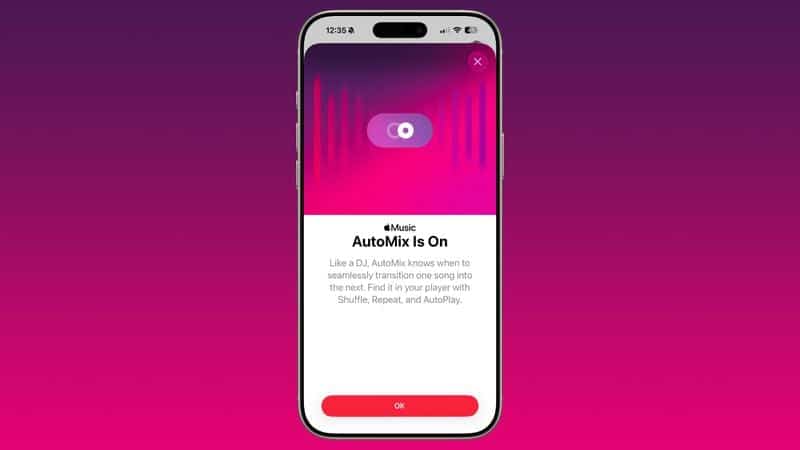
Apple Music’s Automix feature is designed to create a smooth, DJ-set-like flow by intelligently blending the end of one song into the beginning of the next. When it stops working, the magic is broken, and your playlist returns to clunky, abrupt transitions.
If Automix has suddenly stopped working for you, the issue is usually a simple setting that got turned off or a minor software glitch. This guide will walk you through the most effective fixes to get your music flowing seamlessly again.
The Essential Fix: Verify Automix is Turned On
This is the most common reason Automix stops working. A software update or accidental tap can easily disable it.
-
Open the Settings app on your iPhone.
-
Scroll down and tap Music.
-
Find the Automix toggle and ensure it is switched on (green).
It’s that simple! If it was off, turn it on and test your music again.
Other Common Causes and Solutions
If Automix is enabled but still not working, move through these troubleshooting steps.
1. Check Your Content Type
Automix doesn’t work with all audio. It’s primarily designed for:
-
Apple Music playlists (both yours and Apple’s).
-
Albums in your library.
It typically will not work with:
-
Single songs on repeat.
-
Radio stations.
-
Downloaded songs in Offline Mode (in some cases).
Solution: Make sure you’re playing a supported playlist or album.
2. Disable Conflicting Features
The standard Crossfade feature can sometimes conflict with Automix. It’s best to use one or the other.
-
Go to Settings > Music.
-
Find the Crossfade slider and drag it to 0 seconds (turning it off).
-
Go back to your music and see if Automix now works.
3. Force Close and Restart the Music App
A temporary glitch in the app can cause features to malfunction.
-
On an iPhone with Face ID, swipe up from the bottom and pause in the middle. On an iPhone with a Home button, double-press it.
-
Find the Music app card and swipe it up to close it.
-
Reopen the Music app and try playing a song.
4. Restart Your iPhone
A system restart can clear out deeper temporary software issues that affect performance.
-
Hold the Side button and a Volume button until the power slider appears, then slide to power off. Turn it back on after 30 seconds.
5. Check for a Software Update
Apple often releases iOS updates that fix bugs related to media playback.
-
Go to Settings > General > Software Update and install any available updates.
Advanced Troubleshooting
If the basic steps fail, these solutions can resolve more stubborn issues.
Sign Out and Back Into Apple Music
This refreshes your account connection and can fix syncing problems.
-
Go to Settings > [Your Name].
-
Tap Media & Purchases.
-
Tap Sign Out.
-
Restart your iPhone, then go back and sign in again.
Frequently Asked Questions (FAQ)
Q: What’s the difference between Automix and Crossfade?
A: Crossfade simply overlaps the end and start of two tracks for a fixed time you set. Automix is smarter; it uses song data to find the perfect, natural transition point for a more professional blend, much like a DJ would.
Q: Why did Automix stop working after I updated iOS?
A: iOS updates can sometimes reset app-specific settings to their defaults. It’s very common to need to re-enable the Automix toggle after a major update.
Q: Does Automix use more data or battery?
A: Not significantly. The processing is efficient, and it doesn’t download extra data—it uses the audio files and metadata already associated with the songs.
Final Checklist to Restore Automix
-
✅ Check the Toggle: Go to Settings > Music and turn Automix ON.
-
✅ Play the Right Content: Use an Apple Music playlist or album.
-
✅ Turn Off Crossfade: Set the Crossfade slider to 0 seconds.
-
✅ Restart the App & Phone: Force close the Music app and restart your iPhone.
-
✅ Update iOS: Install the latest software update.
By following these steps, you should be able to quickly diagnose and fix the issue, getting back to your perfectly blended music experience in no time.


