Master Your iPhone: A Beginner’s Guide to Apple Shortcuts
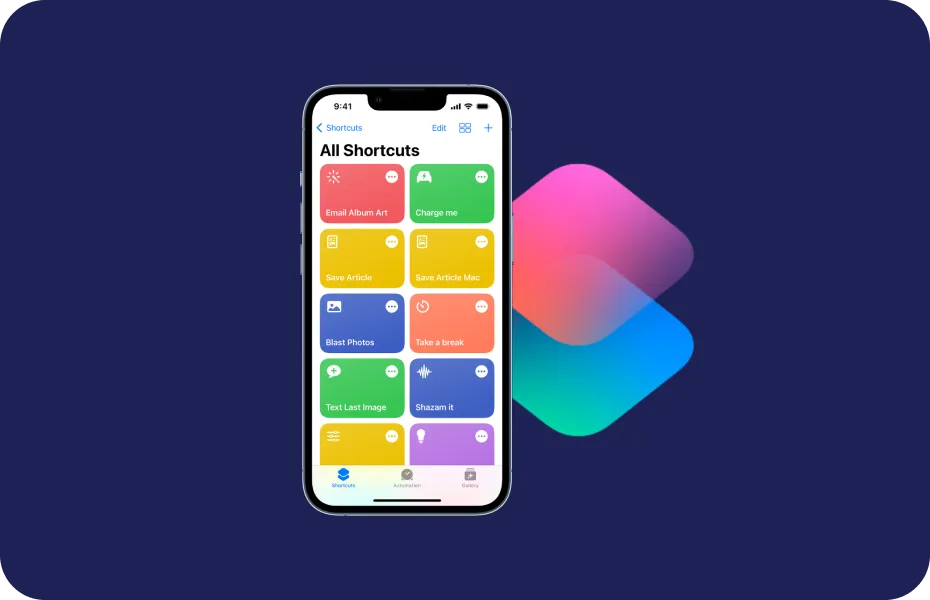
Apple Shortcuts is a powerful built-in tool that transforms your iPhone from a passive device into an active assistant. It allows you to automate multi-step tasks with a single tap or voice command, saving you time and streamlining your daily routine. This guide will explain what Shortcuts are and show you how to start using them effectively.
What Are Apple Shortcuts and Why Use Them?
Imagine triggering a series of actions with one command. That’s the power of Apple Shortcuts. It’s an automation app that lets you create custom workflows, or “shortcuts,” that combine multiple steps.
-
Example: A “Heading Home” shortcut could text your family your ETA, turn on your home lights, and start playing your favorite podcast—all at once.
-
Benefits: Saves time, reduces repetitive tapping, and allows for deep iPhone automation that works with both Apple and third-party apps.
Shortcuts can be triggered from the app, a Home Screen widget, or simply by asking Siri.
How to Use Apple Shortcuts: A Step-by-Step Guide
1. Creating a Custom Shortcut
Let’s build a simple shortcut from scratch.
-
Open the Shortcuts app (if you don’t see it, download it from the App Store).
-
Tap the “+” icon in the top-right corner to create a new shortcut.
-
Tap “Add Action” to choose what your shortcut will do.
-
Search for and select actions (e.g., “Send Message,” “Get Current Weather,” “Play Playlist”).
-
Tap “Next,” name your shortcut (e.g., “Good Morning”), and tap “Done.”
2. Using Pre-Made Shortcuts (The Gallery)
You don’t have to build everything yourself. Apple’s Gallery is full of ready-to-use shortcuts.
-
In the Shortcuts app, go to the “Gallery” tab at the bottom.
-
Browse categories like “Morning Routine” or “Essentials.”
-
Find one you like and tap the “+” button to add it to your library instantly.
3. Running Your Shortcuts
You have several ways to run your shortcuts:
-
Manually: Tap on the shortcut in the Shortcuts app.
-
Siri: Say, “Hey Siri, [Shortcut Name]” for true hands-free automation.
-
Home Screen Widget: Add a Shortcuts widget to your Home Screen for one-tap access.
-
Back Tap: Set a shortcut to run by double-tapping the back of your iPhone (in Settings > Accessibility > Touch > Back Tap).
Pro Tips for Power Users
-
Combine Actions: The real power lies in chaining many actions into one seamless workflow.
-
Set Automations: Go to the “Automation” tab in the Shortcuts app to make shortcuts run automatically based on time, location, or other triggers (e.g., when you connect to your car’s Bluetooth).
-
Explore Third-Party Apps: Many apps like Spotify, Google Chrome, and PayPal have built-in Shortcuts actions. Check the “Apps” section when adding an action.
Understanding the Limitations
While powerful, Shortcuts has some constraints:
-
Some automations require confirmation before running and cannot be fully automated in the background.
-
Not all apps support deep integration with Shortcuts.
-
Creating complex workflows can have a learning curve.
Conclusion
Apple Shortcuts is an invaluable tool for anyone looking to enhance their iOS productivity. Whether you use pre-built shortcuts or create your own, you can automate the mundane and make your iPhone work smarter for you. Start with a simple shortcut today and unlock a new level of efficiency.
Frequently Asked Questions (FAQ)
-
Is the Shortcuts app free?
Yes, it comes pre-installed on modern iPhones and is completely free. -
Can I share shortcuts with friends?
Absolutely. You can share any shortcut via an iCloud link. -
Do shortcuts work with third-party apps?
Yes, many popular apps have built-in support for Shortcuts actions. -
Can shortcuts run automatically?
Yes, through the Automations tab, you can set triggers like time, location, or connecting to Wi-Fi.